 Arova
Arova The Arova manual
Arova is the virtual reception for guest houses and villas: one inbox for WhatsApp and email with an AI that drafts (or sends) every reply, a calendar synced with Booking.com and Airbnb, proformas, invoices and payments, marketing that reads the market, the smart home for your guests, automations on check-in and check-out days, and a survey after every stay.
This manual goes through the app page by page — what each screen shows, what every button and switch does, and what happens on its own. The screenshots come from a demo property (Vila Brădet) with made-up guests.
You can also ask: on Property → Property & pricing, the Ask Arova for Help assistant knows this manual — ask it “how do I…?” in your own words.
Getting started
Open reception.arova.ro and log in with your property's email and password.
One login, many devices
Each property has one login, shared by the team. The first time you log in on a device, Arova asks who is using it (“Ana – front desk”, “Mihai”). That name shows next to the replies sent from that device, so the team can see who answered — guests never see it. You can change it later from the menu at the top right (Rename this device).
The same menu has Log out and Notify me of guest messages on this device. Change the password itself in Property → Accounts.
Several properties: when your account runs more than one property (they're added by the Arova team), a property menu appears at the top right, next to the device menu. Pick another property and Arova reopens on it, on the same tab you were on (Calendar stays Calendar). Each device remembers its own choice, so two people can work on two properties at once. Phone notifications come from every property, each starting with the property's name; tapping one opens that property.
English or Romanian: the EN | RO switch in the top bar (in the account menu on a phone, and on the login page) changes the app's language on that device. Guests always get their own language, whatever the app is set to. In Romanian, what Arova writes itself — Marketing's read and recommendations, the reviews and their summary — is translated into Romanian too (the first time it can take a few seconds).
Install it as an app, and get notifications
- Android: the browser offers “Install” (or menu → Add to Home screen).
- iPhone: Share → Add to Home Screen, then open Arova from the home screen. Notifications only work from there.
- Then tick Notify me of guest messages on this device in the account menu. Tapping a notification opens that conversation (or Accounting → Invoicing → Payments for a bank transfer).
Arova updates itself after a new version is deployed: when you switch back to the app it reloads — unless you are halfway through typing a reply, in which case a banner offers Reload instead.
The tabs
| Tab | What it's for |
|---|---|
| Reception | Every guest conversation (WhatsApp and email), the bot's drafts, the Dashboard and bank payments. |
| Calendar | Availability, prices and minimum stays per night, bookings, blocks, reminders. |
| Bookings | Everyone who wrote or booked, with their stays, IDs and conversations; and all bookings. |
| Marketing | Prices nearby, recommendations, messages to leads and past guests, competitors, social trends, reviews. |
| Analytics | Nights sold, inquiries, booked value, bank income and expenses — only shown once an expcateg.com key is saved. |
| Accounting | The utility bills and the company's other invoices (AWS, Heroku…) emailed in, read by AI and zipped for your accountant; the suppliers' invoices from e-Factura; every proforma, payment and invoice with everything linked to it; the invoices on their way to e-Factura. |
| Property | Every setting: the property's details, rates, smart home and TV, messages, automations, the activity log, surveys, cleaning, accounts… |
On a phone (or a folded Fold) only Reception and Calendar are shown — the app is for the team on duty. Tablets and computers get every tab. The browser tab's title shows (2) New messages when guests write while you are looking elsewhere.
Arova Insights accounts (a lighter plan) only have Marketing, Analytics and a trimmed Property page called Business.
How do I…? Quick answers
| I want to… | Where |
|---|---|
| Let the bot answer every WhatsApp message by itself | Reception → tick Auto-reply for all WhatsApp (more) |
| Let the bot answer only the first message, then take over | Reception → Only start the conversation; how many messages: Property → Messaging → Conversation (more) |
| Get a PDF of how a stay went (temperatures, activity, cameras, cleaning) | Calendar → the booking → Activity → Make the stay report (more) |
| Know when the water tank empties too fast | Property → Automation → + Add a water tank rule; the tank's capacity in Smart Guest Home → GDO Pi (more) |
| Match the cleaners' report to a booking | Property → Cleaning → Cleaning reports → pick the booking → Match (more) |
| Post on Facebook, Instagram and TikTok | Marketing → Social Media Posts & Trends; connect the accounts in Property → Accounts → Social media (more) |
| Send SMS | Property → Accounts → SMSLink first — every SMS goes through it (more) |
| Stop the bot in one conversation | Open it → untick Auto-reply |
| Get a reply written for me | Open the conversation → ✨ Generate draft, edit, Send |
| Stop sending marketing to a guest | Their conversation → tick No marketing (or Bookings → their profile) (more) |
| Make the bot forget an old test or a past stay | Conversation → Fresh start |
| Block a spammer | Conversation → Block & delete; unblock in Property → Messaging → Blocked Senders |
| Remove an email that landed in Reception by mistake | Conversation → Delete (email only; the sender isn't blocked) |
| Close dates / mark cleaning / open them | Calendar → right-click (long-press on a phone) a day (more) |
| Set a price or minimum stay for a day | Calendar → right-click the day → Set price… / Minimum stay… |
| Change prices for many days at once | Calendar → Change prices box: “1700 RON on weekends in November” (more) |
| Add a booking taken by phone | Calendar → select the nights → New booking… (or right-click → Create booking) |
| Explain a range Booking.com closed | Calendar → Bookings list → click it → fill in the guest (more) |
| Issue a proforma / invoice by hand | Open the booking → Issue proforma… / invoice panel |
| Bill a booking in instalments | Open the booking → Issue proforma… → In instalments: an amount and a time each (more) |
| Cancel a booking and open its days again | Open the booking → Cancel booking (more) |
| Send a guest a file (an invoice, a map) | Their conversation → 📎 Send a file (more) |
| Send a booking link to someone on the phone | Reception → Dashboard → Self booking link: dates → WhatsApp / Copy (more) |
| Close a night for cleaning before every booking | Property → Property & pricing → Pricing & Availability → Close X nights before each booking (more) |
| Require 3 nights over long holiday weekends | Property → Property & pricing → Pricing & Availability → Over a chain of legal holidays… (more) |
| Know when a door is left open | Property → Smart Guest Home → Tuya → Doors (more) |
| Limit how warm guests can set the heating | Property → Smart Guest Home → Thermostat → What guests can set |
| Send a card payment link | Open the booking → Payment link…, or Accounting → Invoicing → Payments → New payment link… |
| See everything about an invoice or a payment | Accounting → Invoicing → click its description: the booking, the conversation, its proformas, payments and invoices (more) |
| Cancel an invoice the guest doesn't want after all | Within 48 hours: Accounting → Invoicing → Waiting to send to e-Factura → tick it → Delete; later: Invoices → the invoice → Create credit note (storno)… (more) |
| Connect e-Factura (ANAF) | Property → Accounts → eFactura → Connect to ANAF, with the company's certificate plugged in (more) |
| Record a payment by Revolut or cash | Accounting → Invoicing → Payments → Awaiting payment → Mark paid… |
| Get the welcome message with the guest's link | Open the booking → Create welcome message → Copy |
| Be reminded of something on a day | Calendar → right-click the day → Send reminder… |
| Write to people who asked and didn't book | Marketing → Leads (more) |
| Know what competitors charge | Marketing → Prices / Stays → Check now |
| Let guests book online | Property → Self Booking → Guests can book online |
| Take card payments | Property → Accounts → Stripe → Take card payments with Stripe → Connect Stripe |
| Give the cleaners their app | Property → Cleaning → Copy message for the team |
| Give a guest without WhatsApp the smart-home page | Property → Smart Guest Home → Links → Generate 5-day link |
| Turn the hot water on before guests arrive | Property → Automation → Add a rule (more) |
| Change when the check-out message goes, or stop it | Property → Automation → Check-out message |
| Ask guests how their stay was | Property → Messaging → Surveys (the statements), then Property → Automation → Send guests a survey (more) |
| Send a survey to someone without a booking | Property → Messaging → Surveys → Create a survey link → Copy link |
| See who opened the gate or turned the heating up | Property → Activities Log, or a booking's Guest activity (more) |
| Switch to another of your properties | The property menu at the top right (more) |
| Bill a property in euros | Property → Property & pricing → Pricing & Availability → Currency: EUR (more) |
| Give each guest their own key box code | Property → Smart Guest Home → TTLock → Give each booking its own PIN (more) |
| Get an email when guests arrive or leave | Property → Notifications & Alerts → Notifications → Email when a guest arrives / leaves (more) |
| Be told when the house is too cold, or a device goes offline | Property → Notifications & Alerts → Alerts → Add an alert (more) |
| Show a Tuya temperature instead of a GDO Pi one | Untick the GDO Pi sensor's places, tick the Tuya one in Smart Guest Home → Tuya → Sensors (more) |
| Connect Airbnb | Property → Accounts → Booking Platforms → Airbnb ⇄ Arova (more) |
| Read and answer guests who write in a language you don't speak | Property → Messaging → Translation: Always translate it (more) |
| Stop translating a language you speak, or translate into Romanian | Property → Messaging → Translation → Never translate / Translate into (more) |
| Answer “I'd like more information” with your own message | Property → Property & pricing → Standard Info Message (more) |
| Show your Facebook, Instagram, TikTok and YouTube to guests | Property → Property & pricing → Social (more) |
| Ask happy guests for a Google or Booking.com review | Property → Messaging → Surveys → Ask happy guests for a review (more) |
| Let guests, the team or the cleaners switch a plug | Property → Smart Guest Home → Tapo → the plug's boxes (more) |
| Collect the month's utility bills for the accountant | Email them to the property's mailbox; Accounting → Utility Bills → Download ZIP (more) |
| Get emails about unanswered messages / new bookings | Property → Notifications & Alerts → Notifications |
| Receive guests' emails in Reception | Property → Accounts → Email (your mailbox) |
| Teach the bot how we answer | Property → Messaging → Reception Training |
Reception
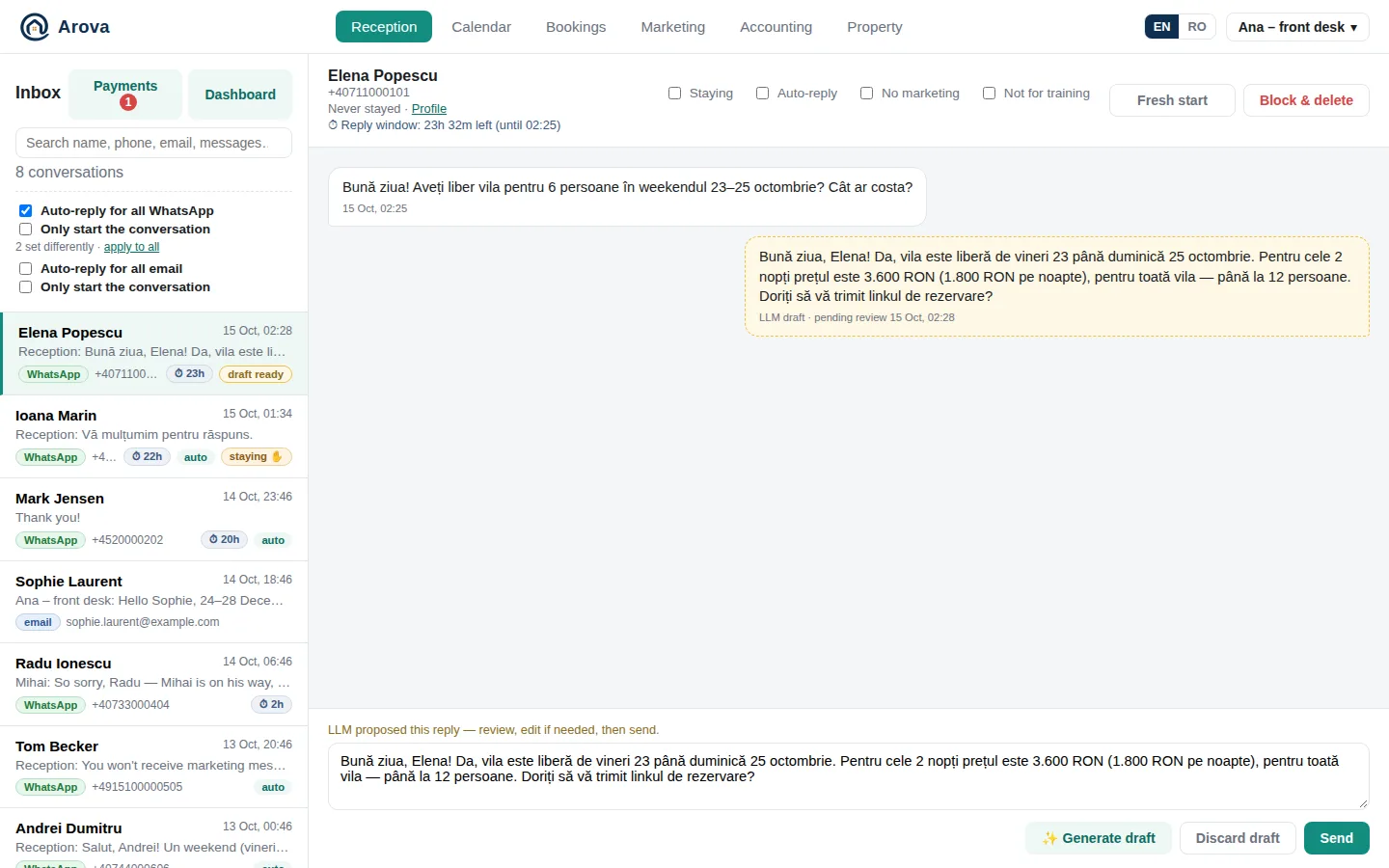
The first tab. On the left the inbox; on the right the open conversation — or, when none is open, the Dashboard.
The inbox
Every conversation, newest activity first — any message to or from the guest (including the bot's and the marketing question) moves it to the top. Each line shows the guest's name (or number/address), the last message (with who on the team sent it), and badges:
- WhatsApp / email — the channel.
- ⏱ 23h — time left in WhatsApp's 24-hour reply window; it turns orange in the last 2 hours.
- draft ready — the bot has written a reply waiting for you.
- auto — auto-reply is on for this conversation; start — it's in “Only start the conversation” mode.
- staying — the guest is staying now (✋ = marked by hand).
- Google, Facebook, Instagram, Website, Booking page or 🤝 a partner's name — where a new WhatsApp conversation came from: the code your links put in the guest's first message (your site's WhatsApp button, the booking page, a partner's link, your social posts' links), or a Facebook / Instagram ad or button. Hover it for the details; nothing shows for a guest who simply wrote.
The search box finds conversations by name, phone, email, email subject, the name on an ID they sent, and the text of the messages. The list loads 20 at a time — Load more at the bottom; a long conversation shows its last 50 messages — Earlier messages at the top.
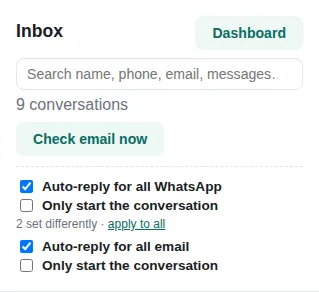
Above the list:
- Dashboard — the property at a glance (more).
- Check email now — shown once a mailbox is connected; Arova checks it every minute anyway.
- Auto-reply for all WhatsApp / email and Only start the conversation — see below. “2 set differently · apply to all” means some conversations were changed by hand; apply to all puts them back in line.
Replying, and the bot's drafts
Open a conversation, type in the box at the bottom and press Send. It goes out on the guest's channel (WhatsApp, or an email reply in the same thread, with a copy in your mailbox's Sent folder).
- ✨ Generate draft — the bot reads the conversation, the property's details, rates, calendar, terms and what Reception Training learned, and writes a reply in the guest's language. It appears in the box (and as a dashed bubble marked LLM draft · pending review). Edit it if needed, then Send. Your edits teach the bot: it remembers corrections you made to its drafts.
- Discard draft — throw the draft away.
- With auto-reply off, the bot doesn't write anything until you press Generate draft. With it on, the draft is sent straight away and shows as Sent automatically.
- 🧳 Check-out message — appears while the guest is staying; sends the check-out text from Property → Messaging → Check-in/out Templates (outside the 24-hour window, its approved WhatsApp template). It is normally sent automatically the evening before, at the hour set in Property → Automation.
- If a colleague answered while you were typing, Arova refuses to send twice and shows their reply.
- A reply that slips a word of another language (an English word in a Romanian reply) has it put into the reply's language before you see it or it goes.
- A guest writing in a language you don't speak (set to be translated in Property → Messaging → Translation): each message — theirs and yours — shows its translation under it (🌐, in italics). ✨ Generate draft puts the reply in the box in your language, with the note “Write in English: it's sent in German, the language the guest wrote in.” Send it unchanged and the bot's own text goes; edit it, or type your own, and your words are translated into the guest's language as they're sent. If the guest switches to a language you don't translate (or to yours), your reply goes exactly as you typed it.
- Links in messages — the guest's and yours — open in a new tab.
Photos, videos, voice messages and files from guests show inside the conversation (tap a photo for full size).
Under the guest's name: their number or address (and email subject), their history with you — “Never stayed”, “Booked 6–9 Nov”, “Stayed 12–14 Sep” — with a link to their Profile in Bookings, and the WhatsApp reply window. Booking.com guests who write from Booking.com's relay address are matched to their reservation by its number, so they show “Booked 23–26 Oct” too.
Auto-reply
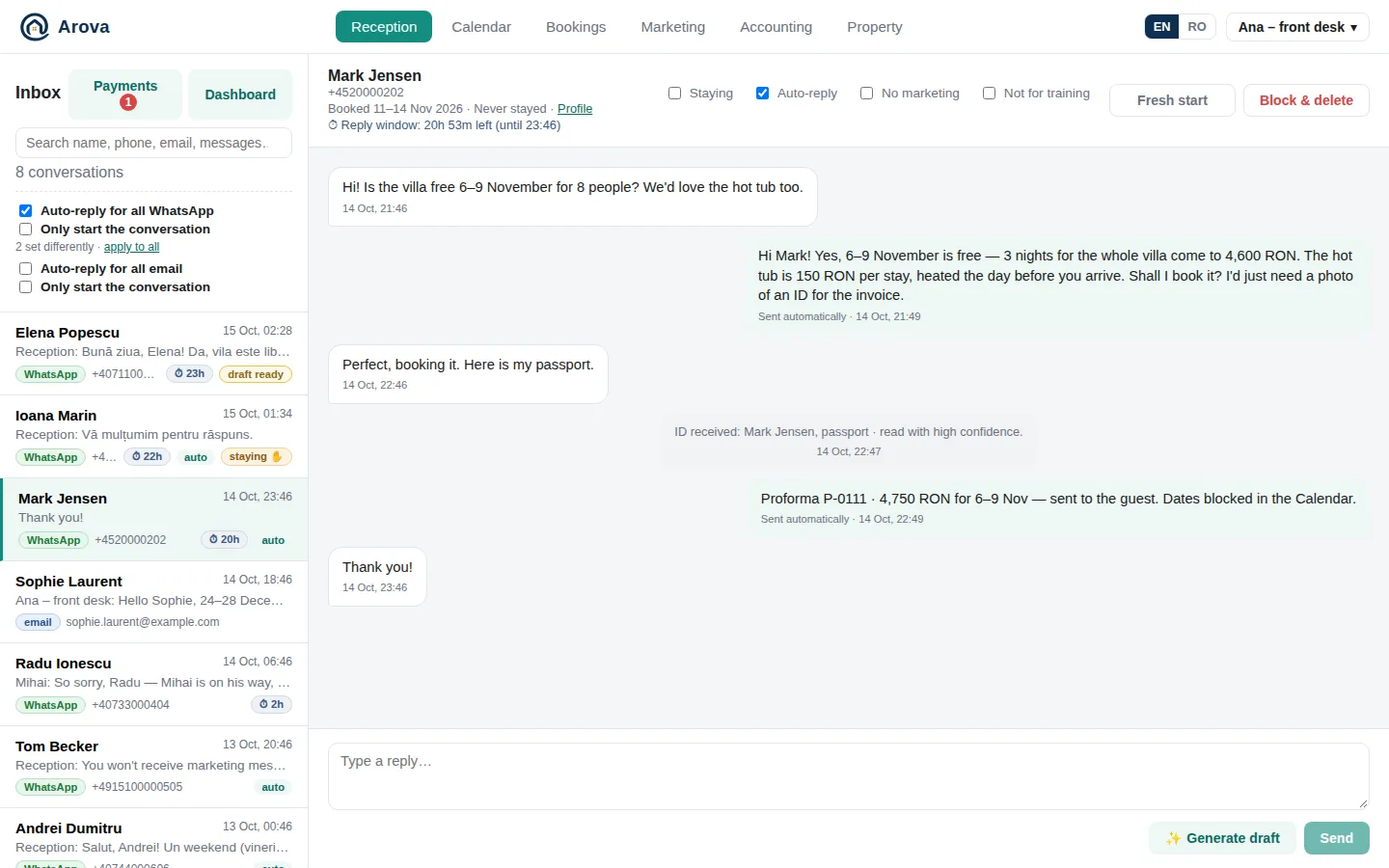
Auto-reply means the bot's reply is sent without anyone reviewing it. It works on two levels:
- Auto-reply for all WhatsApp / Auto-reply for all email (top of the inbox) switches it for every conversation of that channel at once, and for new ones. It's remembered for the property.
- Auto-reply in a conversation's header switches it for that one conversation only.
Even with auto-reply on, the bot steps back by itself in some cases (a complaint, a photo that isn't an ID…) — see When the bot steps back. A guest who only says “thank you”, “ok” or 👍 after an answer gets no reply.
Only start the conversation
For when you want the bot to answer quickly at first, then leave the conversation to you. Tick Only start the conversation for WhatsApp and/or email at the top of the inbox (this switches “Auto-reply for all” off for that channel). Each new conversation then gets the bot's answers to the guest's first messages, and then the bot stops.
- How many messages it answers: Property → Messaging → Conversation → Answer only the first N messages (default 1).
- Reset every H hours (optional): H hours after the bot's first answer it can answer the same guest again (N more). Off: once the bot has answered, the conversation is yours.
- The conversation header shows the count: 🤖 1 of 2 auto-replies left · resets 11 Oct, 14:00.
In this mode the conversation's Auto-reply box has three states — click to go round:
| Box | Meaning |
|---|---|
| ■ (filled, neither ticked nor empty) | Only start the conversation: the first N messages, then stop. |
| ✓ ticked | Answer every message in this conversation. |
| empty | Never answer automatically. Clicking again returns to ■, with the count from zero. |
The conversation's switches

| Switch | What it does |
|---|---|
| Staying | Whether the guest gets the Smart Guest Home features (temperatures, heating, cameras, gate, lock, EV charging) on WhatsApp and on their private page. It is automatic from their booking — from 10:00 on the check-in day to 14:00 on the check-out day, Booking.com guests included (matched by their reservation number) — or set by hand (✋; back to automatic undoes it). While staying: copy guest link, and 2/5 SGH devices — how many phones opened their link (at most 5; reset frees them). Opening the link yourself uses a device too. |
| Auto-reply | The bot sends its replies by itself in this conversation (see above). |
| Fresh start | The bot forgets the conversation so far and reads only what comes after — for an old test, or a past stay that confuses it. It also forgets an ID photo sent before. The messages stay visible to you. Untick to let it read everything again. |
| No marketing | Marketing leaves this guest out — see the next section. |
| Not for training | Reception Training won't learn from this conversation (an unusual case you don't want repeated, a test). Nothing else changes: notifications, marketing and Analytics treat it as usual. |
| Block & delete | For spam and phishing: the sender is blocked (their emails and WhatsApp messages never reach Reception again and aren't answered) and the conversation is deleted. It can't be undone, but the sender can be unblocked in Property → Messaging → Blocked Senders (the conversation doesn't come back). |
| Delete | Email conversations only: deletes the conversation and its messages, without blocking the sender — for an email that landed in Reception by mistake (say, a bill forwarded from an address Accounting doesn't take). A new email from them starts a new conversation. Not for a guest with a proforma. It can't be undone. |
No marketing — who gets deals and news
No marketing means Marketing never writes to this person: they are left out of every message to leads and past guests, of Find leads, and of the “Agreed to deals and news” list. It doesn't affect normal replies — Reception and the bot keep answering them.
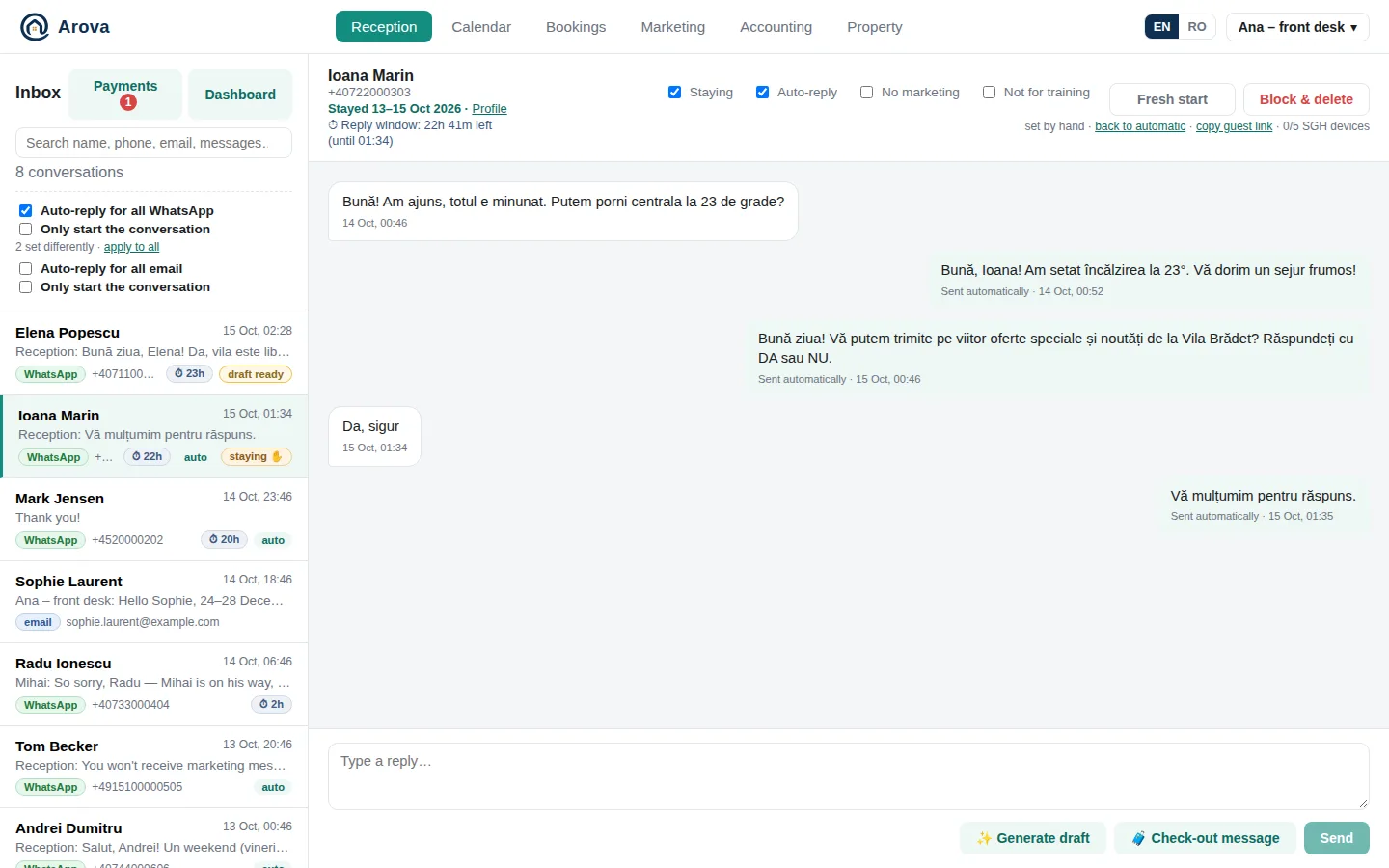
How it gets ticked and unticked
- Until asked, a guest is neutral — not on No marketing.
- The question. About 23 hours after a guest's last WhatsApp message — just before WhatsApp's 24-hour window closes, whoever wrote last — Arova asks once, in the guest's language: “May we send you special deals and news from [property] in the future? Reply YES or NO.” From that moment the guest is on No marketing: no answer is no permission.
- A yes lifts it. A yes within 24 hours is consent: No marketing is unticked and the guest is thanked (“Thank you for your answer.” / “Vă mulțumim pentru răspuns.”). A yes that comes later is asked again (“Since more than 24 hours have passed…”), with the same rules.
- A no keeps No marketing and is thanked. A reply that isn't an answer (a question about something else) changes nothing — the bot answers it normally.
- Not asked when the guest is already on No marketing, or when the bot handed the conversation to the team (a complaint, a problem, swearing…).
- STOP. A guest who writes STOP on WhatsApp (also “Stop.”, “STOP!”), or STOP / unsubscribe / dezabonare by email, is put on No marketing and gets a confirmation — whether auto-reply is on or off. Every marketing email also has an unsubscribe link (and the one-click Unsubscribe button mail apps show).
- Asking later. A guest on No marketing who later clearly asks for offers or news has it lifted.
- Email: marketing emails go only to people who have stayed with you. Email contacts who never stayed are No marketing until they have.
- By hand: tick or untick it yourself in the conversation, or per contact (WhatsApp number, email address) on their profile in Bookings.
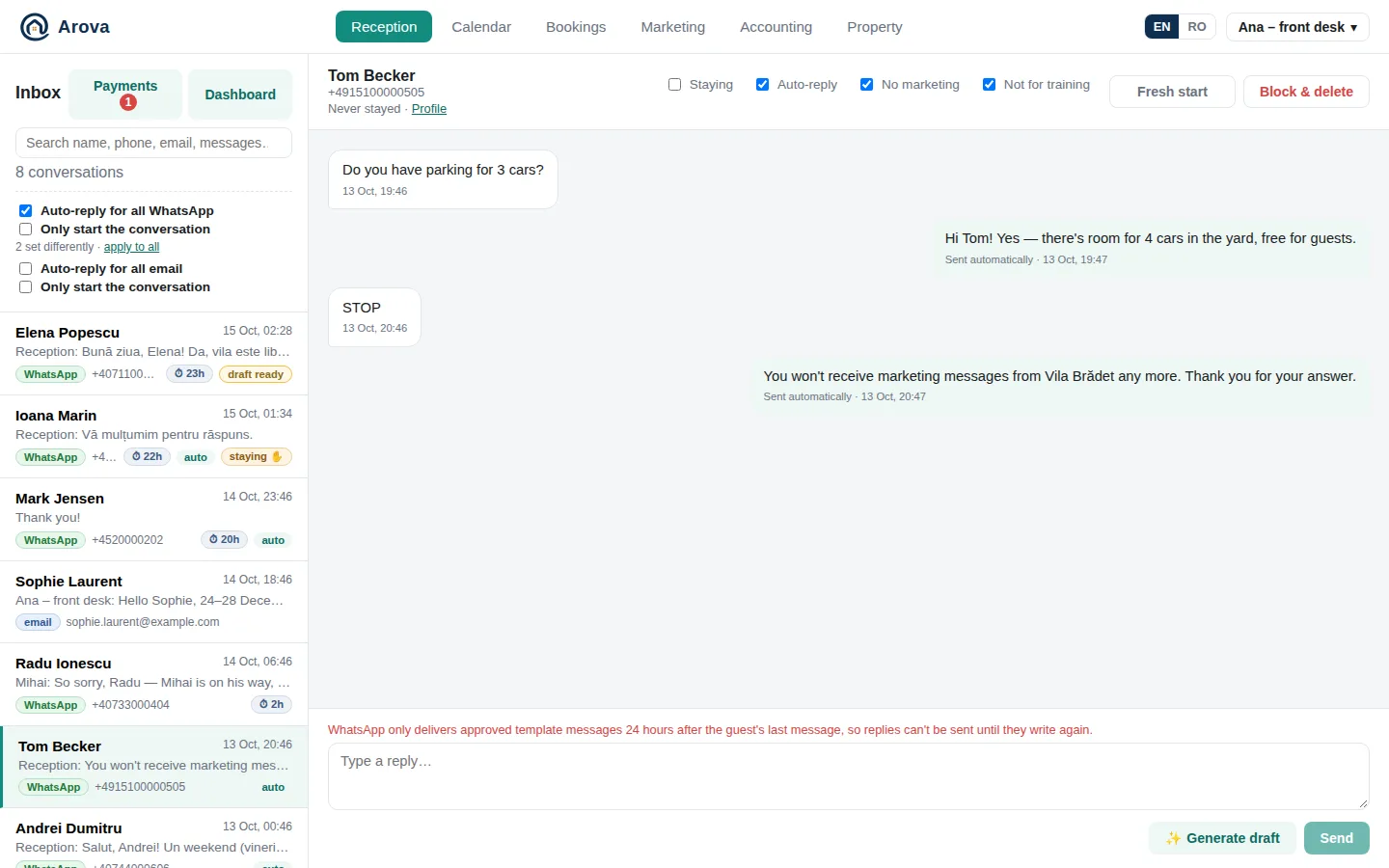
WhatsApp's 24-hour reply window
WhatsApp delivers free-form replies only within 24 hours of the guest's latest message; each new message from them restarts it. The header shows ⏱ Reply window: 5h 12m left (until 14:30). Once it's closed, Send is disabled until the guest writes again — only approved templates can go out, such as the check-out message (if its template is set up in Messaging). Email has no such window.
Sending a file
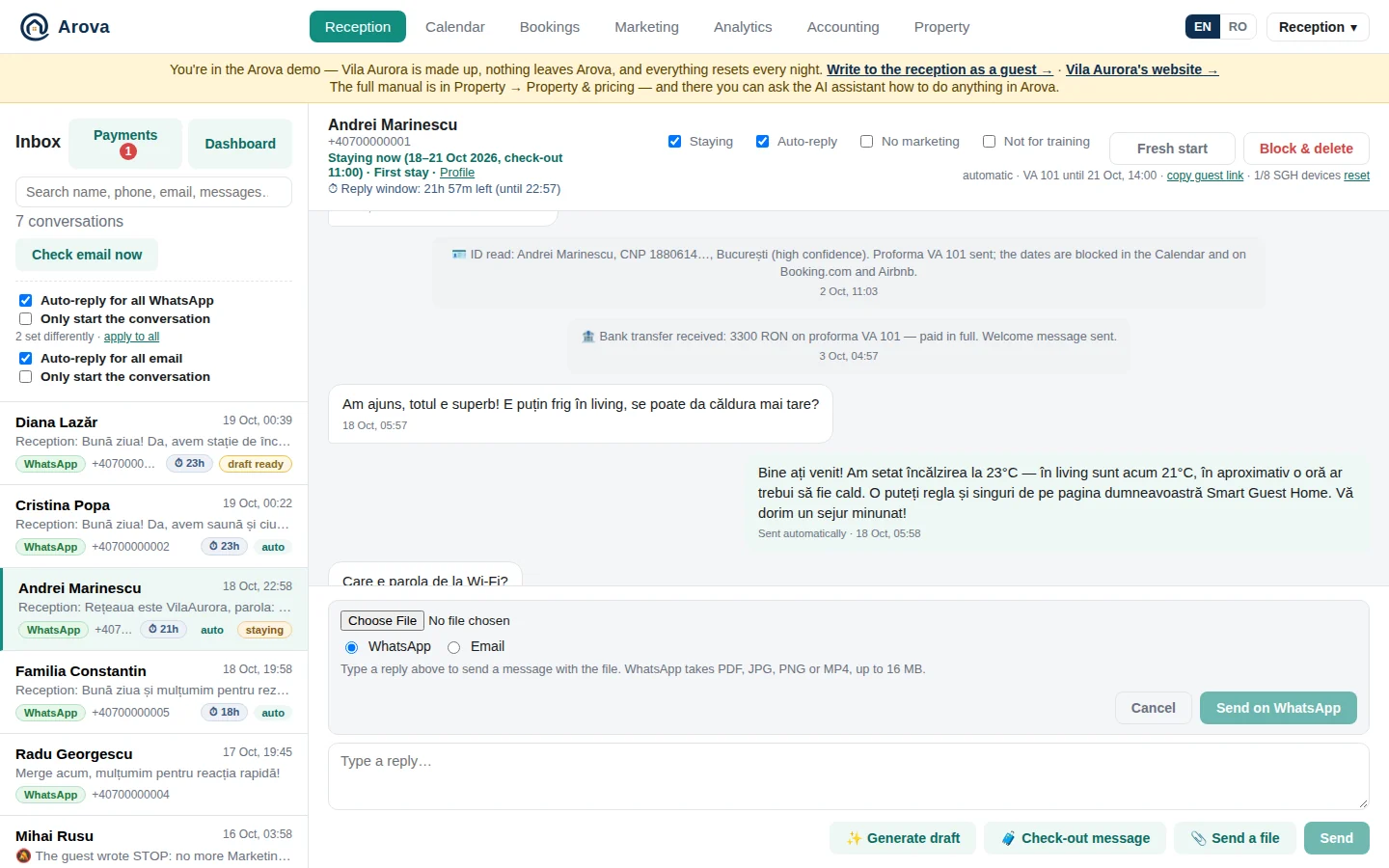
📎 Send a file under the reply box — the invoice you made in SmartBill, a map, a photo. Pick the file, add a caption if you like, then:
- On WhatsApp — while the guest's 24-hour window is open; PDF, JPG, PNG or MP4, up to 16 MB. WhatsApp fetches it from a private link that works for 48 hours.
- By email — any file up to 16 MB, any time. From a WhatsApp conversation it goes to the guest's email (their booking's, or type one) in their email conversation, and a note in the WhatsApp thread says it went.
- The file shows in the conversation like the guest's own attachments.
IDs and proformas in the chat
When a guest agrees to dates, the bot asks for a photo (or PDF) of an ID — a Romanian ID card or a passport — for registration and the invoice.
- The photo is read automatically (name, CNP or passport number, address, date of birth, nationality). A grey note in the conversation says what was read and how sure the reading is. Missing details (e.g. the address on a passport) are asked from the guest and filled in from their answer.
- Once the dates are agreed and the ID is complete, Arova issues the proforma (PDF, with the next number), sends it to the guest on their channel with the payment details (and a card link when card payments are on), and blocks the dates in the Calendar — which closes them on Booking.com too.
- Each new booking needs its own ID sent after the previous booking. A guest who asks to move their latest reservation to other free dates gets it moved (the old proforma cancelled, a new one issued) without a new ID.
- Proformas are never issued for fewer than 2 nights or past the minimum-stay rules, and only when the company details are set up (Property → Accounts).
- The ID photos are kept encrypted and deleted 90 days after the stay; the details on the proforma are kept with it.
When the bot steps back
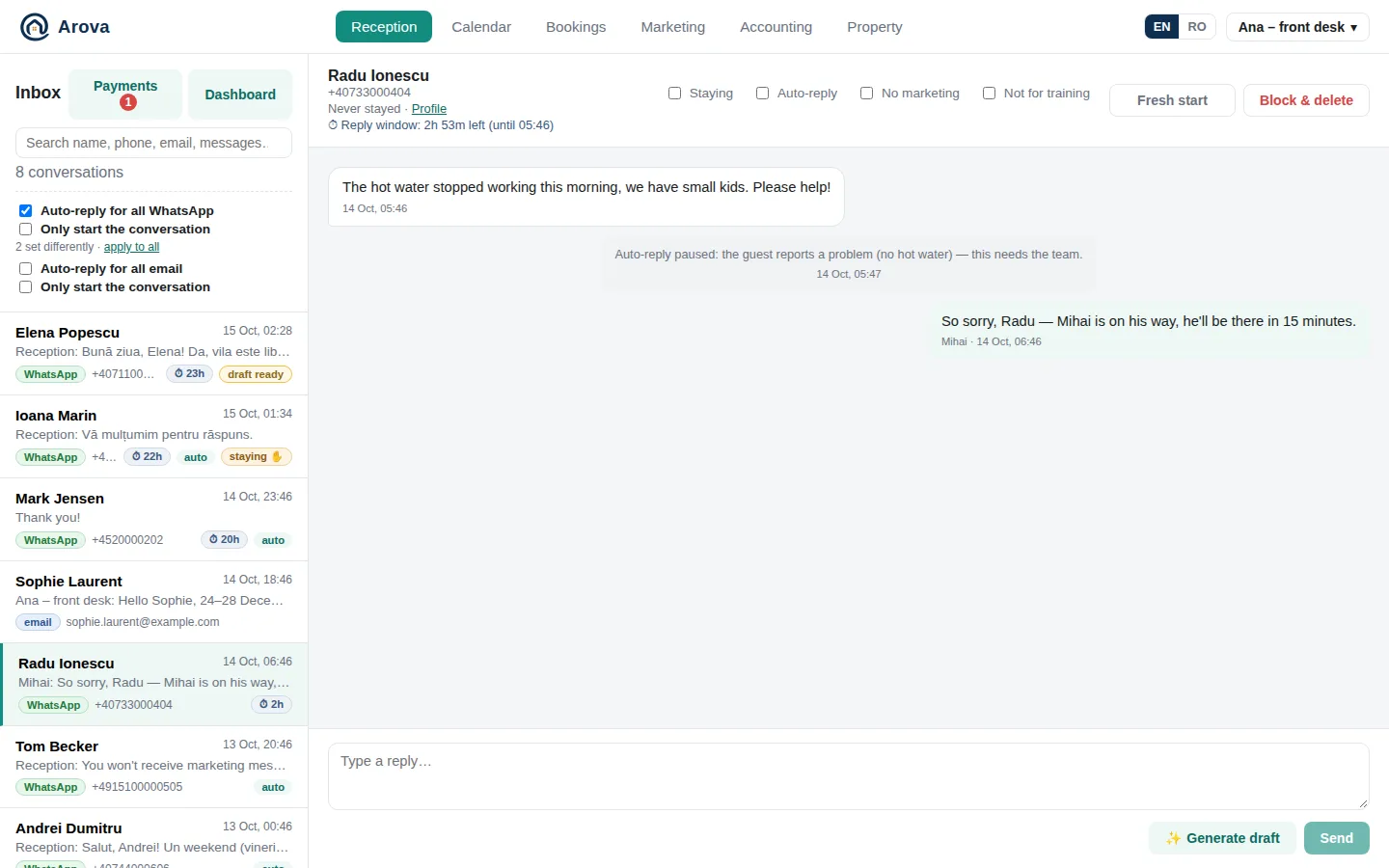
- Complaints, emergencies, refund or discount requests, swearing: auto-reply is switched off for that conversation, a note says why, and the team's phones are notified. Tick Auto-reply again when it's sorted.
- Media that isn't a readable ID (a view, a video, a voice message): auto-reply stops for the conversation and the team is told the guest sent media.
- A question the bot can't answer, or any early check-in / late check-out request: nothing goes to the guest; auto-reply is switched off and the team is notified. A reply that would still promise someone confirms later (“we'll confirm”, “a colleague will get back to you”) is held as a draft the same way. Offering to check availability once the guest gives their dates doesn't count — the bot does that itself.
- Just thanks: no reply — unless the guest is still waiting for an answer or our last message asked them something.
Dashboard
Reception, when no conversation is open — or the Dashboard button above the inbox.
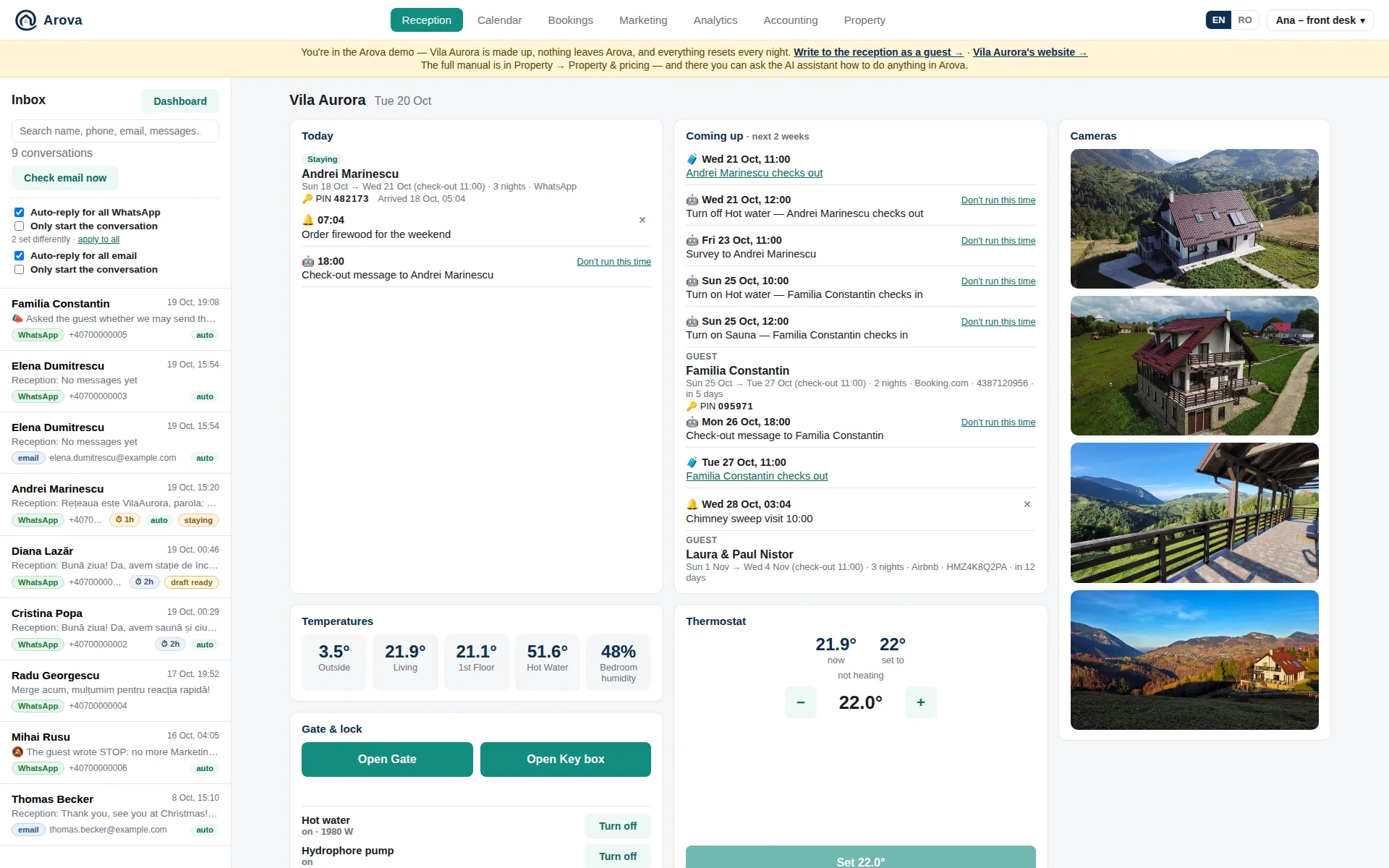
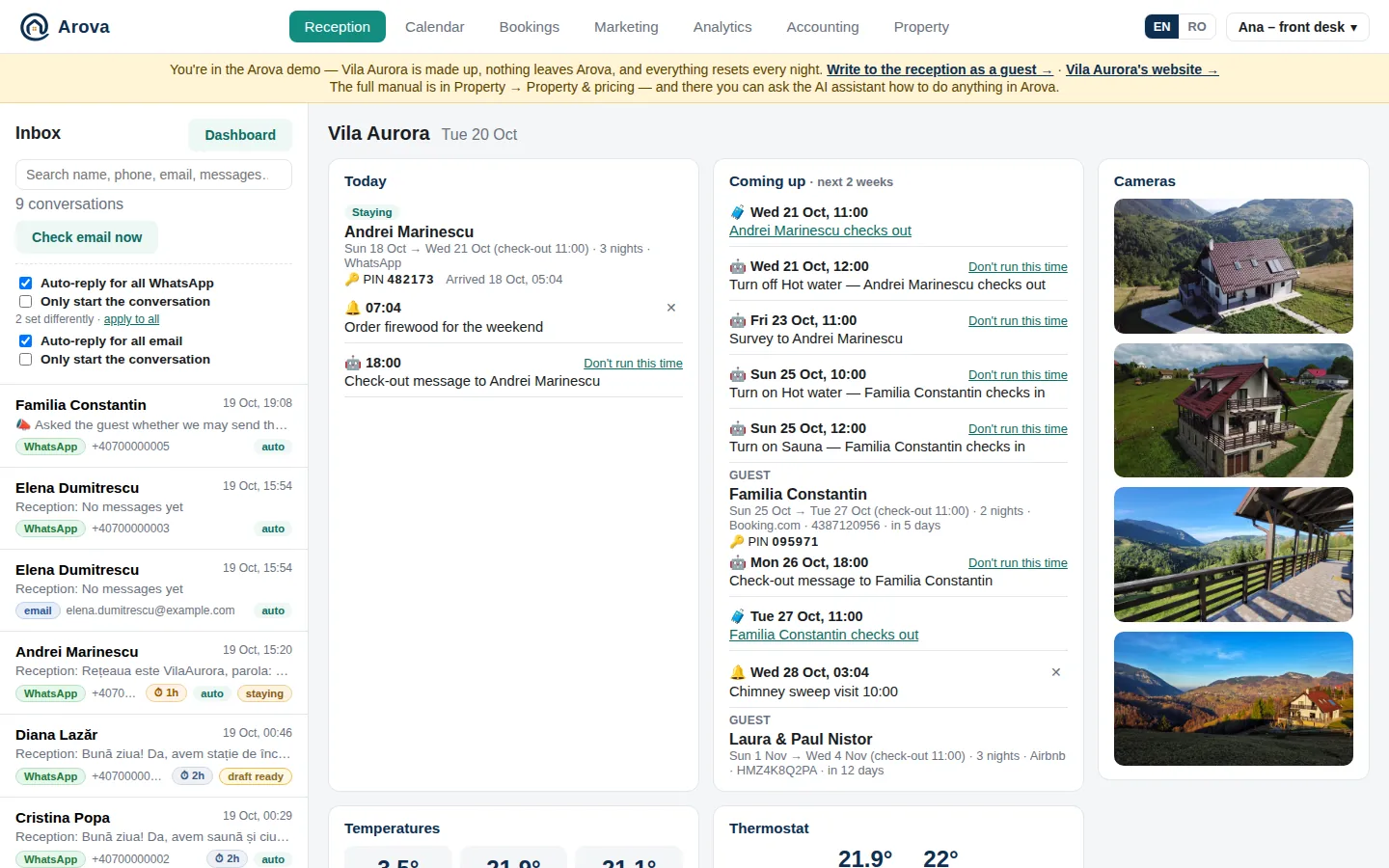
- In tabs (the one chosen is kept on the device): Today (Today and Coming up, next to the Cameras), Heating & Access (Temperatures, Gate & lock, Thermostat — when the property has any), Smart Home Status and Quick Links. The time at the property ticks next to its name.
- Today — who is arriving, staying and leaving, cleaning and closed days (“Ongoing today”), today's reminders, and a guest charging their car (kWh and cost, live). Cleaning or a closed range ending today drops off at the check-in time (14:00 unless set otherwise): the house is ready for the next guest. Days closed on Airbnb show as Closed on Airbnb.
- PIN, arrived, left — under each guest, with PINs per booking on: their key box code (to read out by phone if need be), and when they arrived and left (from the key box).
- Recent activity — under today's items, today's activity (the property's day; yesterday's when today has too few) fills the card, each line with its icon; a door's openings folded into one line. Door / window openings don't show here, except the first opening of a door set to notify the first time. Marketing SMS scheduled for later show at their hour (📱) with Cancel.
- Coming up — the next two weeks' bookings and closed dates, and reminders, in the order they happen. Click a name to open the booking; chat opens the guest's conversation.
- 🤖 Automations — in Today and Coming up, at their hour: the plug rules of check-in and check-out days (“Turn on Hot water · Lukas Weber checks in”), the check-out message and the survey, each with how it went: done, didn't work, trying…, didn't run, off for this booking, skipped — a guest arrives today (a check-out “off” rule doesn't run on a changeover day), or cancelled by …. A plug switch still to come has Don't run this time — e.g. the cleaners still need the water pump after the guests have left; it's cancelled for that day only, and Run it after all brings it back (at its hour, or straight away if that has passed less than two hours ago). Both go in the activity log.
- Temperatures (the readings ticked Reception — which readings show where), Thermostat (− / + then Set), Gate & lock (Open buttons) and Cameras — when they're set up in Smart Guest Home. Under the gate and lock, the Tapo plugs marked Show in Reception, each with its state and a Turn on / Turn off button.
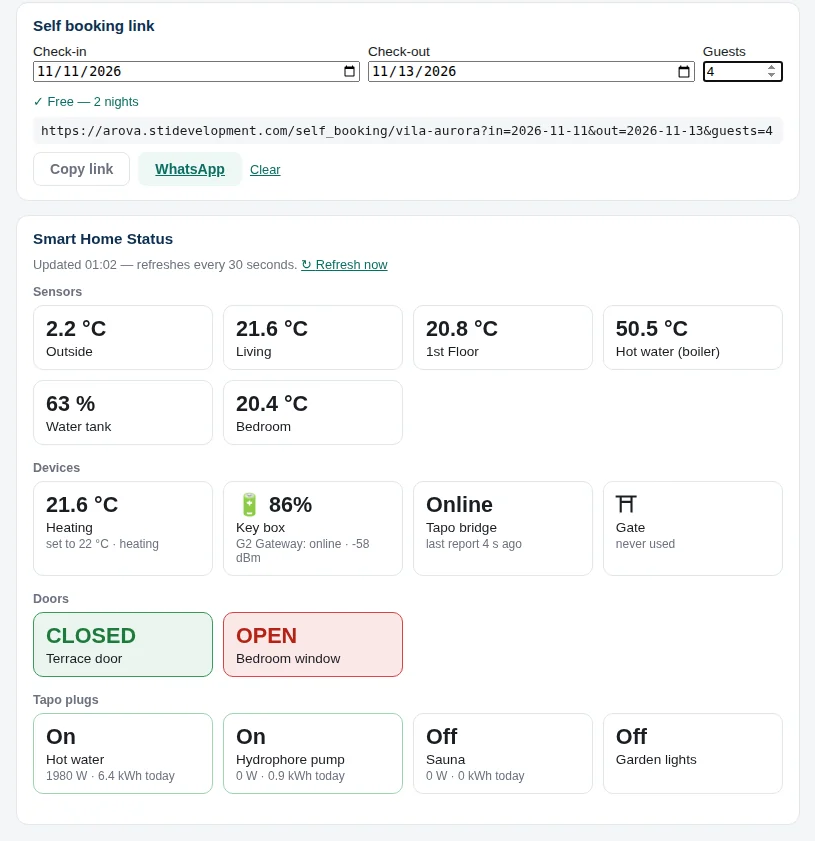
- Quick Links — the Smart Guest Home links of the guests staying now and coming (each Calendar booking has its own, WhatsApp and email guests' too), staying first, with their dates, where they're from and Copy. Then the Self booking link — for a guest asking on the phone: optional check-in, check-out and guests (whether the dates are free is checked as you pick them), then Copy link, Share… or WhatsApp (the normal WhatsApp app, not WhatsApp Business).
- Below it, the house's devices (chosen in Smart Guest Home → Reception Dashboard): sensors, devices, Doors (closed in green, open in red) and Tapo plugs.
Calendar
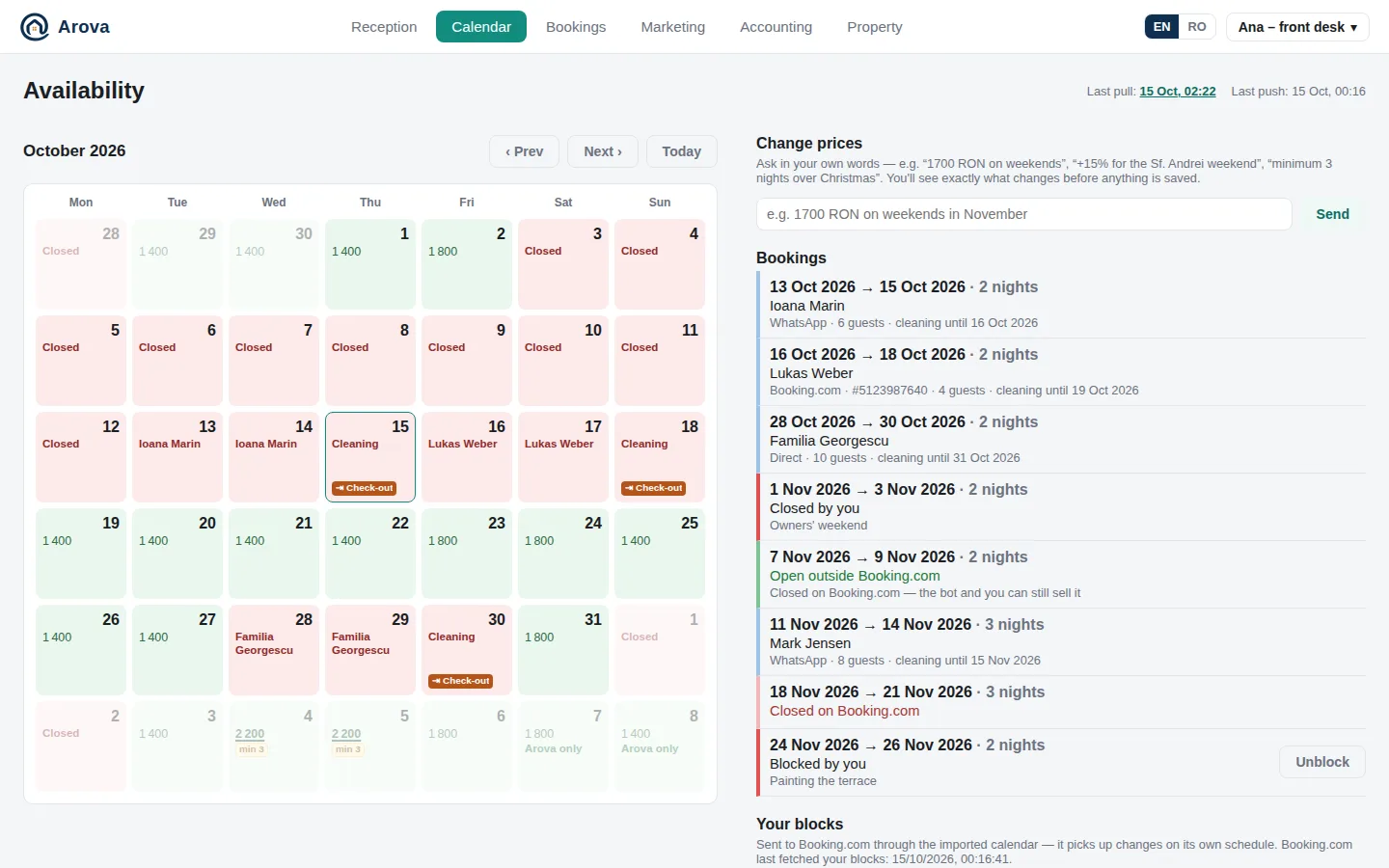
The Calendar tab: the month on the left; Change prices, the Bookings list, your blocks and Smart Guest Home links on the right.
Booking.com, Airbnb and Travelminit sync
With the calendar links saved (Property → Accounts → Booking Platforms), the top of the Calendar shows, for each site, Last pull — when Arova last read it (Booking.com every 30 minutes, Airbnb every 15; click it to read it now) — and Last push — when that site last read Arova's calendar, on its own schedule (every few hours). A block made after the last push shows “not on Booking.com yet” / “not on Airbnb yet”.
- An Airbnb reservation becomes a booking by itself (channel Airbnb, with its HM… code and the last digits of the guest's phone); moved or cancelled on Airbnb, it's moved or cancelled here. Its dates close on Booking.com.
- A Booking.com stay closes its dates on Airbnb.
- Close dates in Arova, not on Airbnb: days closed only on Airbnb (“Not available”) show as Closed on Airbnb but are not passed on to Booking.com — otherwise each site would keep the other closed forever.
- Travelminit (read every 15 minutes): its booked nights show as Closed on Travelminit and are passed on to Booking.com and Airbnb (never back to Travelminit); Arova's own nights close on Travelminit through Arova's Travelminit link.
Reading the calendar
- Free days show their price per night (in bold when the day has its own price) and “min 3” when a minimum stay is set — by you, or by a chain of legal holidays.
- Guest days show the guest's name (or the Booking.com reservation number); click to open the booking.
- Cleaning (pink) — the nights kept closed before a check-in and after a check-out (Property → Property & pricing → Pricing & Availability); Closed (red) — closed by you, on Booking.com or on Airbnb.
- Closed on Booking.com / Closed on Airbnb (open) — closed on that site but opened in Arova: sold directly, by you and the bot.
- Awaiting payment (yellow) — held for 30 minutes while a guest pays on the booking page.
- Not open yet — past how far ahead guests can book (Property → Property & pricing → Pricing & Availability).
- ⇥ Check-out — a guest leaves that morning. Legal holidays are named on their day.
- Rented per room: each day shows rooms sold out of all (“2/4”, ✓ when sold out) and the cheapest free room's price.
Selecting nights
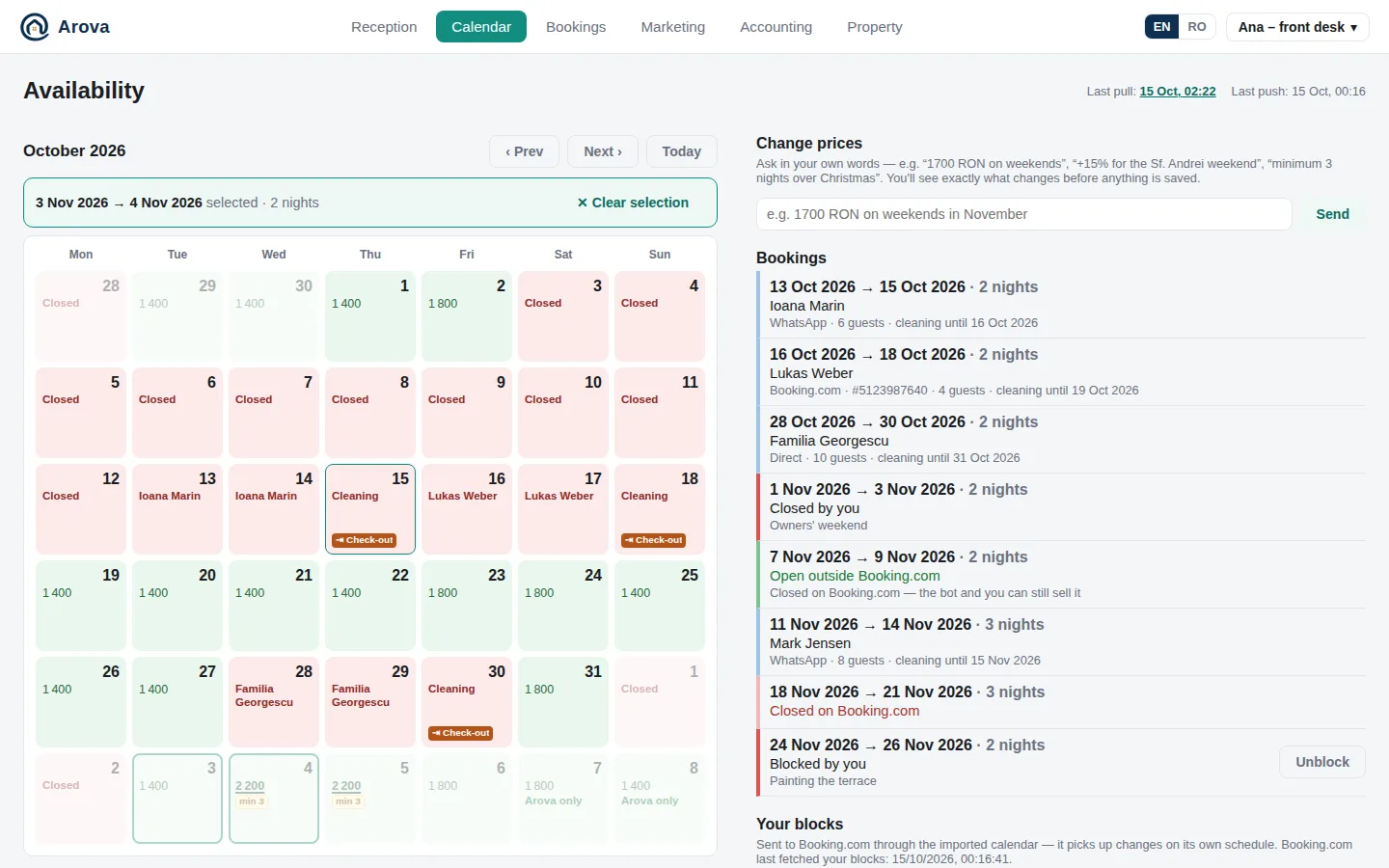
Click the first night, then the last night (the day before check-out) — clicking further days extends the selection instead of starting over. The panel shows the dates, nights and check-out, with:
- Block dates (with an optional note only you see) — closes them here, on Booking.com and on Airbnb.
- New booking… — opens a new booking for those nights.
- Clear selection (or Esc).
The day menu (right-click)
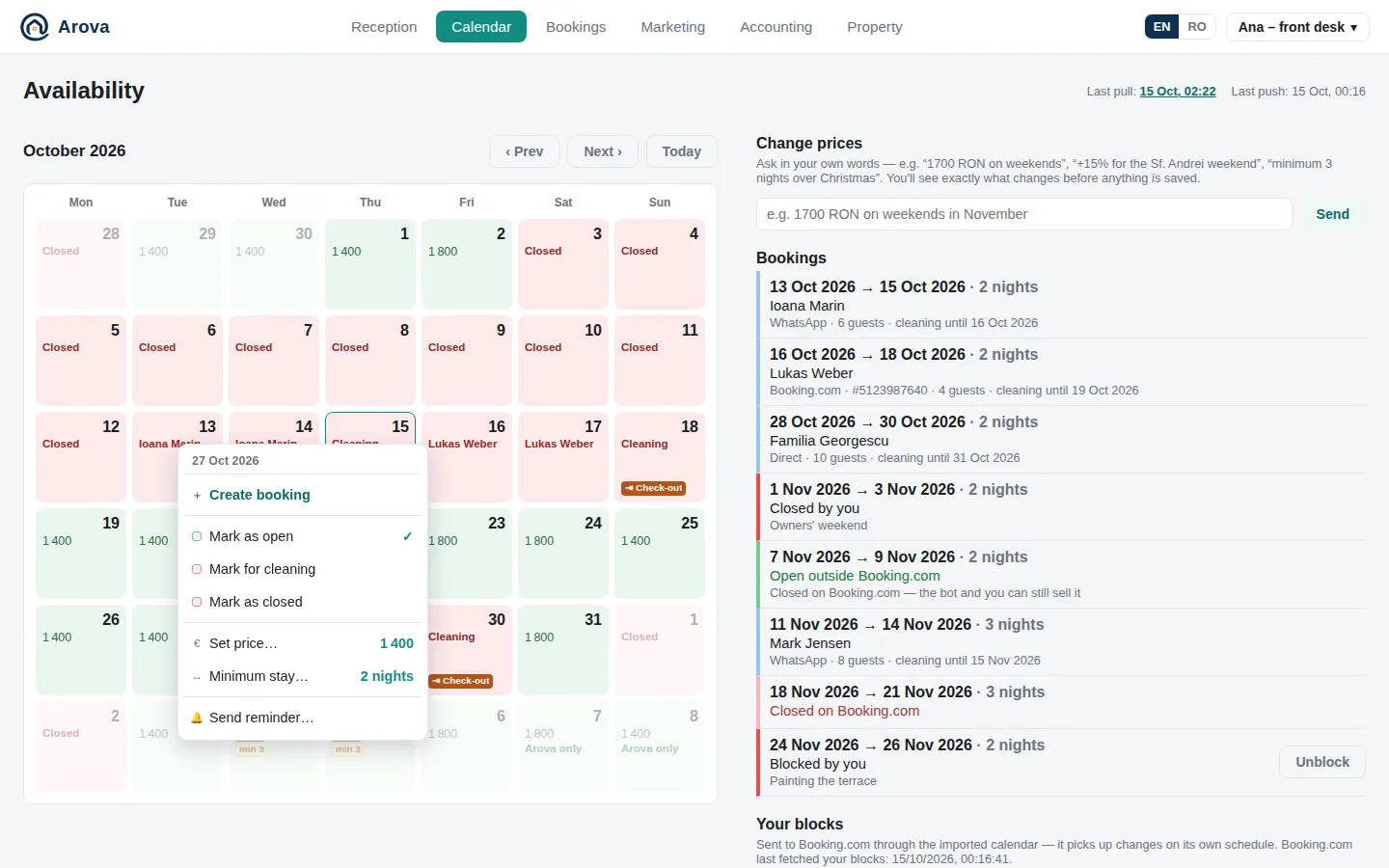
- Create booking — a new booking for the day or the selection.
- Mark as open / Mark for cleaning / Mark as closed. Mark as open on a day Booking.com or Airbnb keeps closed opens it in Arova: you and the bot can sell it (e.g. at a higher price or for longer), and it says Closed on Booking.com / Closed on Airbnb. Once that site closes it again later (a new booking there), it's closed in Arova too. The cleaning app clearing a cleaning day does the same.
- Set price… — this night's own price; Back to the standard price removes it.
- Minimum stay… — stays that include this night must be at least N nights; Back to the usual minimum removes it. (The usual minimum is 2 nights.)
- Send reminder… — see Reminders.
- On a guest's day: Open booking. On a day awaiting payment: Reopen frees it at once.
- Rented per room, the menu lists the rooms with tick boxes: the change applies to the rooms ticked.
A booking's page
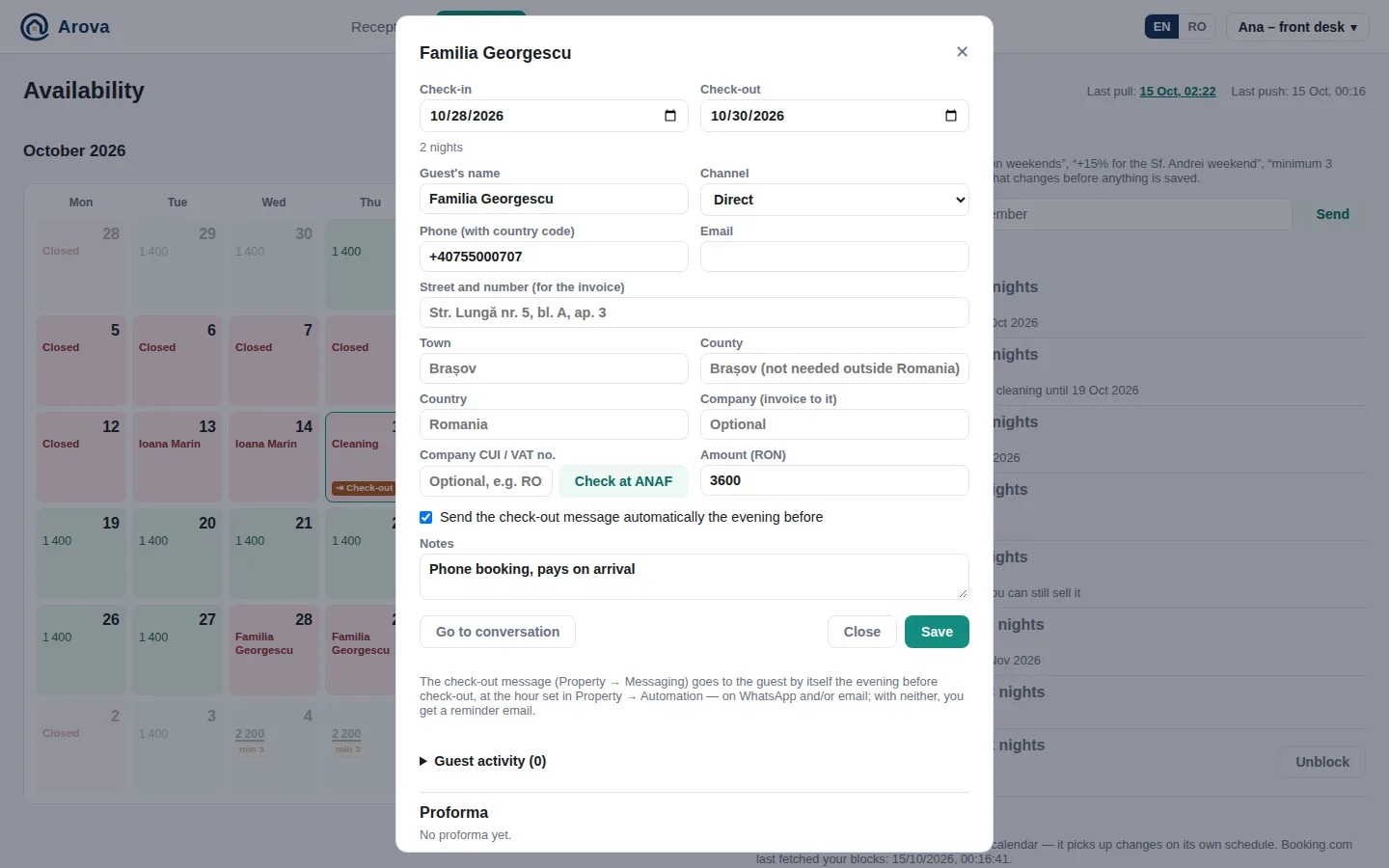
Open a booking from the Bookings list, the calendar, the Dashboard or the Bookings tab. You can also add bookings taken anywhere — a phone call, Airbnb, friends staying.
- Check-in / Check-out, rooms and guests (rented per room), Guest's name, Channel (Booking.com, Airbnb, WhatsApp, Email, Self booking, Website, Direct), Phone with country code, Email, the address in parts (street, town, county, country — as invoices need it), optional Company and CUI / VAT no. (Check at ANAF fills in the company's official name), Amount (filled from your rates until you type one), Notes.
- Date of birth, Place of birth, Nationality, ID card series, ID card / passport no. — optional: they fill in the guest's arrival form, and the guest completes whatever is missing on their Smart Guest Home page.
- A phone or email puts the booking with that guest's conversation and profile — Go to conversation. For a Booking.com reservation the button is Open on Booking.com ↗.
- Send the check-out message automatically the evening before — on by default (the hour is in Property → Automation). Untick it to send it yourself (e.g. to ask them to leave earlier); you get a reminder email instead.
- Under the details, tabs: Address, Automation, Invoicing and Activity.
- Activity — what this booking's guest did and what Arova sent them: the gate, the heating (with the reading before), the lock box, switches, EV charging, a new device on their link, the welcome and check-out messages, the survey, automations (a door left open with the heating on, the water tank). See Activities Log. Below it, the cleaning reports matched to this booking (stars, note, pictures).
- Stay report (top of the Activity tab) — Make the stay report makes a PDF of the stay so far: the guest and their phone numbers and emails, average temperatures by day and by night (day and night from the property's sunrise and sunset, shown for each day), lowest and highest, from the guest's arrival (their key box PIN, else the first door opening) to leaving — read from the temperatures picked for the log (Automation); odd sensor readings (85° out of nowhere) are left out. Then the guest's activity from 10:00 on check-in day (no door / window openings and automatic temperatures, except the first opening of a door set to notify the first time), a picture from each camera with when it was taken, and the cleaning report last. It's kept (one per booking): Make it again replaces it; the final one is made when Smart Guest Home access ends and emailed to the team when Email the stay report is on. Made in English and, when the property's Default language isn't English, in that one too — a button for each.
- Cancel booking (bottom left) — the booking cancelled altogether: its nights and cleaning days open again, its proformas are void (their pay links stop working), instalments still scheduled won't be issued, and its Smart Guest Home link stops. The confirmation lists all of it first — with what was already paid (refund it yourself if needed) and, for a Booking.com or Airbnb booking, a reminder to cancel it there too. The cleaning app is told.
- Booking.com ranges: Booking.com's calendar only says “closed”, for a stay and the days closed after it alike. Click such a range and fill in the guest and the real check-out; the rest becomes cleaning or closed days. A warning shows when Booking.com doesn't show the nights closed any more (cancelled?).
Proforma
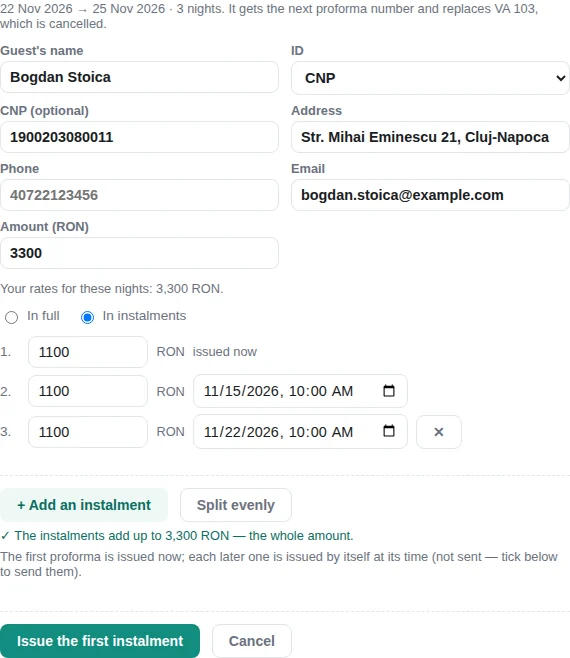
Issue proforma… (or Issue a new proforma…, which cancels the old one) — guest's name, CNP or passport number (optional), address, phone, email and amount, with what your rates say for those nights. Tick Send it to the guest to send it on their channel with the payment details; otherwise copy the message shown and send it yourself. Delete removes a proforma. Payment status shows under it (“Paid: … · still to pay …”). With card payments on, Payment link… makes a Stripe link for what's left.
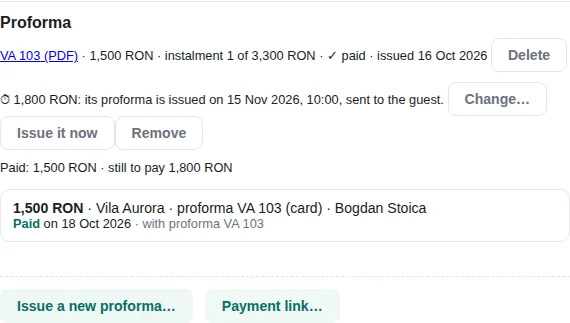
In full or in instalments — above Issue proforma. In instalments: a row per instalment, each with its amount and when its proforma is issued (the first is issued now; the next starts a week before check-in at 10:00). + Add an instalment adds one for what's left, Split evenly spreads the amount, ✕ removes one. A line under them checks that they add up to the whole amount (green ✓, or red with how much is missing or too much) and that the times are to come, in order and before check-out — Issue the first instalment waits until they do, then shows the plan to confirm. Each instalment is a proforma of its own (“tranșa 2 din 3.000 RON”); the guest's message says what's left and when the next one comes. At its time each later one is issued by itself (sent to the guest too if Send it was ticked), with a phone notification and a note in the conversation. On the booking: each instalment's proforma and whether it's paid, and each scheduled one with Change… (amount, time, sent or not), Issue it now and Remove; an amount left without a proforma can be scheduled again. Not issued when the booking was cancelled or its dates changed (the team is told). Issuing a new proforma replaces all of them, moving what was paid. The welcome message waits until every instalment is paid.
Invoice
Issued in Arova (Use SmartBill for invoicing unticked in Property → Accounts → SmartBill): the invoice gets the next number of your invoice series (Accounts → Arova), Arova's PDF, and can be sent to the guest (Send to customer: email with the PDF, WhatsApp in the window, else SMS). It then waits 48 hours in Waiting to send to e-Factura before going to ANAF by itself. Invoices made by themselves on a confirmed payment are sent to the guest at once (see Payments). With SmartBill the invoice is created as a draft in SmartBill — nothing is issued or sent to e-Factura until you do it there; a draft can replace an earlier one. Either way invoices take the booking's Amount, and you can invoice in instalments (50%, ⅓, the rest).
Welcome message
Create welcome message makes the guest's Smart Guest Home link for the stay (10:00 on check-in day to 14:00 on check-out day) and fills it into your welcome message — Copy welcome message, Copy check-out message, Copy link — e.g. to paste into Booking.com's messages. For direct bookings paid in full it's sent by itself (outside the 24-hour window, as the approved template in Messaging).
Change prices in words
The Change prices box on the right: ask in your own words — “1700 RON on weekends”, “+15% for the Sf. Andrei weekend”, “minimum 3 nights over Christmas”, “250 RON for Room 1 on weekends”. Arova shows exactly what would change (and highlights the days) — nothing is saved until you press Apply. Last change … Undo reverts the latest applied change, including ones applied from Marketing.
Reminders
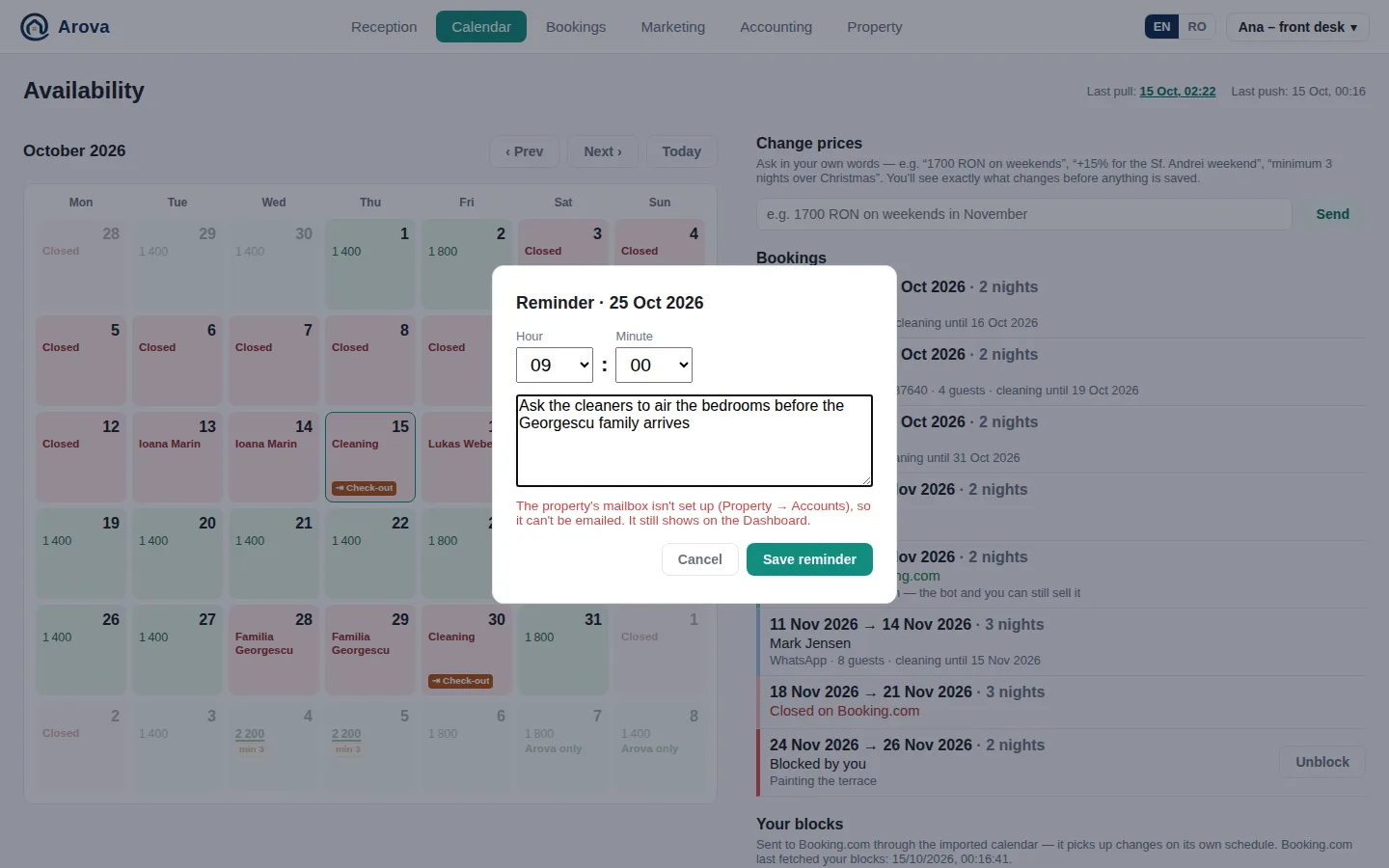
A note emailed to the team (the addresses in Property → Notifications & Alerts → Notifications) at the day and time you pick (Romanian time), e.g. “Send the 2nd invoice”. It also shows on the Dashboard, with ✓ emailed once sent; ✕ deletes it.
Waiting list
Calendar → Waiting list (after Change prices); the messages in Property → Messaging → Waiting List.
Guests who wanted dates that are taken can wait for them — as long as check-in is at least 3 days away:
- On the booking page any dates can be picked: taken ones offer Join the waiting list instead of booking (email and phone, the name optional). It comes into Reception as the guest's email.
- On WhatsApp the bot offers it when the dates asked for are taken — for occasions too (“de Revelion” → the night of 31 December, Christmas → 24–25) — with the booking link for other dates; the guest's reply with their email puts them on it, their WhatsApp number as the phone.
- On joining they get the waiting list message (Romanian / English,
{dates}{name}; a standard one when empty) — by email from the booking page, on WhatsApp (and emailed too) from a chat. - Every 5 minutes Arova checks: dates that can be booked again are told once to everyone waiting for them — on WhatsApp in its 24-hour window, else by email — with a booking link on those dates. When the dates free up is your own message (
{dates}{name}{property}{link}, and with a discount voucher chosen,{voucher}{percent}— the link opens with the voucher applied). Whoever books first gets them; the team gets a push. - The list shows who is waiting, who was told and when, with Remove. Entries whose check-in has come are closed.
Your blocks, and Smart Guest Home links
Your blocks lists the dates you closed, with Unblock (unblocking a guest's reservation cancels it). Smart Guest Home links lists the links made for given dates, with their status and devices, Copy welcome, Copy check-out, Copy link and Revoke.
Bookings
The Bookings tab (tablets and computers): customers on the left, bookings in the middle, the selected profile on the right.
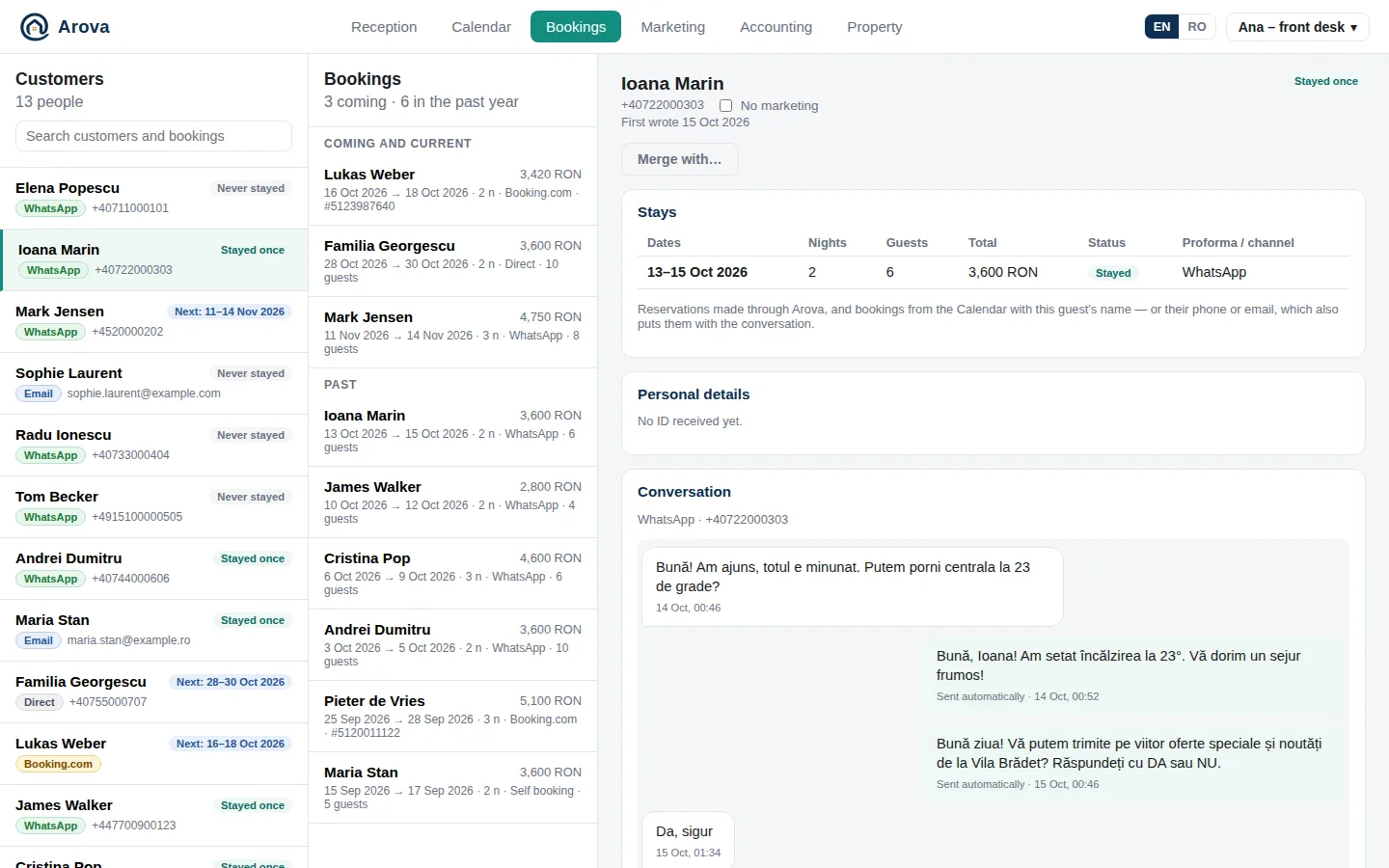
- Customers — everyone who has written (one WhatsApp number or email each) and everyone named on a booking, with a badge: Staying now, Next: 11–14 Nov, Stayed 2×, Never stayed. Search by name, phone, email or the name on their ID.
- Bookings — coming and current first, then the past year. Click one to open its booking page (“invoiced” shows when it has an invoice).
- The profile: each contact (number / address) with its own No marketing box; first contact date; Stays with nights, guests, total, status and the proforma PDF (Delete removes a proforma); Personal details read from their IDs, with View the ID; and their Conversation (a tab per channel).
- Merge with… — the same person writing from another number or email: their conversations, stays and IDs show together. Separate undoes it per contact.
Marketing
The Marketing tab: what the market around you is doing (from Google Hotels), and what to do about it.
The top of the page
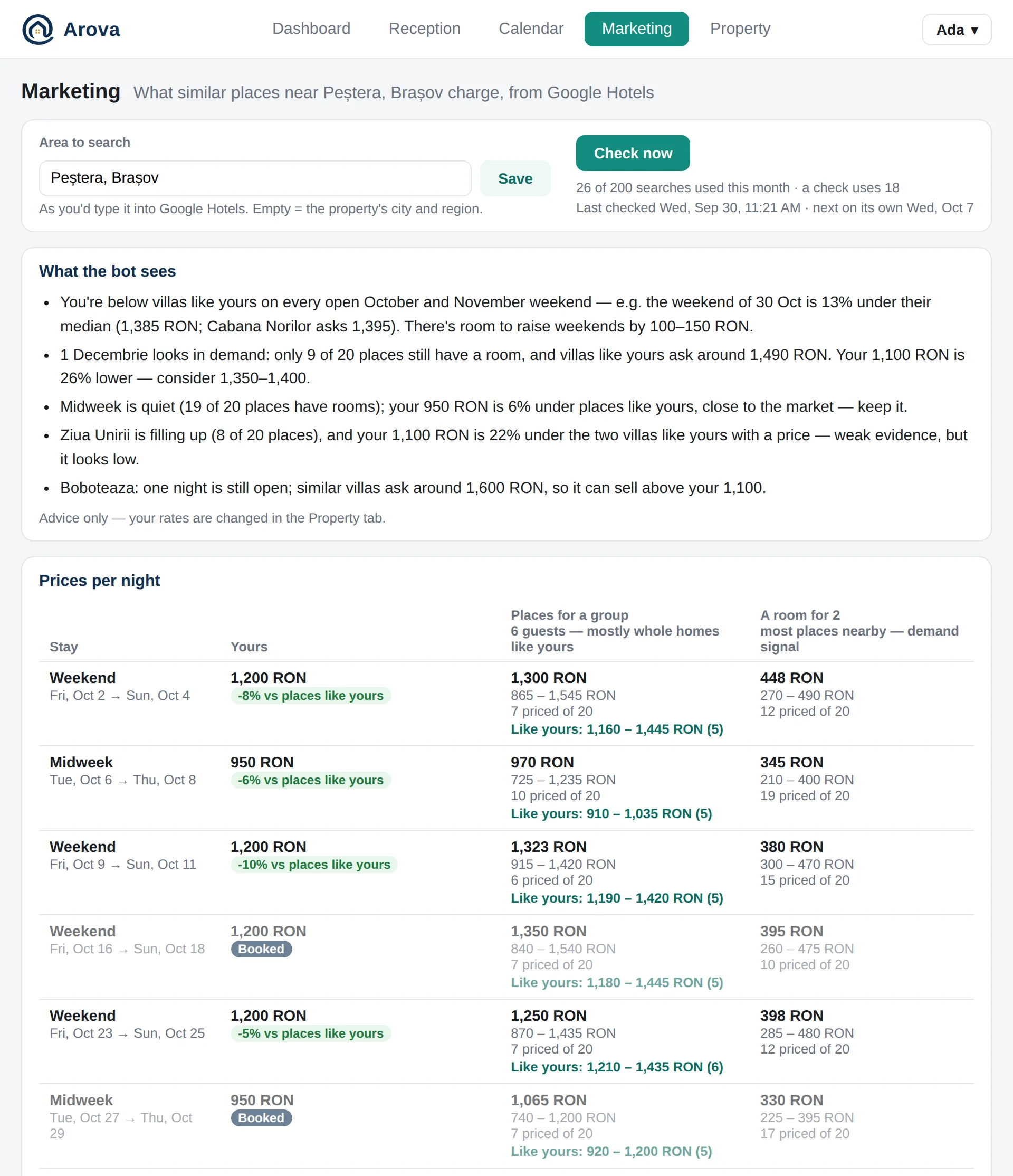
- Area to search — as you'd type it into Google Hotels; empty uses the property's city and region.
- Check now — searches Google Hotels for each followed stay and competitor (a few minutes). Checks also run weekly on their own. The line below shows searches used this month (the plan has a monthly budget) and when the next automatic check is.
- Think again (Gemma, quick) rewrites the read and the recommendations from the latest check; Think hard does the same with a stronger model (Claude Sonnet) — better judgement and drafts, a few minutes. Each section says which model wrote it.
Prices
What Arova sees — a short read of the market. Arova recommends — one action per open stay (hold, raise, lower…) with the reasoning and how far to trust it (High / Medium / Low). A price suggestion has Apply to the calendar…: you see the exact change first (as in Change prices), then Apply; Undo is in the Calendar.
Leads
Three tabs (the one chosen is kept on the device):
- All agreed to marketing — who said yes to deals and news (with the date) and past guests who weren't asked (“stayed with you”; they can opt out with STOP), never anyone on No marketing. Who wrote but never booked and was never asked isn't on it. Click a name to open the conversation. At the bottom, Send an SMS to everyone on the list (e.g. to announce a discount voucher).
- Find leads — ask for a list in your own words: “only leads from Moldova”, “everyone who wrote last November and never booked”, “past guests who stayed in August”; then refine it (“now only WhatsApp”). Arova picks exactly by number, dates and bookings (the months their stays started, any year; “wanted to book in November” = stayed then or asked about it); only “what they asked about” is read by the bot. It says who was left out (No marketing, messaged by Marketing in the last 30 days, not guests) — Show them too lists them, marked: people you put on No marketing can still be ticked (your call), but never those who said no themselves (answered NO, wrote STOP, unsubscribed). Tick people → Add N to a new message (or to one already waiting). Your messages are under it, under Your messages: edit the text, untick anyone, add phone numbers or emails, then Send or Send later. Arova never proposes messages by itself any more.
- New Message — an empty message: type any phone numbers or emails, write the text, Send (kept under Your messages as sent).
How a Marketing message goes: on WhatsApp (free, ending “Reply STOP to opt out”) to WhatsApp guests who wrote in the last 24 hours; if WhatsApp refuses it, or later says it wasn't delivered, the same text goes by SMS. Everyone else by SMS — only ever through the property's SMSLink account, starting with the property's name (“Vila Pestera: …”) and ending with the line to reply on WhatsApp, where writing STOP puts them on No marketing. Email contacts get an email in their thread with an unsubscribe link. Next to the text box: the SMS exactly as it will go out, its characters and SMS per person (160 characters an SMS; diacritics go as plain letters), the SMS it takes from SMSLink's Romanian and international packs and what's left after it (in red, with how many are missing, when the packs don't cover it). Use a message sent before… picks a text already sent. Send later sets a day and time (the property's time; tomorrow 11:00 to start with): it shows on Reception's Today at its hour, can be cancelled, and goes to whoever has agreed by then; if the server was down it's sent up to 2 hours late, never later (so never at night). Every send is in the Activities Log (📣 from Marketing: who, how many by SMS / WhatsApp / email, the SMS used) and in each conversation.
Competitive set and Stays
Competitive set — the places you compare with: Direct competitors (places really like yours, searched one by one — they drive the price read), Wider market (whole homes for about as many guests) and Local demand (hotels, guesthouses — how full the area is). Add a place with its name on Google Hotels, facilities, social profiles and Google Maps / Booking.com links (for its reviews); Premium benchmark keeps it out of the median. Found nearby, like yours suggests places: Make direct or Not comparable.
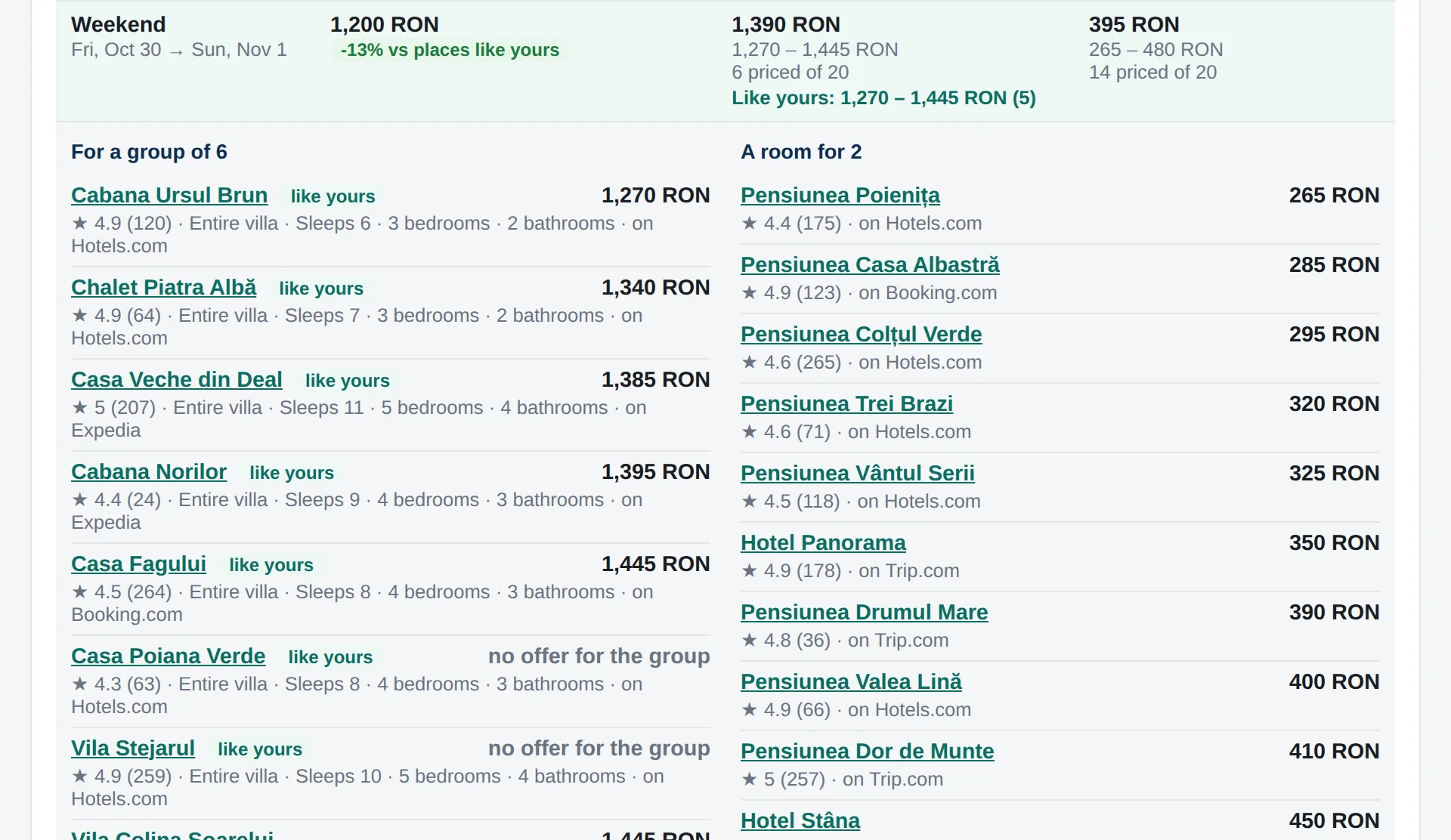
Stays — the next weekends, holidays and a couple of midweek stays: your price, how many direct competitors are still available (and at the last check), the wider market's median, local demand (“filling up”, “busy”, “quiet”) and confidence. Stays closed in your calendar count as sold.
Social Media Posts & Trends
Post to Facebook, Instagram and TikTok from Arova — the accounts connected in Accounts → Social media. Three tabs:
- Posts — the composer: the text, then photos or a video (uploaded up to 300 MB, earlier uploads, or Google Photos — picked in Google's own picker once the property's Google account is connected), shown beside the text. Where: the connected accounts; Instagram needs a photo or a video and TikTok a video — greyed out with the reason until the post has it. Facebook: the real Send WhatsApp message button on a video post or a link post (Meta takes no button on photo posts, so those end with the WhatsApp link). Instagram: tag people. TikTok follows TikTok's rules: the account's name and photo, Who can view this video (nothing chosen beforehand), Allow Comment / Duet / Stitch, Disclose video content, post it or send it to the TikTok inbox (until TikTok approves Arova, it can post only to a private account). When: now, or at a day and hour (the property's time). Below, the posts with each network's result, link and Retry.
- Ideas — post ideas from your open stays, the trends and what guests praise: a title, why, the dates, the caption (RO / EN), hashtags and what to show (no names, no invented offers); the ideas from the trends too. Use this puts one in the composer. They're kept for the whole team with when they were suggested; New ideas replaces them.
- Trends — what the competitive set posts on Instagram, Facebook and TikTok: themes, facilities shown, dates being pushed, offers and the most engaging posts. Add profiles to places in the Competitive set (Edit); Fetch posts now refreshes.
Reviews
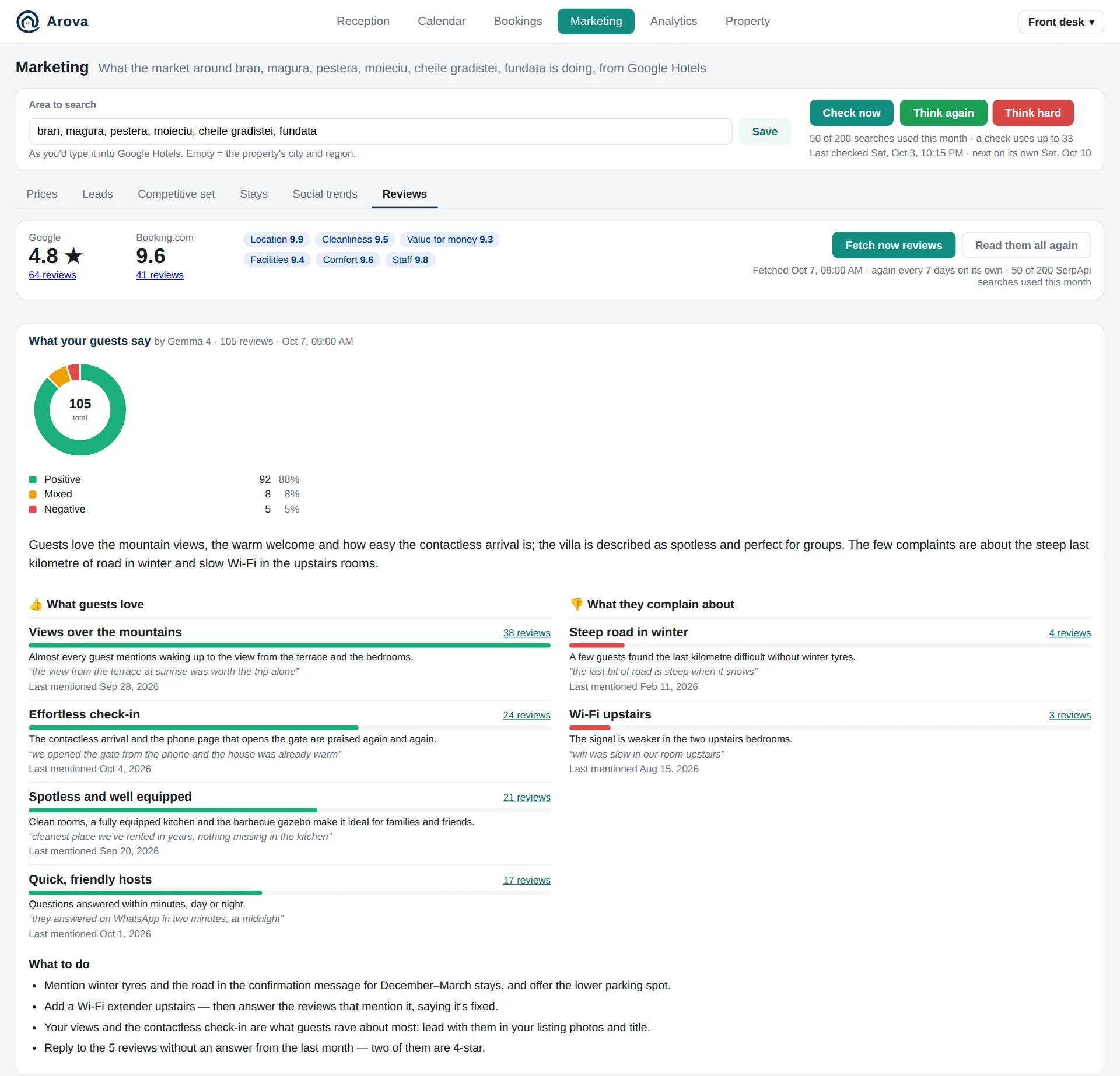
Reads your reviews from Google Maps and Booking.com (your links in Property → Property & pricing → General & Location and Booking Platforms): your scores, What your guests say (positive / mixed / negative, 👍 what guests love, 👎 what they complain about — click a count to see those reviews — and What to do), and The competitive set next to you. Fetch new reviews and Read them all again; they also refresh on their own.
Analytics
The Analytics tab appears once an expcateg.com API key is saved in Property → Accounts.
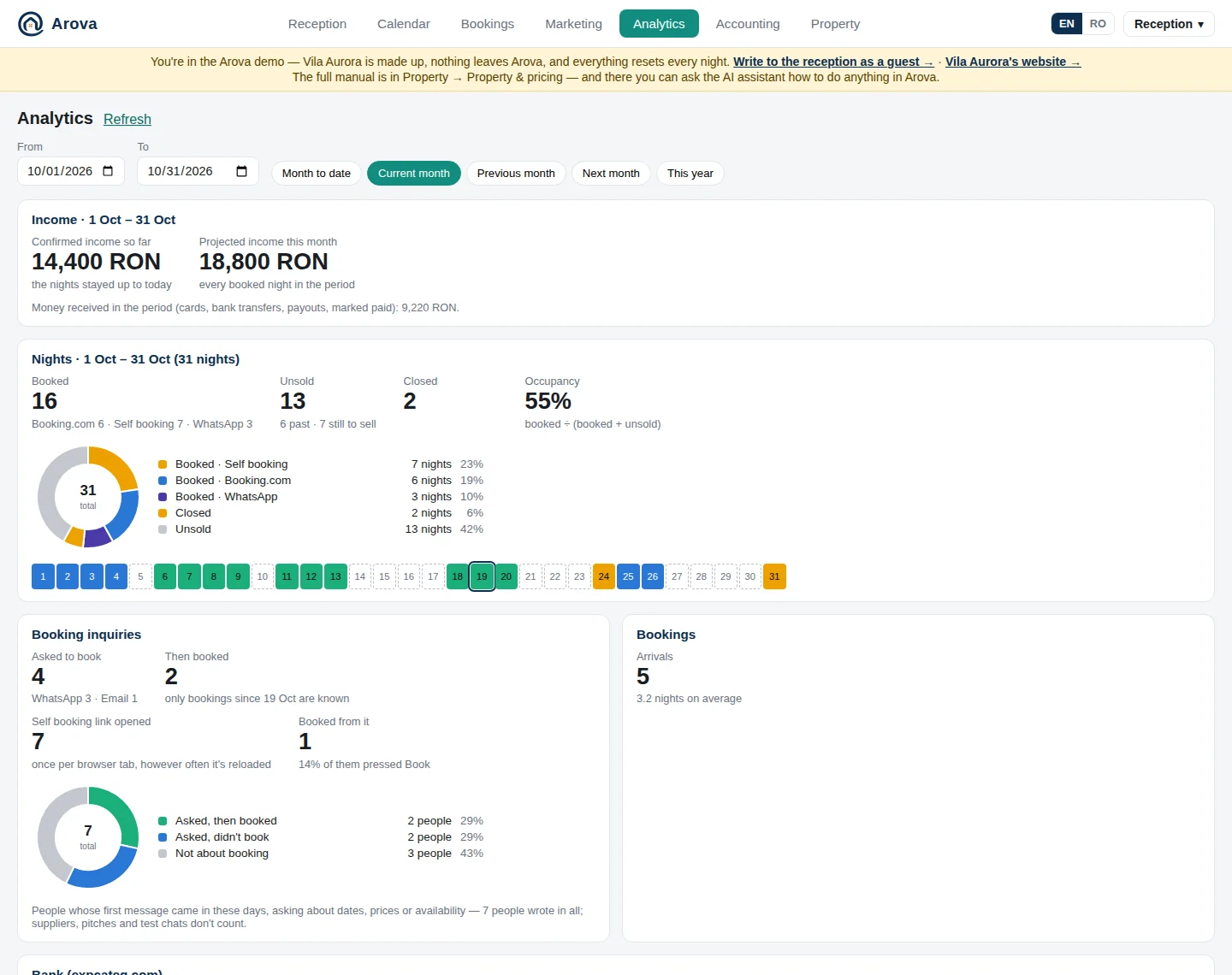
- Pick the days with From / To or a shortcut (Month to date, Current month, Previous month, Next month, This year); it opens on the current month. Refresh reloads.
- Income — Confirmed income so far (the nights already stayed) and Projected income this month (every booked night of the period). A booking without an amount is estimated at your rates and named below (enter its amount, or it's filled in when the Booking.com / Airbnb payout arrives); money actually received is noted under it.
- Nights — booked (by channel), unsold, closed, occupancy (booked ÷ (booked + unsold)), with a donut and a strip of each night.
- Booking inquiries — people whose first message came in those days asking about dates, prices or availability, and how many then booked. Suppliers, pitches and test chats don't count. Also: how many times the self booking link was opened (once per browser tab) and how many of those booked.
- Bookings — arrivals in the period, by channel.
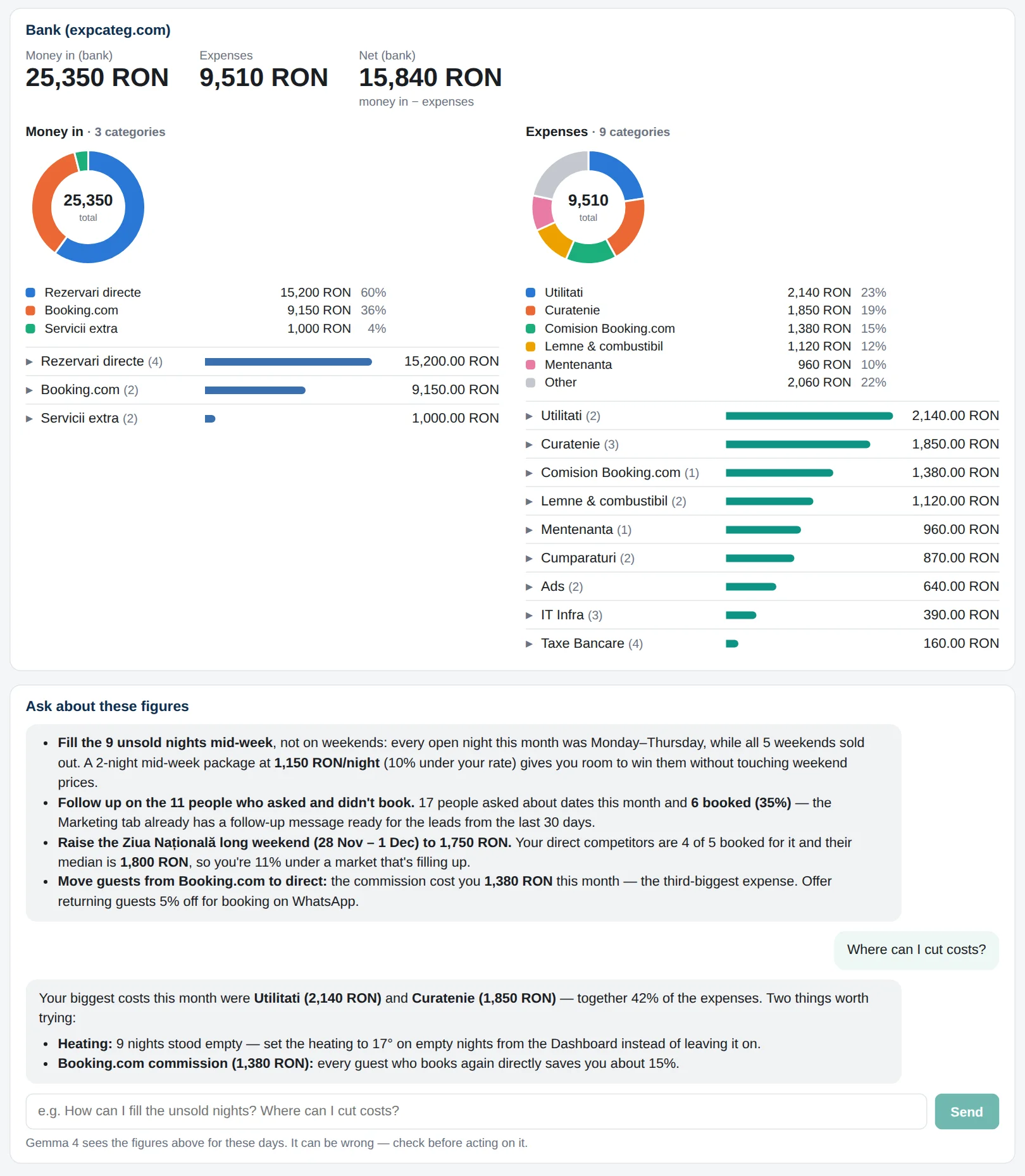
- Bank (expcateg.com) — money in, expenses and net from your bank statements, by category (click a category for its transactions).
- Ask about these figures — a chat (Gemma 4) that opens with 3–4 recommendations and answers questions like “How can I fill the unsold nights?”. It can be wrong — check before acting.
Accounting
The Accounting tab (tablets and computers): Utility Bills, Bills, Bills e-Factura, Invoicing and Stats.
Utility Bills
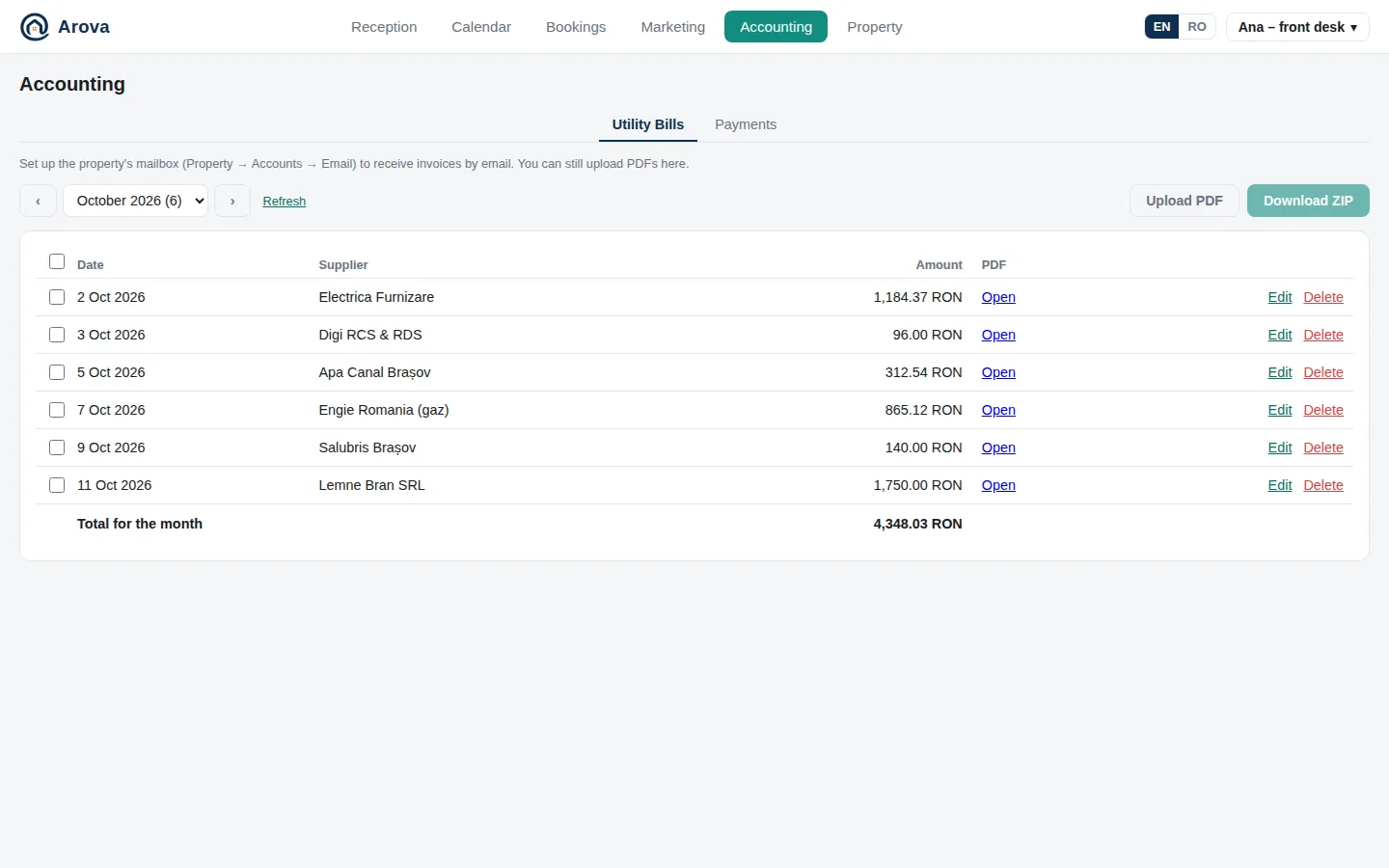
The electricity, gas, water, internet and other invoices you pay for the property, in one place for the monthly settlement (decont) and your accountant.
- Email them in: forward or send each invoice, with the PDF attached, to the property's mailbox — from the property's own address or one of the Notifications addresses (the page shows which). Mail from anyone else isn't taken: it goes to Reception as a guest's email (Delete removes it there). Arova saves each PDF and the AI (Gemma 4) reads its issue date, supplier and total due — check them, it can be wrong.
- An invoice sent as a link (“DESCARCĂ FACTURA”) instead of a PDF: Arova follows the link and saves the PDF it leads to. When no PDF comes of it, the team gets a notification to upload it by hand.
- Upload PDF — add one yourself. The same PDF sent twice is kept once.
- Pick the month with ‹ › or the list. Each line: Open (the PDF), Edit (correct the date, supplier, amount, currency), Read again, Delete (the PDF too). “Something is missing — edit it” marks a bill the AI couldn't read fully.
- Tick bills (or all) → Download ZIP: the PDFs with a
manifest.txtlisting each one and the grand total. The total of the ticked ones (or of the month) is under the list. - Made out to the company? An invoice whose customer is the property's company (its name as in Accounts → Arova, or its VAT number) goes to Bills instead. Edit → Made out to the company — move to Bills when the AI missed it.
Bills
The invoices made out to the property's company that e-Factura doesn't have — AWS, Heroku, OpenRouter and other foreign suppliers — kept for your accountant. No payment is needed or matched.
- Email them in exactly as the utility bills (PDF attached, from the property's own address or a Notifications one), or Upload PDF here (an upload here is always a bill). The AI reads who each invoice is made out to: the company's name — capitals, diacritics and SRL / S.R.L. don't matter, every word of it must be there — or its VAT number puts it here; anything else stays in Utility Bills.
- The supplier must bill the company: put its name in the supplier's billing profile (AWS often bills the account holder by name otherwise).
- Each month's bills with their total; Edit, Read again, Delete, and Edit → Not the company's — move to Utility Bills.
- Tick bills → Download ZIP: the PDFs and a
manifest.txtdated by issue, with the total (no payments).
Bills e-Factura
The suppliers' invoices to the company that e-Factura received, read every hour, by month: date, number (credit notes marked), supplier and its CUI, VAT and total, each with its PDF (ANAF's rendering of the XML) and XML; the month's total under them. Your accountant gets them from e-Factura too — here they sit next to the other bills. ANAF lists only the last 60 days, so the list starts about two months before the account was connected.
Invoicing
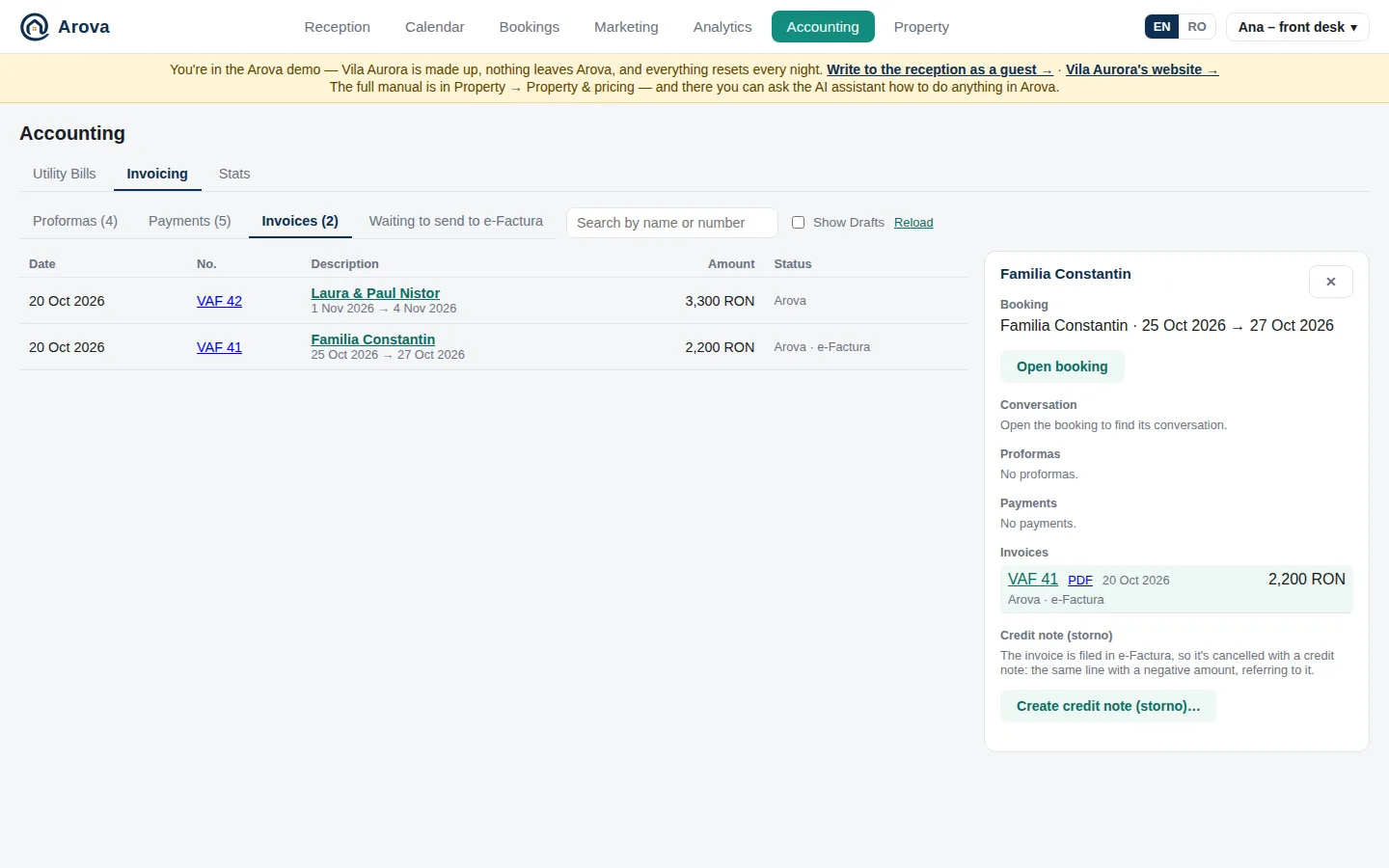
Every document of the property in one place, in tabs — Proformas, Payments, Invoices and Waiting to send to e-Factura — each with its count, newest first, and a search by name or number.
- Each row: date, number (click it for the PDF), description (the guest and the nights), amount and status — a proforma paid, partly paid or not; a payment by card, bank transfer or marked by hand (a transfer not matched yet says so); an invoice from Arova, SmartBill or e-Factura, sent to the guest, a draft, a credit note.
- Click the description and the panel on the right shows everything linked to it: the booking (Open booking opens it as in the Calendar), the conversation (Open conversation, in Reception), and the booking's proformas, payments and invoices with their PDFs — click one to move to it. “Paid X of Y” sums it up.
- Next to Reload, each tab's checkbox shows what's hidden otherwise: Show Cancelled and Deleted (proformas), Show Cancelled (payment links), Show Drafts (SmartBill drafts). Each is remembered on the device.
- Payments: on top, the transfers to assign and the proformas awaiting payment; then the money received; under it, the payment links: every proforma gets one, New payment link… for anything else (late check-out, firewood): amount, what it's for, guest, valid until. Card payments themselves are switched on in Property → Accounts → Stripe.
- Invoices also lists invoices read from e-Factura: with Arova invoicing, e-Factura's sent invoices are tied to their bookings — by number to Arova's own invoice (whose PDF is kept), else by the client and the date (with ANAF's PDF). SmartBill invoices not tied to any booking are listed too.
- Credit note (storno) — in an Arova invoice's panel, once e-Factura has accepted it: Create credit note (storno)… makes a new invoice in the same series, the same line with a negative quantity, referring to the one it reverses (“FACTURĂ STORNO”), and sends it to e-Factura at once. The two then count for nothing on the booking. Refund the guest yourself. A SmartBill invoice is reversed in SmartBill.
Payments: to assign, awaiting payment
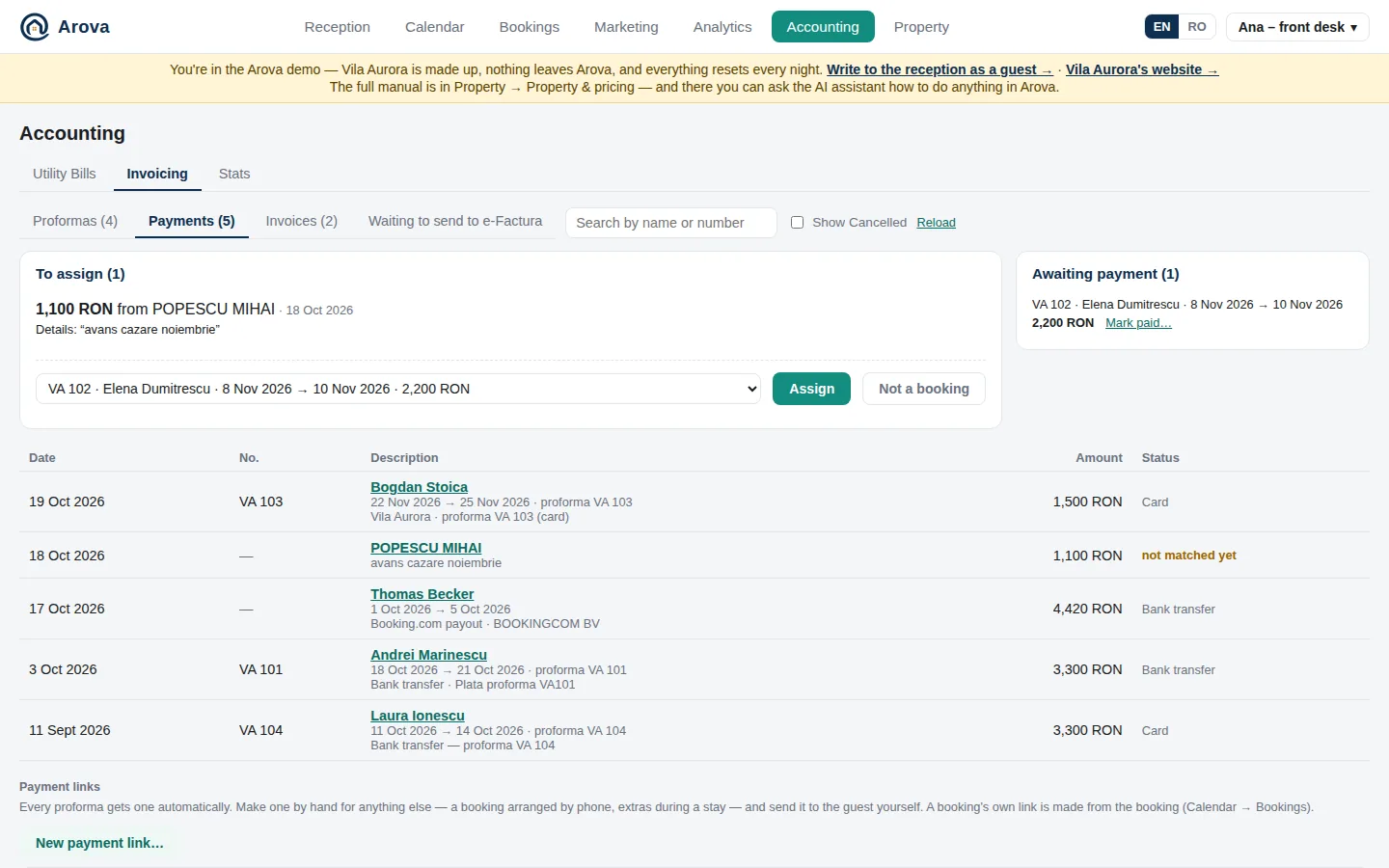
At the top of Accounting → Invoicing → Payments; a team notification about a payment opens it, on a phone too.
Have your bank's “money received” emails forwarded to the property's mailbox (Property → Accounts → Email). Arova reads each one and matches it to the proforma it pays: by the proforma number in the payment details, else by the amount (and, with several bookings at that amount, the payer's name).
- To assign — transfers Arova wasn't sure about. Pick the booking (likely ones first) → Assign, or Not a booking (a refund, a transfer between your accounts).
- Awaiting payment — proformas not paid in full. Mark paid… records money that came another way (Revolut, cash): amount, how, date. Cancel proforma is offered for a booking-page proforma never paid. Conversation opens the guest's chat.
- Received — the payments list under them: matched transfers and card payments (Stripe), newest first, each with its booking. Click one: Not theirs — change… takes a transfer off a booking and back to To assign (Remove this payment… for one marked paid by hand; Put back to assign for one set aside as not a booking's).
- Money from the property's own company (its IBAN or its name as the payer — e.g. the monthly settlement paid to you, when your own account's bank emails also reach the mailbox) isn't a guest's payment: it isn't recorded and doesn't show here.
- Booking.com and Airbnb payouts — a transfer from the channel (e.g. BOOKINGCOM BV) goes to the stay it pays: by itself when only one stay is waiting for one, else pick the stay. A stay without an amount gets the payout's (unassigning it takes it back), so Analytics counts it.
- Each confirmed payment (card, bank transfer, marked paid) is invoiced by itself — for a booking in instalments, once that instalment's proforma is paid in full, for its amount. With Arova invoicing (Use SmartBill for invoicing unticked in Accounts → SmartBill): the invoice is issued in Arova with your invoice series, sent to the guest at once (email with the PDF; WhatsApp in the 24-hour window, else SMS with the link) and goes to e-Factura 48 hours later. With SmartBill: a draft there, which you check and issue in SmartBill (Make an invoice draft for each payment). What stops an invoice (a missing address, no invoice series…) goes to the team's phones.
- Once a booking is paid in full, the guest gets the welcome message by itself, and a booking-page booking held for payment is confirmed.
Waiting to send to e-Factura
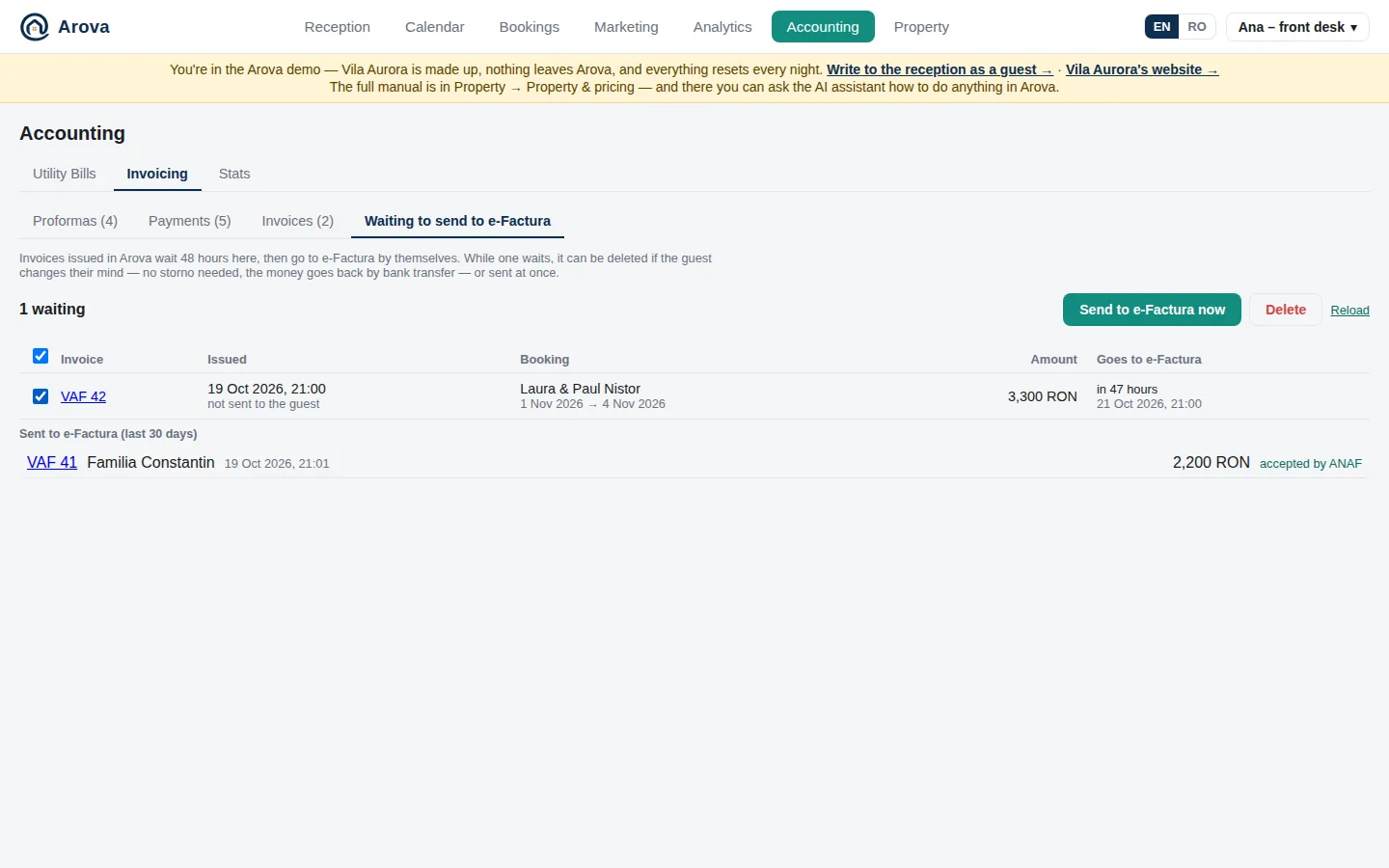
An invoice issued in Arova waits here 48 hours, then goes to e-Factura by itself (checked first by ANAF's own validation). Meanwhile the guest already has it. While it waits:
- Delete (tick it first) — the guest changed their mind: the invoice is gone, no credit note needed (its number is given out again if it was the last), and you refund the guest by bank transfer. A notice — and the team's phones — say The booking for X needs to be updated.
- Send to e-Factura now — the ticked ones go at once.
- Each row: the invoice (PDF), when it was issued and whether the guest got it, the booking, the amount, and when it goes. Below, the last 30 days' sent ones: sent — ANAF is checking it, accepted by ANAF, or rejected by ANAF with ANAF's reasons (the team is told too).
- A credit note doesn't wait — it goes at once.
Stats
Every booking the property ever had, per year of check-in and per channel — each platform (Booking.com, Airbnb) on its own and Direct for everything booked with you (WhatsApp, email, the booking page, by phone): bookings, nights and revenue per currency. Revenue from a booking with a proforma is what has been paid on it; an unpaid proforma isn't revenue yet.
Property
The Property tab: every setting, in sub-tabs. Most sub-tabs have Save changes at the top; a few switches save on their own (said next to them).
Property & pricing
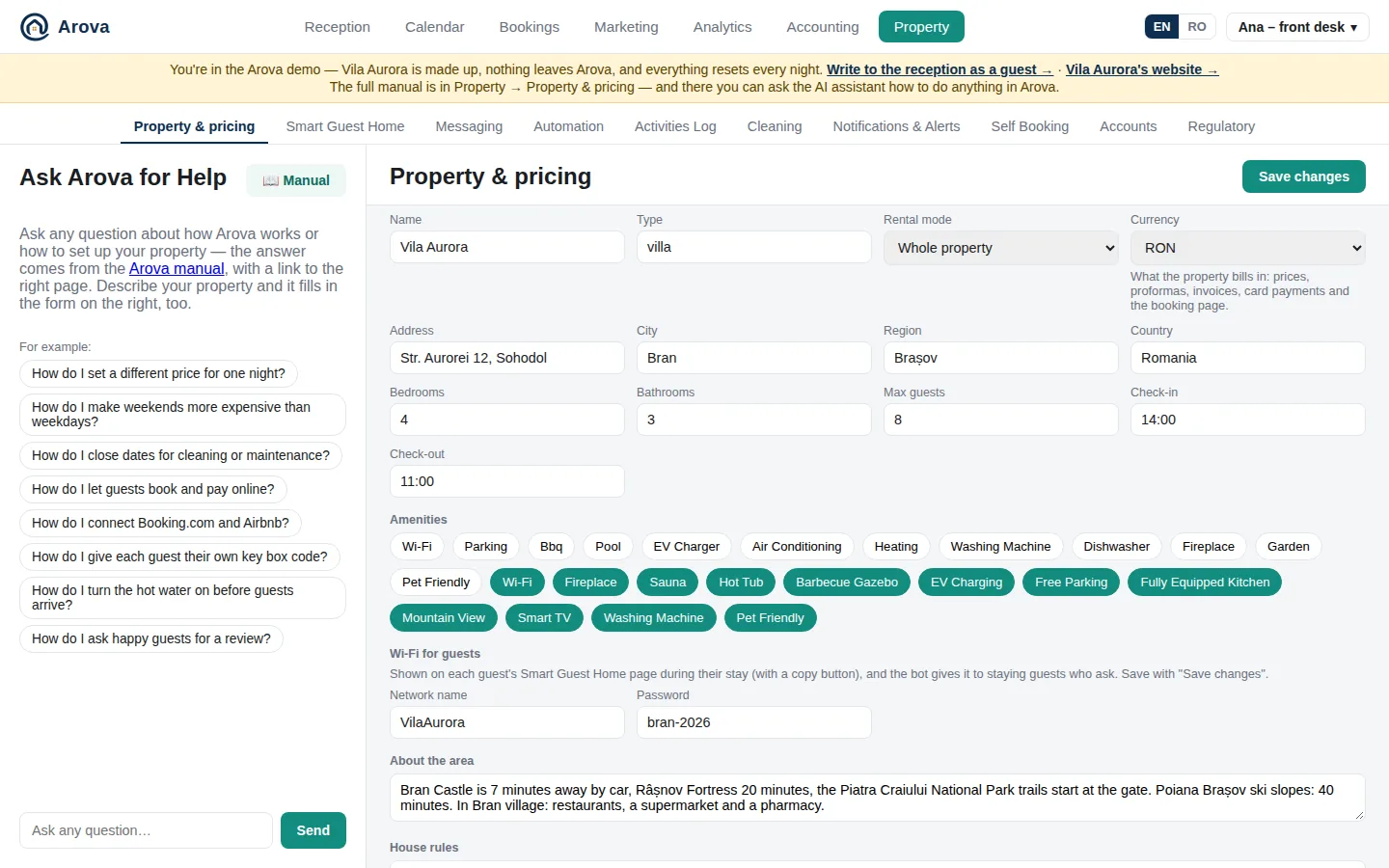
Everything the bot answers guests from, in tabs — Save changes saves them all:
- General & Location — Name, Type, Rental mode (Whole property / Per room), Bedrooms, Bathrooms.
- Rooms (per room only): each room's double and single beds, guests (one per single bed, two per double unless you set it), price per night and cleaning nights after a check-out. ⧉ duplicates a room. A room's own weekend prices: ask in Calendar → Change prices.
- Wi-Fi for guests — the network name and password, shown on the guest page and the TV during the stay and given by the bot to staying guests who ask.
- Then the location: the address, the Google Maps link (for Marketing → Reviews and the TV's daylight; the property's time zone is picked from its position as soon as it's typed — changeable in the list next to it, with the time there now — and every time in Arova is at the property's own hour: automations, access, PINs, the Dashboard's today, invoices), Default language (English / Română — what guests see when their language isn't known: no RO / EN click, nothing written on WhatsApp or email yet; also the second language of the stay report), Amenities (click chips), About the area, Photos of the property (3 photos for the top of the booking page; they save straight away, the first shows biggest) and Website → Import from website — the bot reads your site and folds what's useful into what it knows (re-import after the site changes).
- House Rules — Max guests, Check-in / Check-out times, House rules, Cancellation policy, Terms and conditions (the link to your terms page; Save & read — the bot answers questions about refunds, rescheduling and personal data from it, sending the link, and re-reads the page daily; an optional English version is shown on the English booking page) and Extra notes for the AI.
- Social — your Facebook, Instagram and TikTok pages and YouTube channels (one in Romanian, one in English), each optional; “https://” is added if left out, and a link to the wrong network is refused. Guests see the ones you fill in at the foot of their Smart Guest Home page, and happy guests on the survey's thank-you — YouTube in the page's language (either channel if only one is set).
- Pricing & Availability — Currency: RON or EUR, what the property bills in (its prices, proformas, invoices — SmartBill too —, card payments, payment links, EV charging and the booking page are all in it; the rates switch to it when you save). Default prices (whole property): rates with a label, price per night and days (e.g.
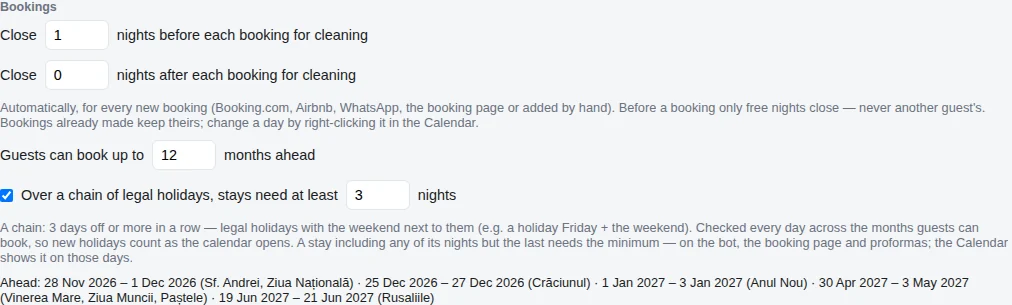
fri,sat); single days' prices are set in the Calendar, a room's price in General & Location → Rooms. Then Bookings:- Close X nights before each booking for cleaning and Close Y nights after each booking for cleaning — by themselves, for every new booking (Booking.com, Airbnb, WhatsApp, the booking page or added by hand). Before a booking only free nights close, never another guest's; a booking moved to another check-in gets them again. Bookings made before keep theirs; change a day by right-clicking it.
- Guests can book up to N months ahead — in the Calendar, with the bot and on the booking page; later days are closed on Booking.com and Airbnb through Arova's calendar. Booking.com's own window (in its extranet) is kept in step by hand.
- Over a chain of legal holidays, stays need at least N nights (3 unless changed) — a chain is 3 days off or more in a row with a legal holiday in it (a holiday Friday + the weekend, Christmas with a weekend). Worked out from the dates every time, across the whole booking window, so new holidays count as the calendar opens; a stay including any night of the chain but the last needs the minimum — with the bot, on the booking page and for proformas. A stricter minimum you set stays. The chains ahead are listed under it.
- Upsell — guests staying offered the free nights after their stay at a discount: see below.
- Standard Info Message — your own answer to a guest who just asks for more information (“I'd like more details”, “tell me about the property”). Write it in Romanian and English: the bot sends the one in the guest's language exactly as you wrote it; for any other language it translates the English one (the Romanian one if only it is filled in). A guest who also asks something else gets this message with the answer to their question after it. Questions about dates, and every other question, are answered as before. Both left empty, the bot writes its own answer.
Upsell — Extend my stay
Property → Property & pricing → Upsell (saved with Save changes). For properties rented whole.
When the nights right after a guest's stay are free, the guest can stay longer — at a discount, in two taps, without writing to you:
- Offer guests staying the free nights after their stay, at a discount — on: their Smart Guest Home page shows Extend my stay whenever it's opened (before check-in too) while there are free nights to offer.
- Conditions: Leave at least X free nights before the next booking, Offer at most N nights, Discount %. E.g. the next booking 4 nights after check-out, leave 1, at most 2: the guest is offered 2 nights. The guest's own cleaning nights after the stay count as free. The price is the Calendar's for those nights less the discount — from 00:00 on check-in day; opened before, the nights are at the Calendar's price.
- Extend my stay page: only +1 night, +2 nights… each with its new check-out, the discounted price and the full one crossed out — no calendar, no voucher. Extend and pay issues the proforma (its discount on a Reducere N% line), sent by email (or WhatsApp), and holds the nights 30 minutes while the guest pays — by card, holiday card or bank transfer, as on the booking page. Coming back before paying, they get the same payment screen again.
- Paid: the same booking gets the new check-out — the Calendar, the cleaning days (after the new check-out) and the Smart Guest Home link follow it, the key box PIN is extended to the new check-out at once (if TTLock won't change it, the guest gets a new PIN, shown on their Smart Guest Home page as New code, the team told), its total grows by the proforma, and the check-out message goes the evening before the new date. The cleaning app is told Stay extended — check-out moved from … to …, the team gets a push and the conversation a note. Paid after the nights went to someone else: the team is told to refund.
- Also send the guest a message with the offer (on by default) — once per stay, on the first or the second night, from the hour chosen (the property's time): on WhatsApp if the guest wrote in the last 24 hours, else by SMS (SMSLink), else by email, with the link to Extend my stay. Your own text in Romanian and English (
{dates}{nights}{price}{full_price}{total}{percent}{name}{property}{link}), else the standard one. Reception → Today / Coming up lists each one (planned, sent, booked, or not sent — no free nights after the stay), with Don't run this time for one booking. - Not for Airbnb reservations: Airbnb's calendar would move their dates back.
Ask Arova for Help — the assistant
The chat on the left of Property & pricing. Ask any question — about how Arova works or how to set up your property — and it answers with the steps and a link to the right part of this manual; a few example questions are listed to click (a different price for one night, dearer weekends, closing dates, online booking, Booking.com and Airbnb, key box codes, hot water before arrival, reviews). Describe your property in your own words (“It's a 4-bedroom villa, sleeps 8, whole property…”) and it asks follow-up questions and fills in the form — you can edit anything afterwards.
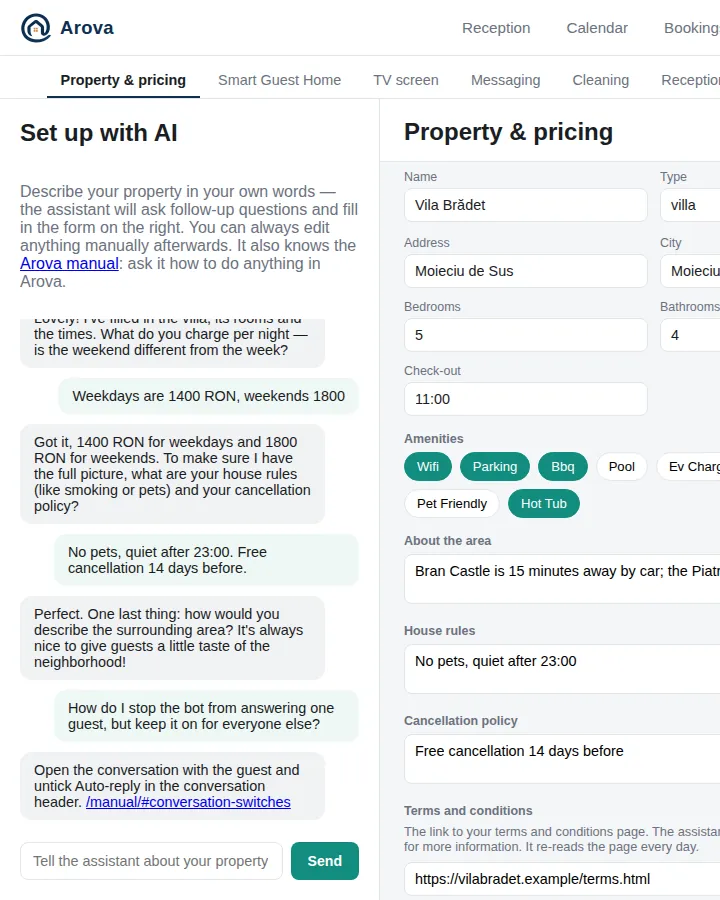
It also knows this manual: ask it how to do something in Arova — “how do I stop the bot replying to one guest?”, “what does No marketing do?”, “how do I close dates for cleaning?” — and it answers with the steps and a link to the right part of the manual.
Smart Guest Home
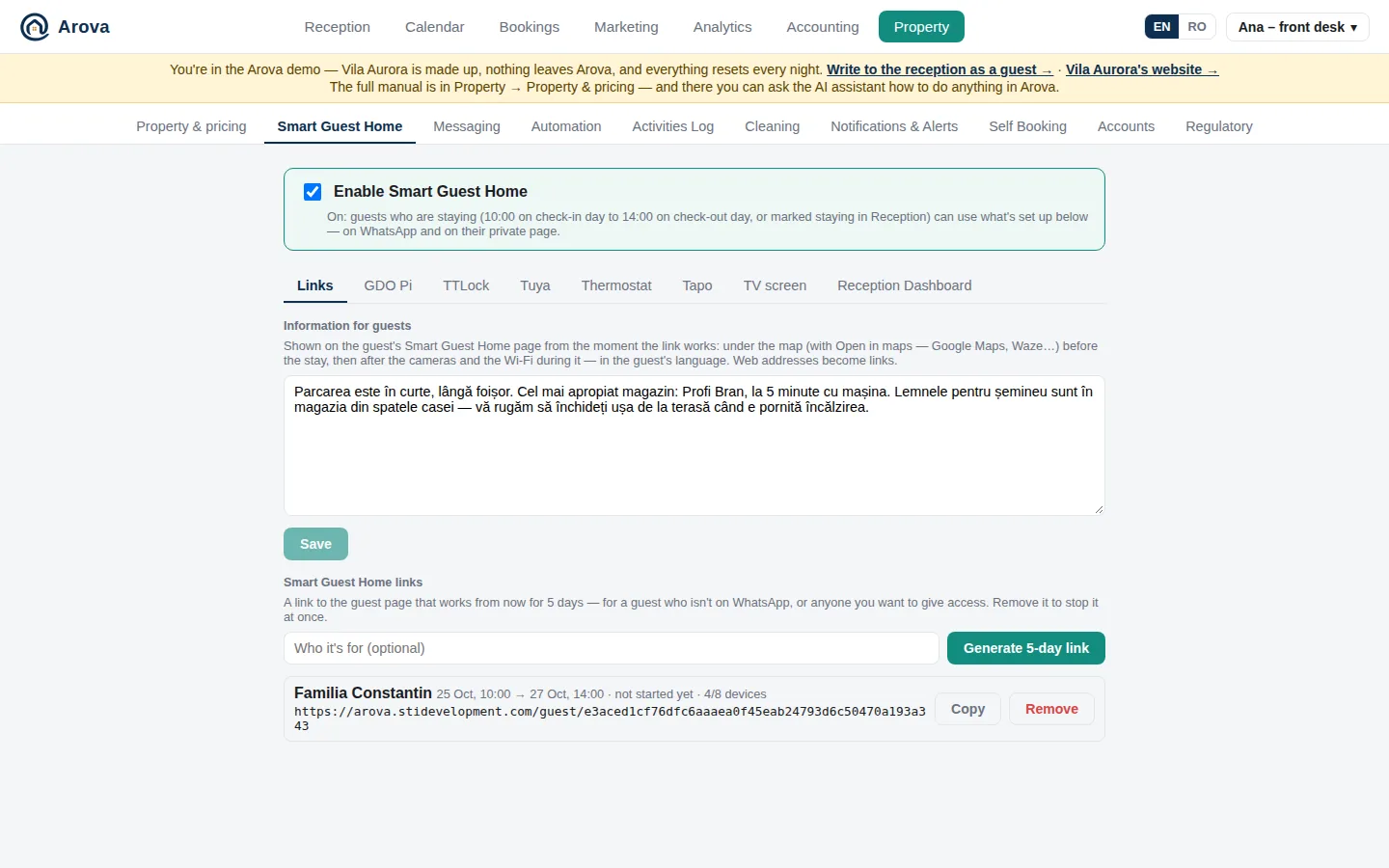
Enable Smart Guest Home (saves at once) — on: staying guests (10:00 check-in day → 14:00 check-out day, or marked Staying in Reception) can use what's set up, on WhatsApp (“set the heating to 23”, “open the gate”, “show me the cameras”) and on their private page. Off: none of it; settings are kept. Below it, a tab per part:
- Links — Generate 5-day link: a guest page link that works from now for 5 days, for a guest without WhatsApp or anyone you want to give access; Remove stops it at once. The links made for given dates in the Calendar are listed too. Information for guests — your own text (parking, the nearest shop, how the fireplace works) shown on the guest's page from the day the link works, in the guest's language.
- GDO Pi — the sensors (Load sensors, tick the ones to show, name them, and tick where each shows — see below; a sensor in % — a water tank — gets a capacity in L or m³, so the water tank rules can say how many litres went), the camera image URLs, and the gate: command URL, access token, which gate, name for guests; Test: open the gate now.
- TTLock (key box, door) — your TTLock developer app's client ID and secret (stored encrypted), your TTLock account, Load locks, name for guests, Enabled; it opens through the G2 gateway (turn on “Remote unlock” in the TTLock app). Test: unlock now. Give each booking its own PIN — see Key box PINs.
- Tuya — Tuya cloud: your Tuya project's Access ID / Secret (iot.tuya.com → Cloud → your project → Overview), linked to your Smart Life account. EV charging: the metering switch that powers the charger, Price per kWh, Enable EV charging — guests start and finish charging on their page and are billed per kWh with their own proforma. Sensors: the Tuya readings (temperature, humidity, a tank's level, batteries) to show guests, Reception, the cleaning app and the TV — see below. Doors: the door and window sensors — see below.
- Thermostat — the Salus iT500 account email and password, and What guests can set: Minimum and Maximum (5–30 °C in 0.5° steps; 12–26 °C unless changed) — on their page and when they ask the bot. Reception can always set 12–26 °C, or wider if the guests' range goes further.
- Tapo — smart plugs, see below.
- TV screen — the TVs in the property, see TV screen.
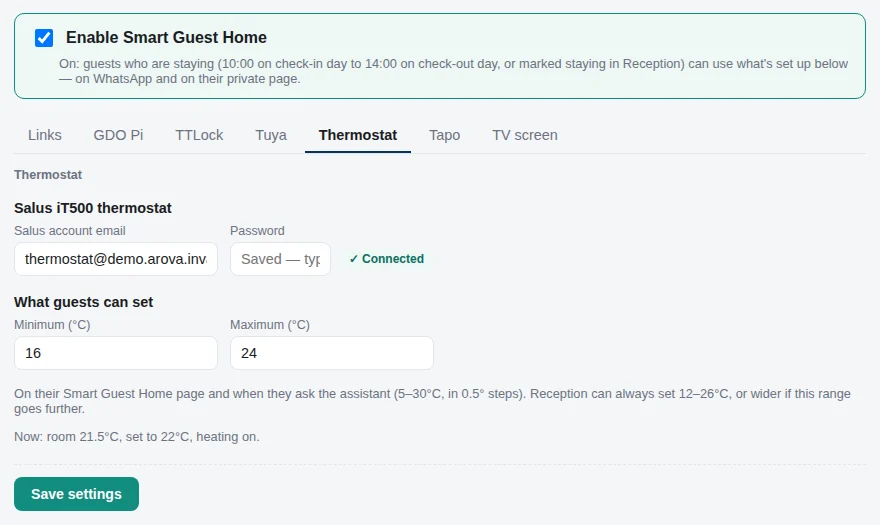
GDO Pi, TTLock and Thermostat share one form: moving between those tabs keeps what you typed. Click Save settings after changes.
What guests, Arova and the team do with all this is in the Activities Log.
Which readings show where
Each ticked sensor — GDO Pi's (Smart Guest Home → GDO Pi, then Save settings) and Tuya's (Smart Guest Home → Tuya → Sensors, then Save sensors) — has a name and four ticks, like the Tapo plugs:
- Guests — on the guest's Smart Guest Home page; the bot quotes these when a staying guest asks.
- Reception — Temperatures on the Dashboard.
- Cleaning app — a Temperatures card in the cleaning app (the house warm, the hot water ready).
- TV — the TV's Temperatures slide.
Sensors chosen before the ticks existed show everywhere but the cleaning app. Tuya readings keep their unit (31 % humidity), temperatures show as °. GDO Pi's readings come first, then Tuya's.
Reception's dashboard and the alerts pick their own readings (Smart Guest Home → Reception Dashboard), so the alerts don't depend on these ticks.
Doors and windows (Tuya)
Property → Smart Guest Home → Tuya → Doors (then Save doors; ↻ Refresh reads the sensors again).
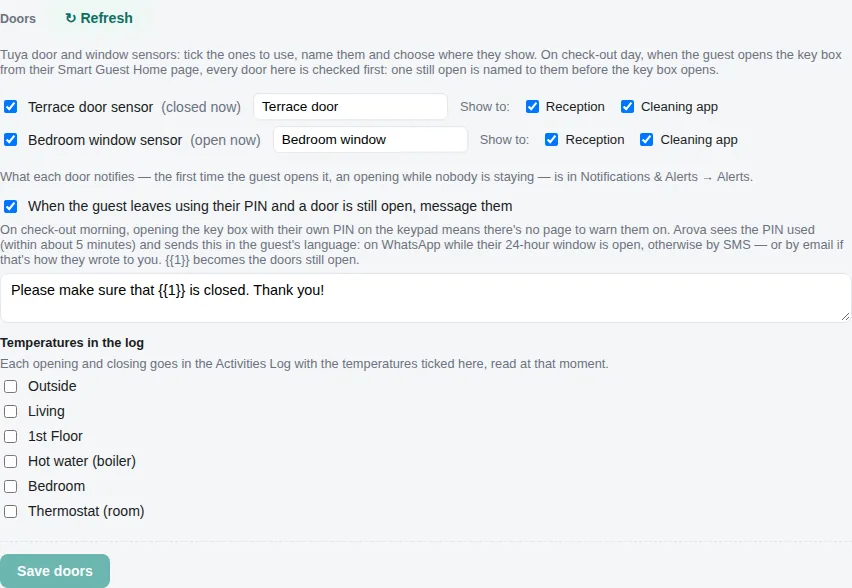
Tuya door and window contact sensors — open or closed. The ones in use are listed first: give each a name (Terrace door, Velux), say whether it's a Door or a Window (its 🚪 / 🪟 in the log and on the Dashboard), and choose where it shows — Show to: Reception (the Dashboard) and Cleaning app. The account's other sensors are under them — tick one to use it.
- On check-out day, when the guest opens the key box from their Smart Guest Home page, every door is checked first: one still open is named to them (“Still open: Terrace door. Please close before you leave.”) before the key box opens.
- When the guest leaves using their PIN on the keypad and a door is still open — option: a message to them (“Please make sure that {{1}} is closed. Thank you!”, {{1}} the doors), in their language: on WhatsApp while their 24-hour window is open, otherwise by SMS, or by email if that's how they wrote.
- What each door notifies is in Notifications & Alerts → Alerts → Doors: Notify me the first time the guest opens it during their stay; When nobody is staying, send a push notification to the Arova app; When nobody is staying, notify the cleaning app. Nobody is staying means the day is open in the Calendar — on a cleaning or closed day an opening is only logged. A notice while nobody is staying comes at most every 30 minutes per door.
- Every opening and closing is in the Activities Log (at the sensor's time, tied to the booking staying then). Doors show on the Dashboard and in the cleaning app (as ticked in Show to), closed in green and open in red.
- A door left open while the heating is on can be logged and message the guest — see Automation.
- Tuya tells Arova the moment a sensor changes (Tuya's message service); with the property's small local box (Raspberry Pi), readings also come over the house's Wi-Fi when Tuya's cloud is down. Smart Guest Home → Tuya shows the calls Arova made to Tuya's cloud this month and today.
Key box PINs, arrivals and departures
Property → Smart Guest Home → TTLock → Give each booking its own PIN (then Save settings).
- Each guest booking gets a 6-digit code on the lock's keypad, working only during the stay (10:00 on check-in day → 14:00 on check-out day). It's added through the TTLock gateway a week before (retried if the gateway doesn't answer), changed when the stay moves, and removed when it's cancelled or over.
- Guests see it on their Smart Guest Home page, before and during the stay; you see it under the guest in the Dashboard.
- Arrival — the guest's first opening of the key box (with their PIN or from their page). Departure — opening it on the morning of check-out (before 14:00), to leave the keys. The gate isn't used for either.
- On arrival and departure your phones get a notification, and — if ticked in Notifications — an email. On departure the cleaning app gets a notification too (without the guest's name).
- Every use of a PIN is in the Activities Log. Arova reads the lock's history from TTLock's cloud every few minutes; the lock itself isn't woken, so it doesn't drain its battery.
Tapo plugs
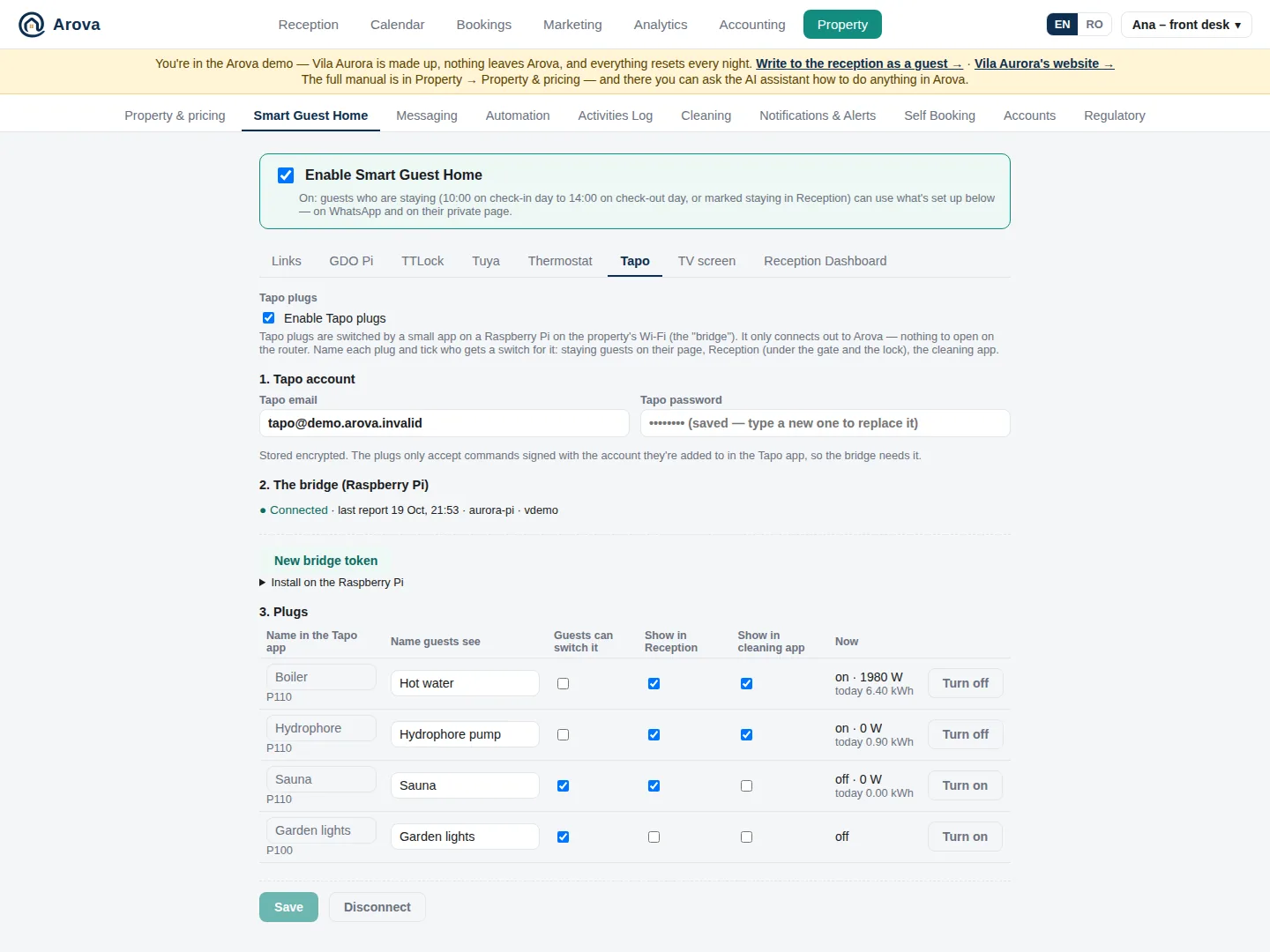
TP-Link Tapo smart plugs (and older Kasa plugs and power strips) — the hot water, the water pump, the sauna, the garden lights. They are switched by a small app, the bridge, on a Raspberry Pi on the property's Wi-Fi; it only connects out to Arova, so nothing needs opening on the router.
- Tapo account — the email and password of the Tapo app the plugs are added to (stored encrypted; the plugs only accept commands signed with it).
- The bridge — Make a bridge token (shown once: Copy token), then on the Pi (connect with ssh) run the install command shown, with the token. Any Raspberry Pi OS with Python 3.5 or newer works — older ones get the “lite” bridge, which installs nothing. Within a minute it shows as connected (“last report …”) and lists the plugs it found. It runs as a service and starts again after a power cut. A new token stops the old one.
- Plugs — each with its name in the Tapo app (read-only), the Name guests see, and where it can be switched:
- Guests can switch it — on their Smart Guest Home page and on WhatsApp, during their stay.
- Show in Reception — on the Dashboard, under the gate and lock.
- Show in cleaning app — switches below the cleaners' calendar (the hot water, the water pump).
Enable Tapo plugs switches them all off for guests (and the automations) without forgetting anything; Disconnect forgets the login, the names and the bridge token.
TV screen
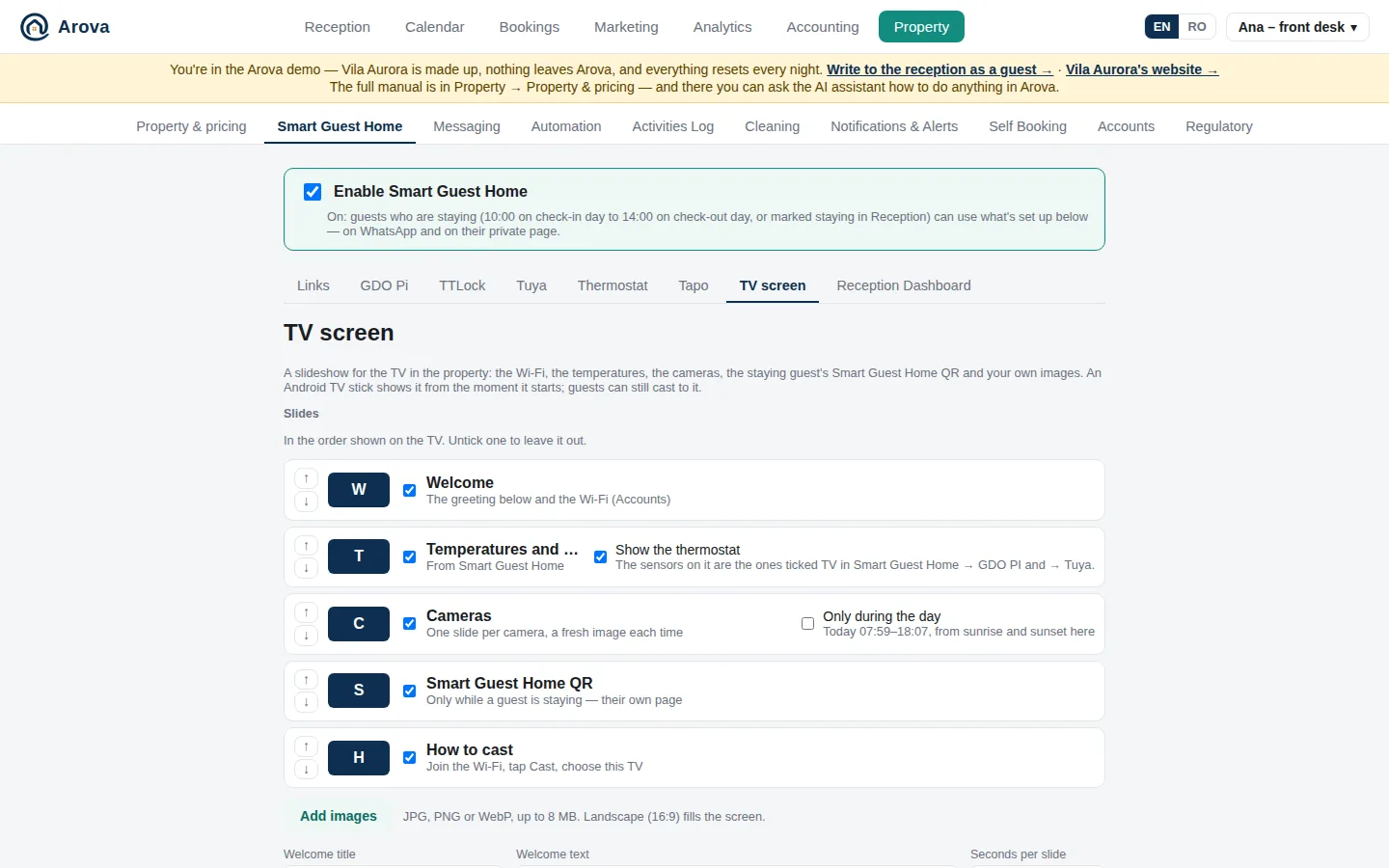
Property → Smart Guest Home → TV screen (its last tab).
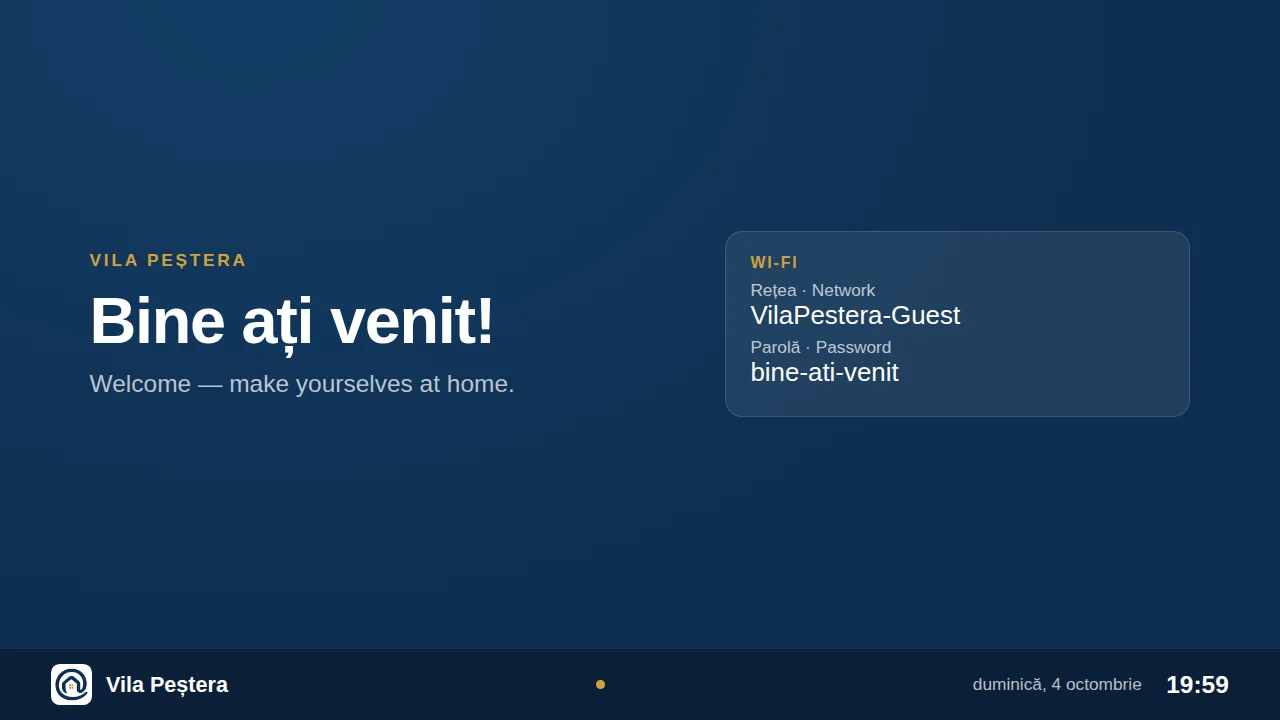
A slideshow for the TVs in the property: Welcome (title, text and Wi-Fi), Temperatures and thermostat, Cameras, the staying guest's Smart Guest Home QR, How to cast, and your own images (Add images: JPG/PNG/WebP up to 8 MB, 16:9 fills the screen). Reorder with ↑ ↓, untick to leave out, set seconds per slide, Save, Preview the TV.
- While a guest is staying (10:00 on arrival → 14:00 on departure), the welcome slide greets them by full name; rented per room, the guest of the TV's room. On a changeover day, while the leaving and arriving guests overlap, neither name nor QR is shown.
- The Temperatures and thermostat slide shows the sensors ticked TV (which readings show where); untick Show the thermostat to leave out the heating.
- The Cameras slide can be Only during the day: from sunrise to sunset at the property (20 minutes in from each end), worked out from the Google Maps link in Property & pricing.
TVs: each TV runs the Arova TV app on an Android TV / Google TV stick. Open it, it shows a 6-letter code → type the code and the room's name → Add a TV. Setting up a TV explains installing the app (Downloader, or adb), the Chromecast name, starting at boot and the screensaver mode. Keep the TV link private: it shows the cameras, the Wi-Fi password and the guest's QR (New link replaces it).
Reception Dashboard
Property → Smart Guest Home → Reception Dashboard.
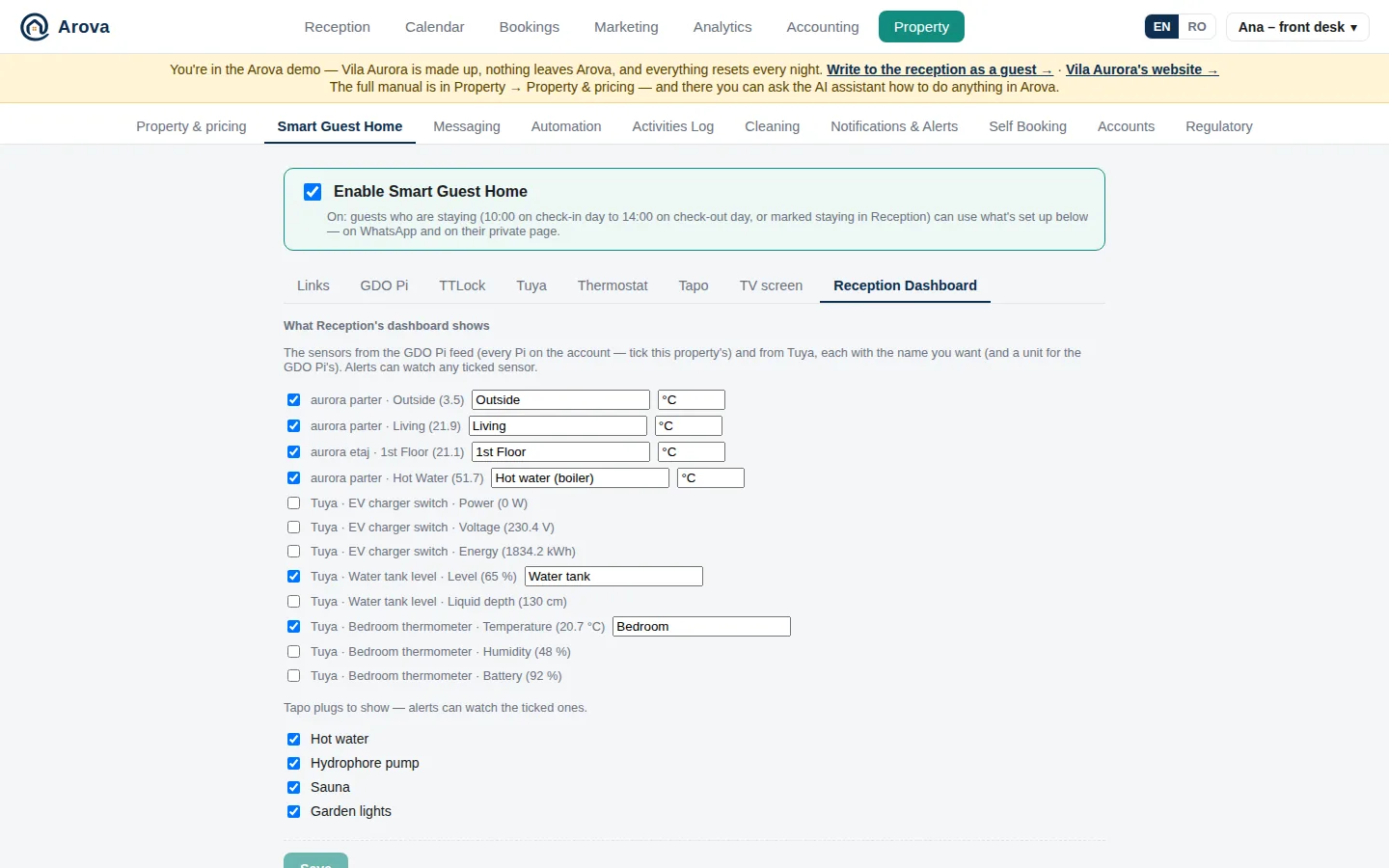
What Reception's dashboard shows — tick the GDO Pi sensors (each with a name and unit), the Tuya readings and the Tapo plugs to show on Reception's Dashboard (with the heating, the key box and its gateway, the Tapo bridge, the doors), then Save. The alerts can watch the ticked ones.
Messaging
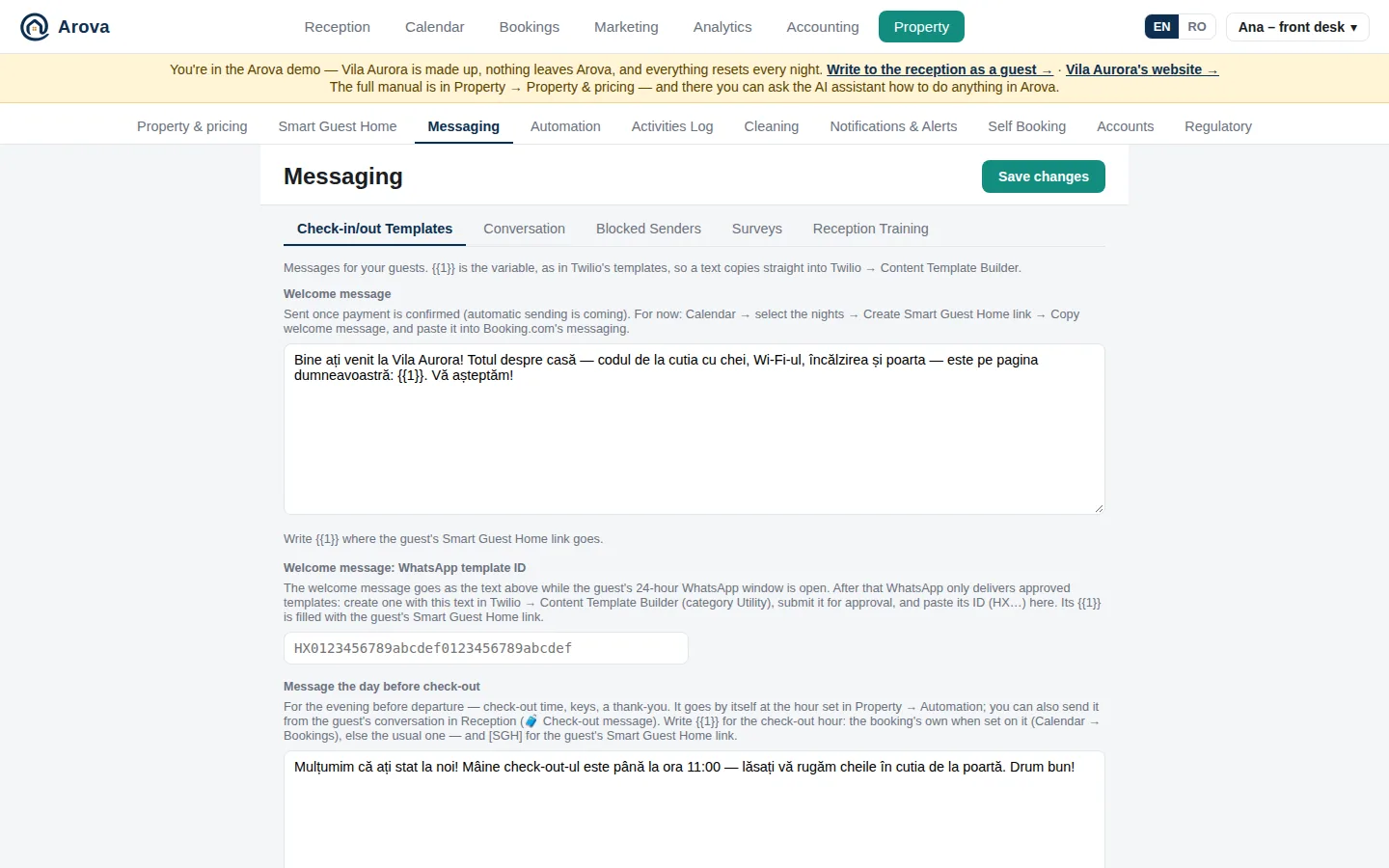
Property → Messaging, in tabs: Check-in/out Templates (the welcome and check-out messages and their WhatsApp templates), Conversation (Only start the conversation), Standard Info Message, Waiting List (the message on joining and the one when the dates free up), Translation, Blocked Senders, Surveys and Reception Training. Save changes saves the first two.
- Welcome message — sent once a direct booking is paid in full. Write
{{1}}where the guest's Smart Guest Home link goes (as in Twilio's templates, so the text can be copied between them). Welcome message: WhatsApp template ID (HX…) — sent instead when the guest's 24-hour window has closed, the link as its {{1}}. For Booking.com bookings the team gets an email with the message to send from Booking.com. - Message the day before check-out — check-out time (
{{1}}becomes the booking's check-out hour), keys, a thank-you. Sent by itself the evening before check-out, at the hour set in Property → Automation (18:00 unless changed); also from the guest's conversation (🧳 Check-out message). - Check-out message: WhatsApp template ID — after the 24-hour window WhatsApp only delivers approved templates: create one with the same text in Twilio → Content Template Builder (category Utility), submit it, paste its ID (HX…). The status shows (Approved / Waiting / Rejected).
- Only start the conversation — Answer only the first N messages and Reset every H hours (see Reception).
- Blocked senders — everyone blocked with Block & delete, with Unblock.
Translation
Property → Messaging → Translation.
For guests who write in a language you don't speak. Reception shows their messages, and yours, translated under each one, and you write your replies in your own language — they go out in the guest's (see Replying).
- Translate into — your language: English unless you choose another (Romanian, German, French…). It needs no translating itself.
- The languages your guests wrote in — each with how many conversations and when they last wrote, kept up to date as guests write. Each says where it stands: “Russian · always translated into English” or “Romanian · never translated”, with Never translate / Always translate to change it. Romanian starts as never translated (on every property); every other language as always translated. Once you translate into another language, English gets the choice too.
- When a reply is translated: only while the guest's latest messages are in an always-translated language. A guest writing in a never-translated language, or in yours, gets your reply exactly as you typed it — checked by Arova as you send, not only by the open page.
- Long emails (over 1,500 characters — mostly newsletters and spam) aren't translated.
Each conversation's language is worked out from the guest's messages and checked again whenever they write.
Surveys
Property → Messaging → Surveys.
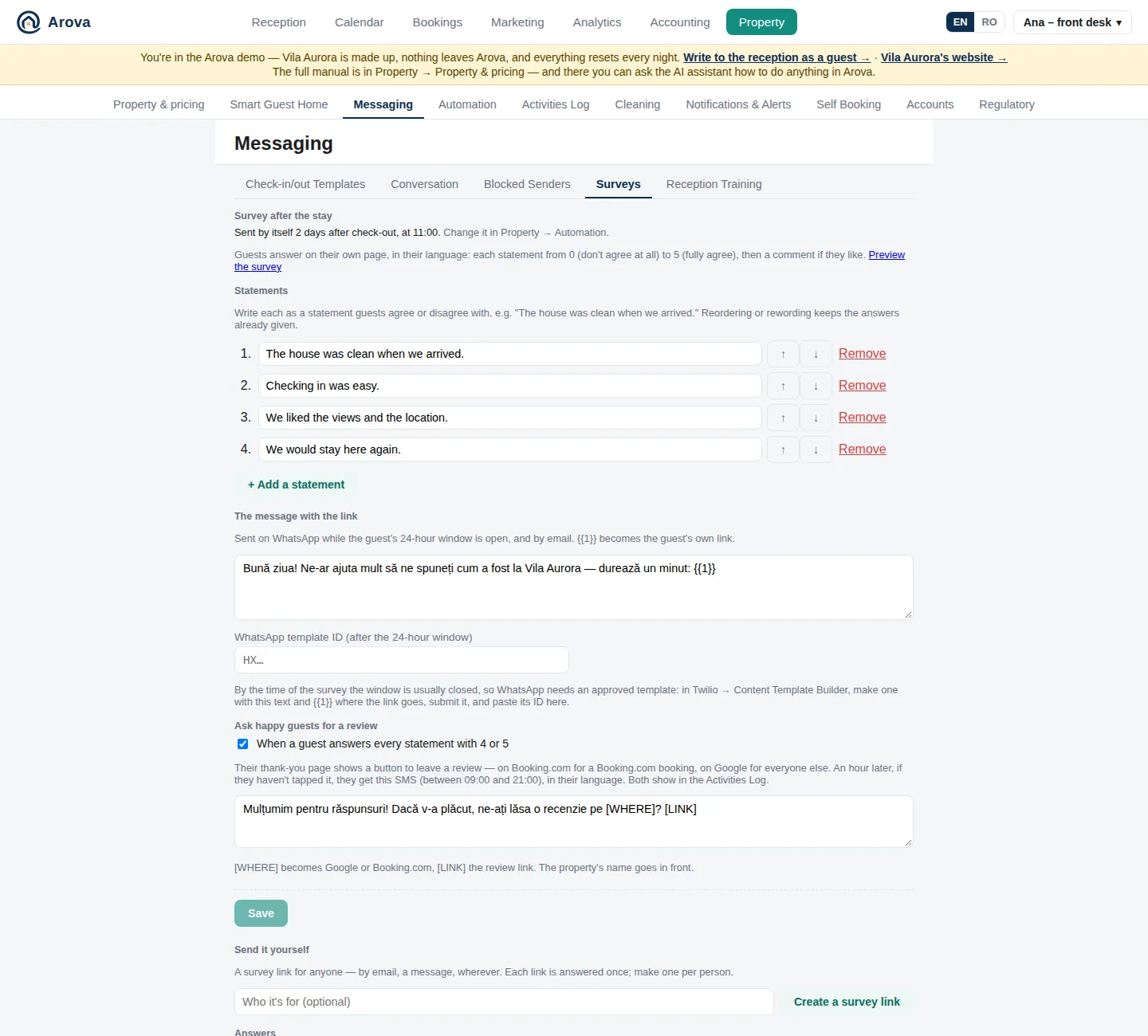
A short survey a few days after check-out. Guests answer on their own page, in their language: each of your statements from 0 (don't agree at all) to 5 (fully agree), then a comment if they like. Preview the survey shows it as guests see it.
- Statements — write each as something guests agree or disagree with: “The house was clean when we arrived.”, “Checking in was easy.”, “We would stay here again.” + Add a statement, ↑ ↓ to reorder, Remove. Rewording or reordering keeps the answers already given.
- The message with the link —
{{1}}becomes the guest's own link. It's sent on WhatsApp while the guest's 24-hour window is open, and by email. - WhatsApp template ID — by the time of the survey the window is usually closed, so WhatsApp needs an approved template: in Twilio → Content Template Builder, make one with the same text and
{{1}}where the link goes, submit it, paste its ID (HX…). The status shows under it. - Save, then switch it on and choose the day and hour in Property → Automation.
Ask happy guests for a review — tick When a guest answers every statement with 4 or 5. Their thank-you page then shows a button to leave a review: on Booking.com for a Booking.com booking, on Google for everyone else (from your listings in Property & pricing). An hour later, if they haven't tapped it, they get your SMS (between 09:00 and 21:00), in their language: [WHERE] becomes Google or Booking.com, [LINK] the review link; the property's name goes in front. Both show in the Activities Log.
Follow us — whether or not reviews are asked for, a guest who answered every statement with 4 or 5 is also asked on the thank-you page to like and follow you, with a button for each network in Property & pricing → Social. Without any, nothing is added.
Send it yourself — Create a survey link (optionally saying who it's for) → Copy link, and send it by email, a message, anywhere: for a guest without a booking in Arova, a group, a company stay. Each link is answered once — make one per person. They are listed with whether they were opened or answered.
Answers — how many were sent, opened and answered (and links made by hand); per statement, the average out of 5 and the spread of answers 0 → 5; then each guest with their average and comment. Every survey sent, opened and answered is in the Activities Log.
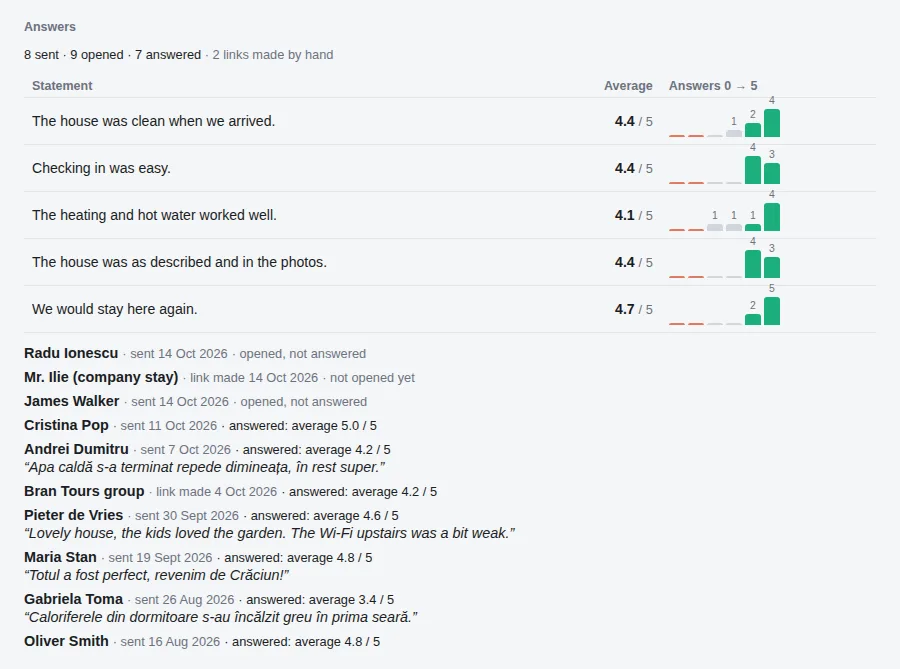
Reception Training
Property → Messaging → Reception Training.
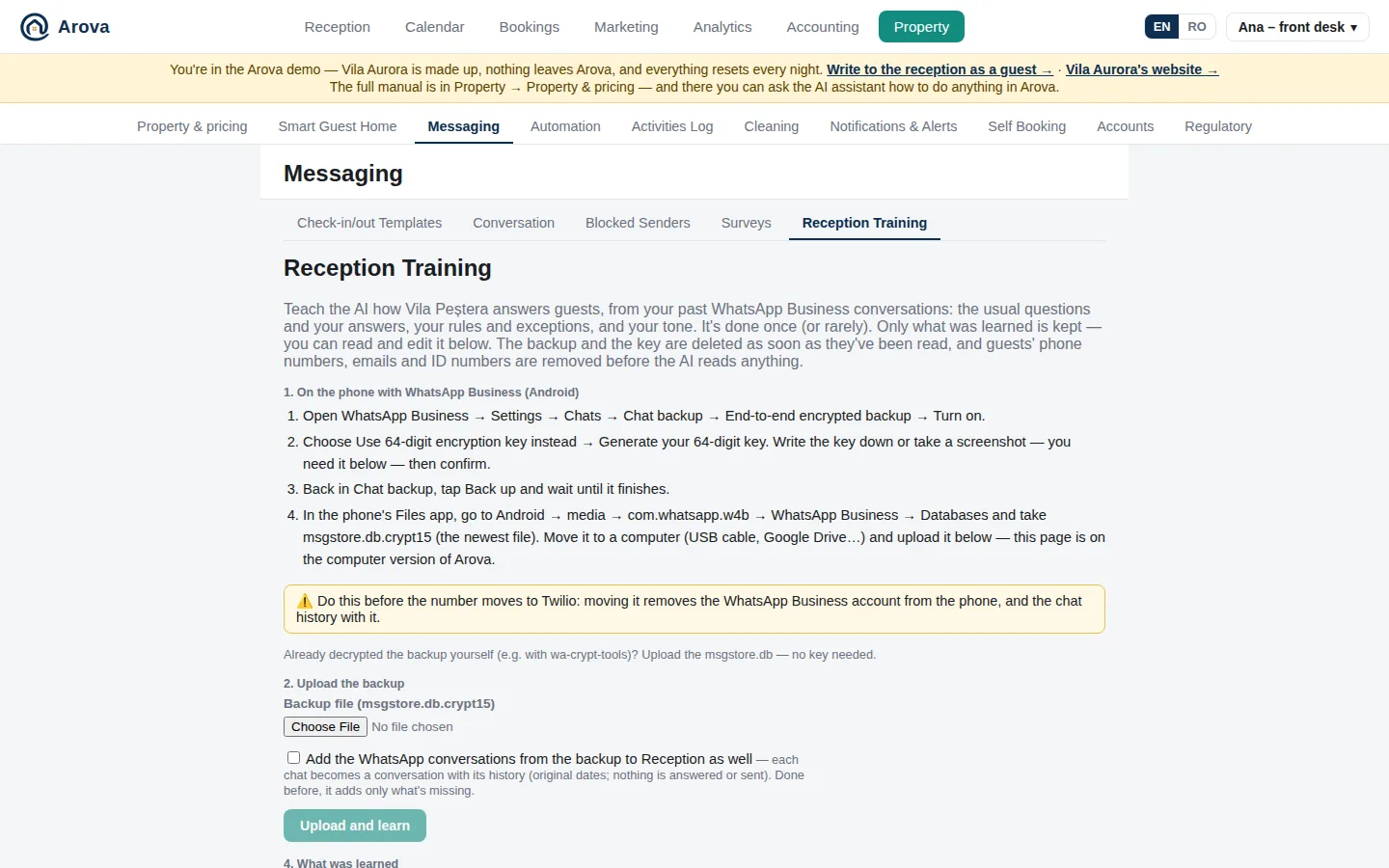
- From a WhatsApp Business backup (once): on the Android phone, WhatsApp Business → Settings → Chats → Chat backup → End-to-end encrypted backup → use a 64-digit key; Back up; take
msgstore.db.crypt15from Android → media → com.whatsapp.w4b → WhatsApp Business → Databases to a computer. - Upload it with the 64-digit key → Upload and learn. Optionally Add the WhatsApp conversations to Reception (with their history; nothing is answered). The backup and key are deleted once read; phone numbers, emails and ID numbers are removed before the AI reads anything.
- What was learned — your usual questions and answers, rules, exceptions and tone, as text you can edit and save. Every draft uses it after the property details, rates and calendar (which win if they disagree). Stop using it turns it off.
- Update from Reception (about once a month) — reads Reception's conversations since the last update (skipping “Not for training” ones) and proposes changes, shown line by line; Approve update or Discard.
Automation
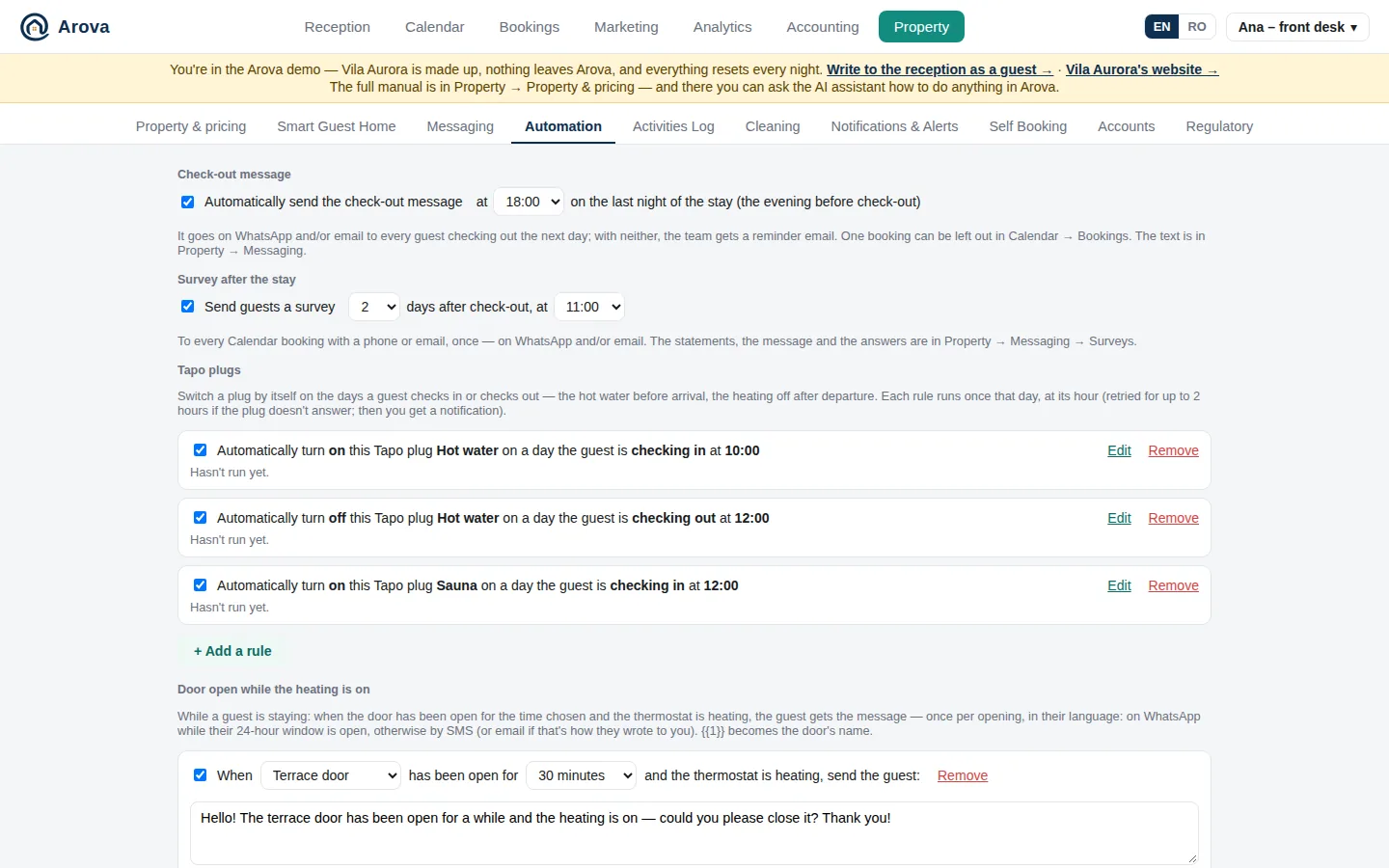
What Arova does by itself around each stay. Change things, then Save.
- Check-out message — Automatically send the check-out message at [18:00] on the last night of the stay. It goes on WhatsApp and/or email to every guest checking out the next day; with neither (e.g. a Booking.com guest), the team gets a reminder email. One booking can be left out from its booking page in the Calendar. Off: nobody gets it automatically — send it from Reception (🧳 Check-out message). The text is in Messaging.
- Survey after the stay — Send guests a survey [2] days after check-out, at [11:00]: to every Calendar booking with a phone or email, once. Write the statements in Surveys first.
- Arrival form reminder — its switch and hour (“at HH:00 on the day of check-in”); the text and the WhatsApp template are in Messaging → WhatsApp Templates.
- Door open while the heating is on — with door sensors and the thermostat: while a guest is staying, a door open for the minutes you choose (30 unless changed) while the thermostat has been heating the whole time (checked every few minutes while it's open) — once per opening. Two ticks: write the event in the Activities Log (so in the stay report) and / or send the guest the message (
{{1}}the door). - Water tank — with a GDO Pi level sensor in %: + Add a water tank rule — the tank, goes down by more than x% (with the litres, from its capacity) within y hours. Read every 5 minutes. Three ticks: write it in the Activities Log (so in the stay report of a guest staying then), message the staying guest (your text:
{{1}}the tank,{{2}}how much in %,{{3}}the hours,{{4}}the litres) and / or email it to the Notifications addresses (with who's staying). Read errors never set it off: a reading outside 0–100, one far off both its neighbours, and any reading lower than the tank could have got since the last believable one (faster than 1,800 L an hour — every tap open — or 20% an hour without a capacity: 80% → 10% in half an hour) are left out, however many in a row; a refill starts a new stretch (what went before it still counts). Once it has gone off, it counts again from then. - Tapo plugs — rules like Automatically turn on this Tapo plug Hot water on a day the guest is checking in at 09:00. + Add a rule, pick on/off, the plug, check-in or check-out day and the hour, then Save (or Discard). A saved rule reads as a sentence with Edit (opens the dropdowns again) and Remove; untick it to pause it.
How Automation's messages reach the guest (door, water tank, check-out): on WhatsApp while their 24-hour window is open, otherwise by SMS through the property's SMSLink — starting with the property's name (“Vila Pestera: …”) and ending with your WhatsApp number to answer on (no STOP: it isn't marketing) — and by email as well whenever the booking has an email. If one of them fails, the other still goes; the log says which didn't.
- Each rule runs once that day, at its hour. If the plug doesn't answer, Arova retries for up to 2 hours, then the team gets a notification. Under each rule: its last run (“13 Oct: done ✓”, “didn't work — the plug didn't answer”).
- On a changeover day (a guest leaves and another arrives), a check-out off rule doesn't run, so the next guest isn't left without hot water.
- Today's and the coming week's automations show in Reception's Dashboard (🤖), and every run is in the Activities Log.
Activities Log
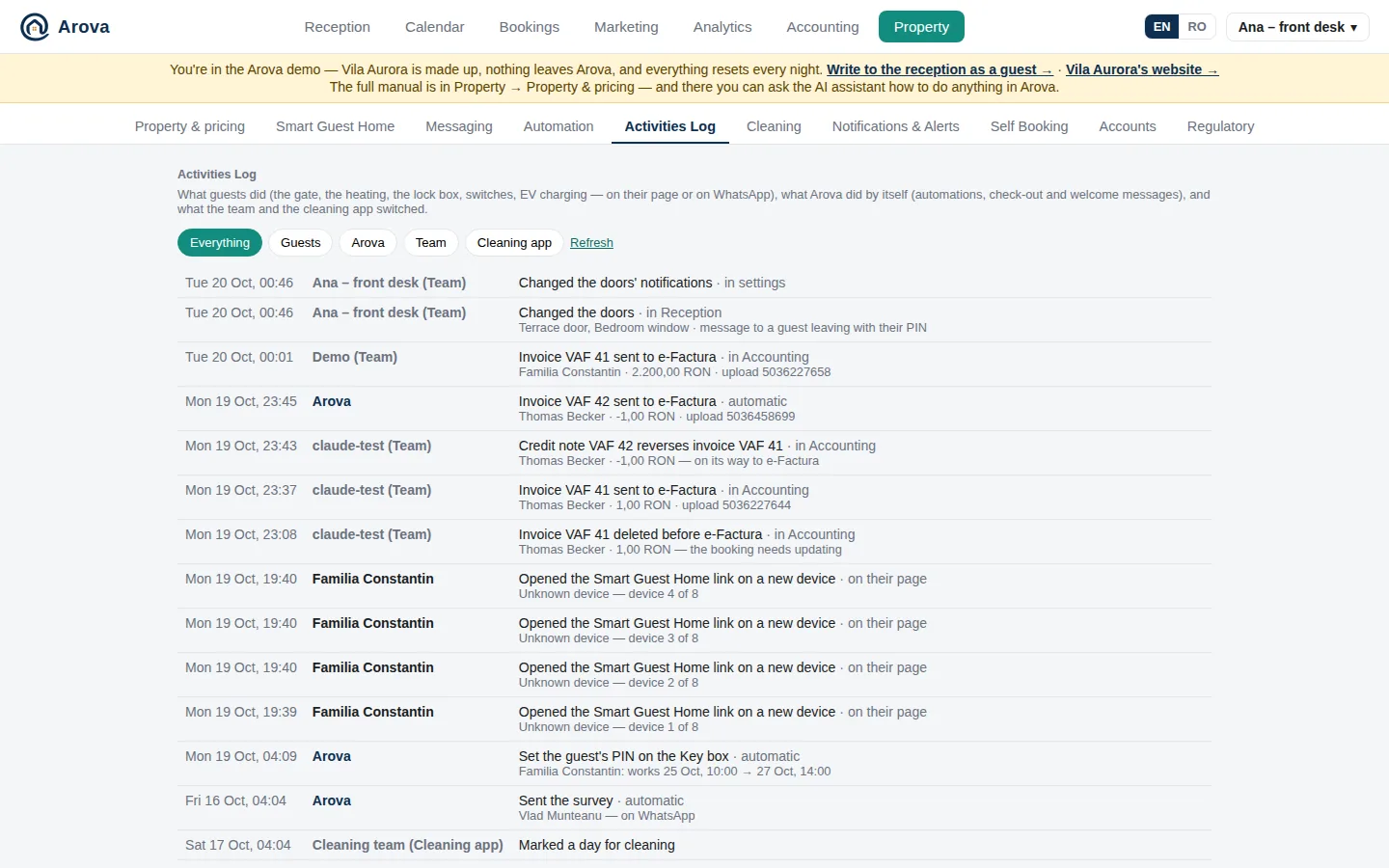
Who did what with the house and the messages, newest first (in English):
- Guests — the gate, the heating (with the reading before), the lock box (each use of their PIN on the keypad too), arriving and leaving, plugs, EV charging start and stop, a new device opening their link (or one turned away past 8) — on their page or on WhatsApp; opening and answering the survey.
- Sensors — every door and window opening and closing (Doors), with the notice sent, if any.
- Arova — what it did by itself: automations, instalment proformas issued, SmartBill invoice drafts, the welcome and check-out messages, surveys and review requests sent, guests' PINs set on and removed from the key box, alerts (Notifications & Alerts) and messages to guests, EV charging ended with the stay.
- Team — opening the gate or lock and switching plugs in Reception, survey links made; with the device's name.
- Cleaning app — the plugs the cleaners switched.
- Marketing — 📣 every send: who, how many by SMS / WhatsApp / email, the SMS used (Romania + international), skipped or failed, the text; scheduled sends going out, scheduling and cancelling.
Filter with Everything / Guests / Arova / Team / Cleaning app; a Day picker shows one day's lines (the property's day), All days goes back; Doors / Windows and Automatic Temperatures (the 30-minute “Temperatures” lines while a guest stays) ticks show or hide those lines (remembered on the device); Older loads more. A door's opened / closed lines next to each other fold into one row (“opened 2× · closed 2× · 14:02–14:20”) — click it for each one. Each line has a small icon for what it's about (🚪 🪟 🌡️ 🔑 🚧 🔌 ⚡ ⚠️ 🧾 📣 🤖…). Something that failed is marked ✗ with the reason.
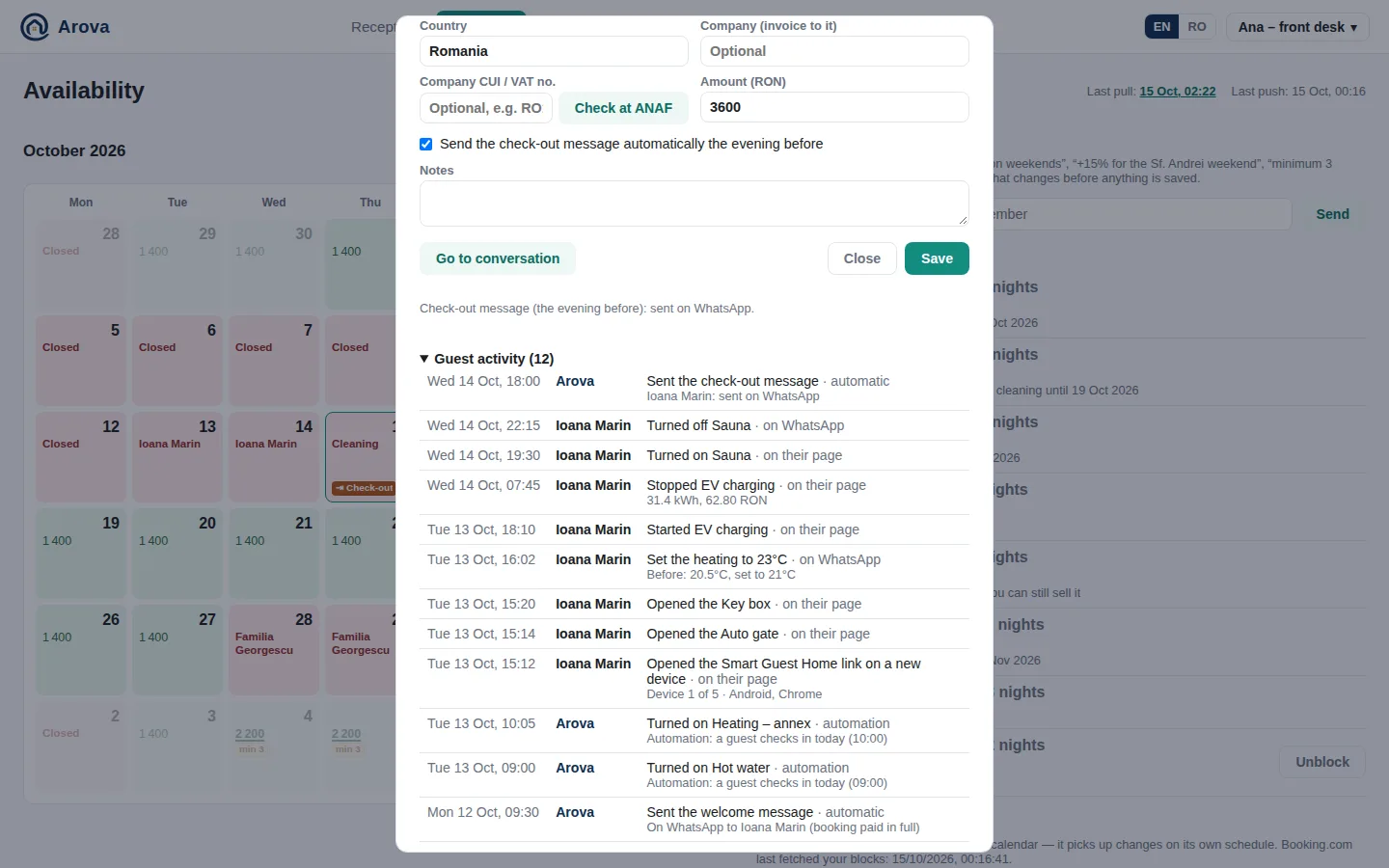
Each booking's page (Calendar or Bookings) has its own Activity tab: only that guest's lines and what Arova sent them, with the stay report.
Cleaning
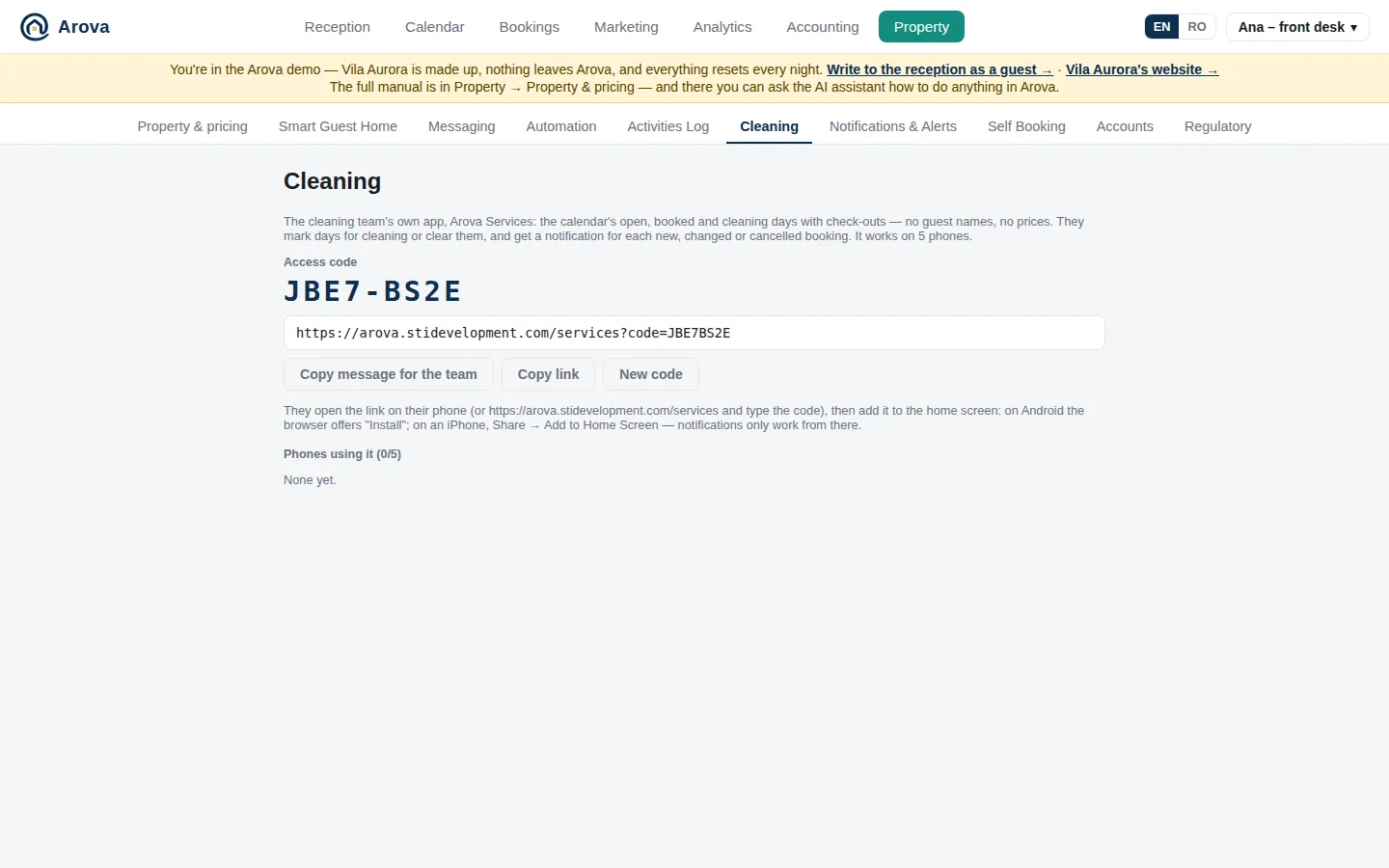
The cleaning team's own app, Arova Services: the calendar's open, booked and cleaning days with check-outs — no guest names, no prices. Copy message for the team (or Copy link) and send it to them; it works on five phones (ask the team not to share the code). The plugs marked Show in cleaning app in Tapo appear as switches below their calendar, the readings ticked Cleaning app (which readings show where) as Temperatures, the gate and key box ticked Cleaning app as Open buttons, the doors and windows, and the cameras ticked for it. With key box PINs, their phones are notified when guests leave. Phones using it lists them (with notifications on/off) — Remove frees one; New code replaces the code.
Cleaning reports — sent from the cleaning app's 🧹 Cleaning report button: how the house was left (1 to 5 stars), an optional note and pictures from the phone's camera. Not matched yet ones come first: pick the booking (the stays that checked out in the 14 days before it, the latest first) → Match. A matched report is on the booking's Activity tab and its own page in the stay report (after the cameras), which is made again. Unmatch and Delete (with its pictures). It can be emailed as it arrives — Email the cleaning report.
Notifications & Alerts
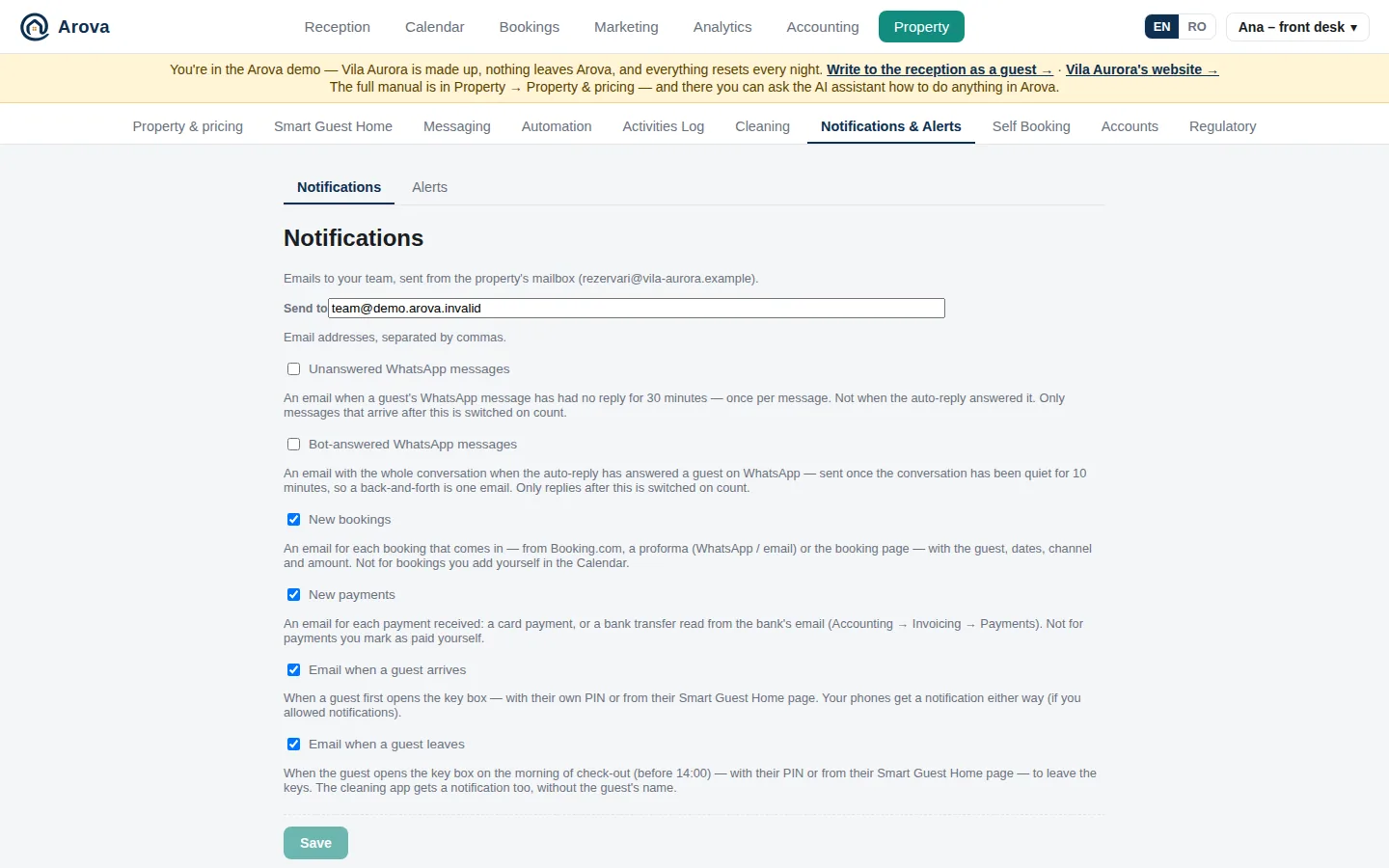
Property → Notifications & Alerts, in two tabs: Notifications and Alerts.
Notifications
Emails to your team, sent from the property's mailbox. Send to: addresses separated by commas (reminders go there too). Then choose:
- Unanswered WhatsApp messages — when a guest's message has had no reply for 30 minutes (once per message; not when auto-reply answered).
- Bot-answered WhatsApp messages — the whole conversation, once it's been quiet for 10 minutes after the bot answered.
- New bookings — from Booking.com, a proforma or the booking page (not ones you add yourself).
- New payments — card payments and bank transfers read from the bank (not ones you mark paid).
- Email when a guest arrives — when they first open the key box, with their own PIN or from their Smart Guest Home page (see Key box PINs).
- Email when a guest leaves — when they open the key box on the morning of check-out (before 14:00) to leave the keys. The cleaning app gets a notification too, without the guest's name.
- Email the stay report — the final stay report (both languages attached), once Smart Guest Home access ends.
- Email the cleaning report — each cleaning report from the cleaning app, with its pictures attached.
The alerts email these addresses too when Also email the Notifications addresses is ticked, and so do the water tank rules with their email tick.
Phone notifications for each guest message are separate: switch them on per device in the account menu.
Alerts
Property → Notifications & Alerts → Alerts (once Smart Home Status).
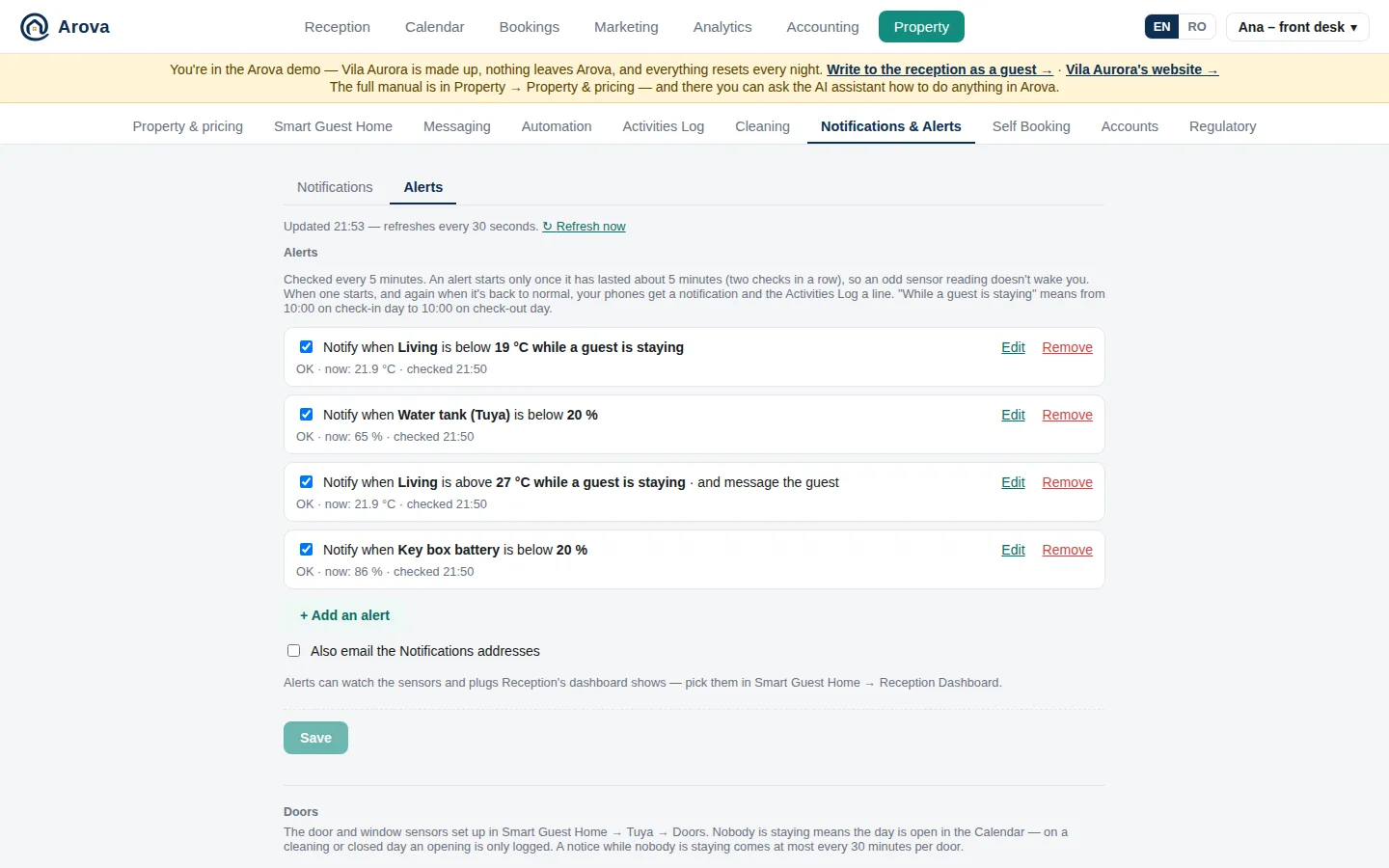
- Add an alert: what to watch (a temperature, the tank's level, the lock's battery, a plug, the gateway, a camera…), the condition (below / above a value, on / off, offline) and When: always, while a guest is staying (10:00 on check-in day → 10:00 on check-out day) or while nobody is staying. E.g. Living below 20 °C while a guest is staying. Each alert can Also notify the cleaning app (its summary then says “· and the cleaning app”). Under the alerts: Also email the Notifications addresses.
- Alerts can watch the sensors and plugs Reception's dashboard shows — picked in Smart Guest Home → Reception Dashboard.
- Doors — below the alerts, each door from Smart Guest Home → Tuya → Doors with its three notifications (first opening by the guest; a push or the cleaning app when it opens while nobody is staying), with its own Save doors.
- An alert sends a phone notification (and the email, if ticked) when it starts and when it's back to normal, and is written in the Activities Log. An alert starts only once its condition has lasted about 5 minutes — two checks in a row, 5 minutes apart — so an odd sensor reading doesn't alert; back-to-normal also needs two checks in a row. Checked every 5 minutes.
- Also message the guest when it starts (alerts “while a guest is staying”) — e.g. above 27 °C: a message to the staying guest, once per alert, in their language — on WhatsApp while their 24-hour window is open, otherwise by SMS (through SMSLink).
[VALUE]becomes the reading.
Self Booking
Property → Self Booking, in two tabs: Self Booking (the booking page) and Affiliates.
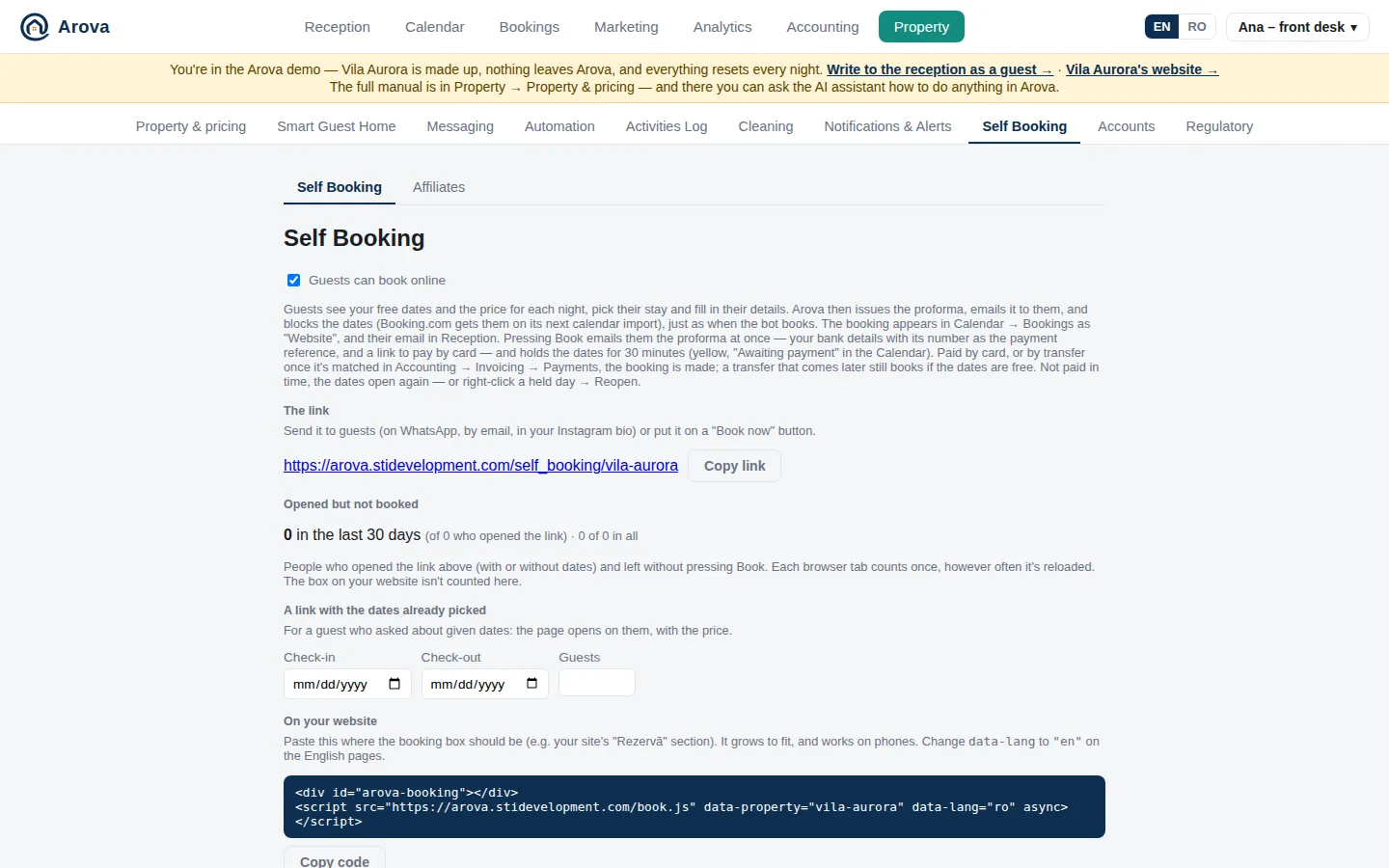
- Guests can book online — guests see your free dates and each night's price, pick their stay, fill in their details and book; Arova issues the proforma and blocks the dates, as when the bot books. They pay in full — or, with check-in 10 days away or more, 50% now and 50% later (50/50): by bank transfer (dates held 30 minutes, booked once paid) or, with card payments on, by card (held 30 minutes while they pay). Taken dates offer the waiting list.
- The link (
/self_booking/your-property) — to send on WhatsApp, by email, in your Instagram bio. The bot offers it to guests too. Opened but not booked counts visitors who left without booking. - A link with the dates already picked — for a guest who asked about given dates.
- On your website — code to paste where the booking box should go (
data-lang="en"on English pages). A partner's code in your site's address (?ref=…) is passed to the box, so affiliate bookings count on your own site too. - Price boxes on your website — your site's weekday / weekend / New Year prices can show the first free dates under each (or SOLD OUT), and their buttons open the booking box on those dates.
Needed first: the 3 photos (Property & pricing) and the company details for proformas.
Affiliates
Property → Self Booking → Affiliates.
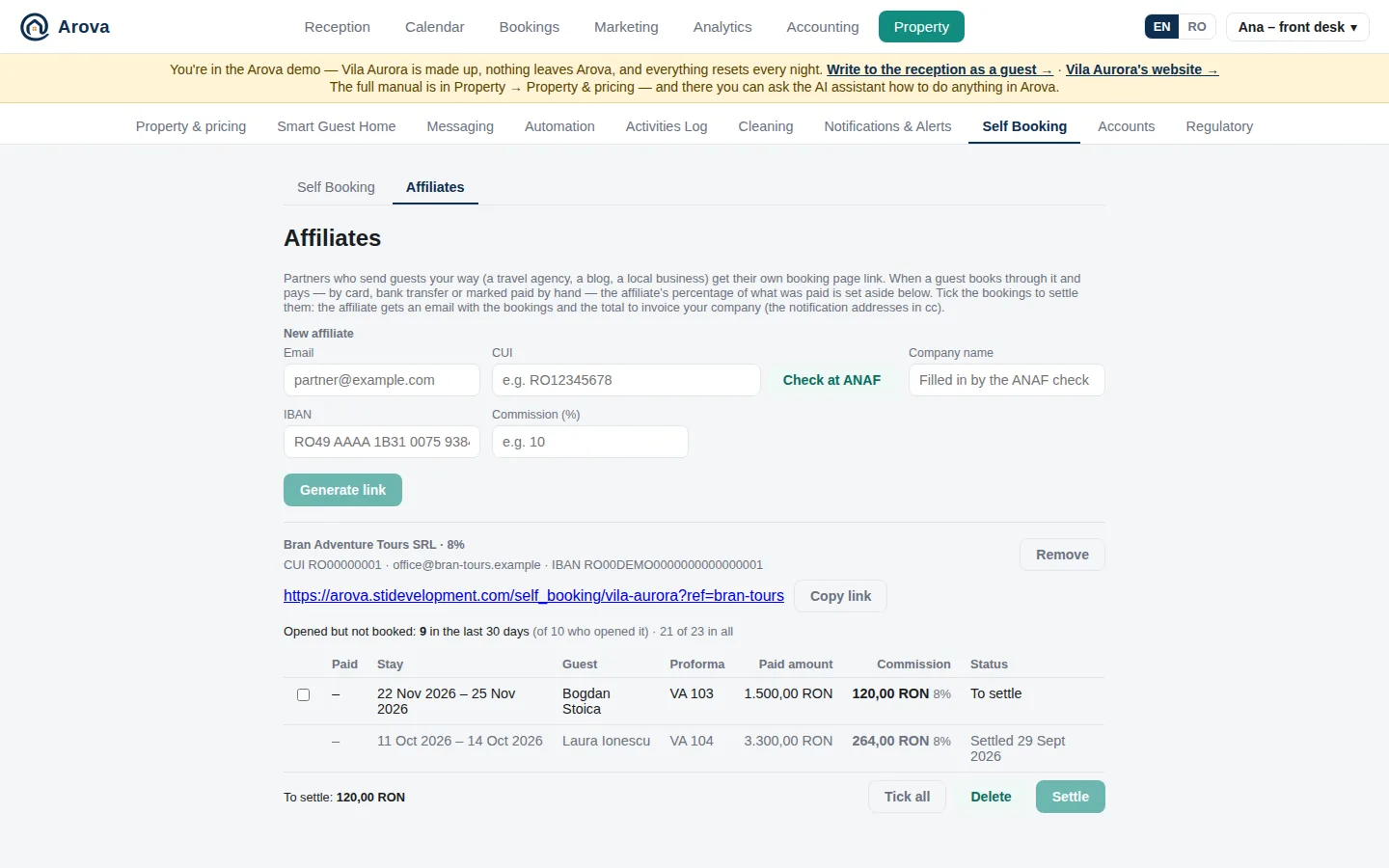
Partners who send you guests (a travel agency, a blog, a local business) get their own booking page link. New affiliate: email, CUI (Check at ANAF fills the company name), IBAN, commission % → Generate link. When a guest books through it and pays, the commission on what was paid is set aside. Tick bookings → Settle: the affiliate gets an email with the bookings and the total to invoice your company (the notification addresses in cc). Delete removes commissions; visits are counted per link. Affiliates never see guest names.
Vouchers
Property → Vouchers, in two tabs: Discount Vouchers (a percentage off) and Gift Vouchers (an amount in lei, sold).
Discount Vouchers
Codes guests type on the booking page for a percentage off the stay's total. New voucher: the Code (3 to 30 letters, digits or dashes; upper or lower case doesn't matter), the Discount (%), and Valid from / Valid until — the day the guest books, both days included (not the dates of the stay). Any number of guests can use a voucher, at the same time too.
- On the booking page, under the total: Have a discount voucher? → the code → Apply. The total shows crossed out, with the discounted one next to it. A code that doesn't exist, hasn't started or has ended is refused with the reason; one that ends while the guest is booking is refused when they book, and the total goes back to the full one.
- Each voucher has a link to the booking page with the code already applied (
?voucher=CODE) — Copy link to send it or post it. - The proforma has the discount on its own line, Reducere voucher CODE X%. Paid by card, the booking keeps the voucher's discount even if the voucher ended in the meantime.
- A guest who came through an affiliate's link always gets the affiliate's discount: the booking page doesn't offer a voucher to them, and a
?voucher=in the link is ignored. - Each voucher shows whether it's Active, starts later or has Ended, and how many bookings used it. Edit changes it (bookings already made keep their price); Remove stops the code working.
Gift Vouchers
Property → Vouchers → Gift Vouchers.
Vouchers for an amount in lei that anyone can buy for someone else on your gift page, paid by card. The code pays part or all of a stay on the booking page; what's left stays on it until it expires.
- Sell gift vouchers — on / off. Values (lei) — the amounts offered (e.g. 500, 1000, 1500). Buyers can choose their own value, from — a value of their own, from that minimum.
- Discount when bought (%) — 0 for none. At 10%, a 1000 lei voucher costs 900 lei; the invoice is for what was paid.
- Validity — for a number of months from purchase, or until a fixed date. A sold voucher's expiry can be changed (Change expiry).
- Gift page — its link (
/gift/your-property,?lang=enfor English) to put on your site, social media or in messages. It needs the booking page and card payments on. - Bought: the voucher is active (a code like
GIFT-XXXX-XXXX), the invoice is issued at once for what was paid — Arova's own (to e-Factura after 48 hours) or a SmartBill draft —, the buyer gets the voucher PDF (code, value, their message, a QR code to the booking page with the code) and the invoice by email from your mailbox, and the person it's for gets the voucher by email on the day the buyer picked (in the property's time zone). The team gets a push; the Activities Log has the purchase, the email to the recipient and each use. - Used: on the booking page, Have a discount voucher? takes a gift code too (or the QR's
?voucher=link). Its balance comes off the total, on the proforma as Voucher cadou CODE; the stay's invoice is only for what's paid on top. While the guest pays, that part is held on the voucher (released if they don't). A voucher that covers the whole stay books it at once — no payment, the proforma says it was paid with the voucher. No 50/50 with a gift voucher. Only free dates show the voucher box (not the waiting list). - Vouchers sold — only paid ones: value (and what was paid), status, what's left, buyer, recipient and when they're emailed, message, invoice, each use with its proforma. PDF, Send again to the buyer, Send to the recipient now, Change expiry, Cancel (it can't be used any more, e.g. after a refund — bookings already paid with it keep it).
Holiday cards (tichete de vacanță) can't buy gift vouchers: they can't be passed on to someone else. Guests can still pay the rest of a stay with them.
Accounts
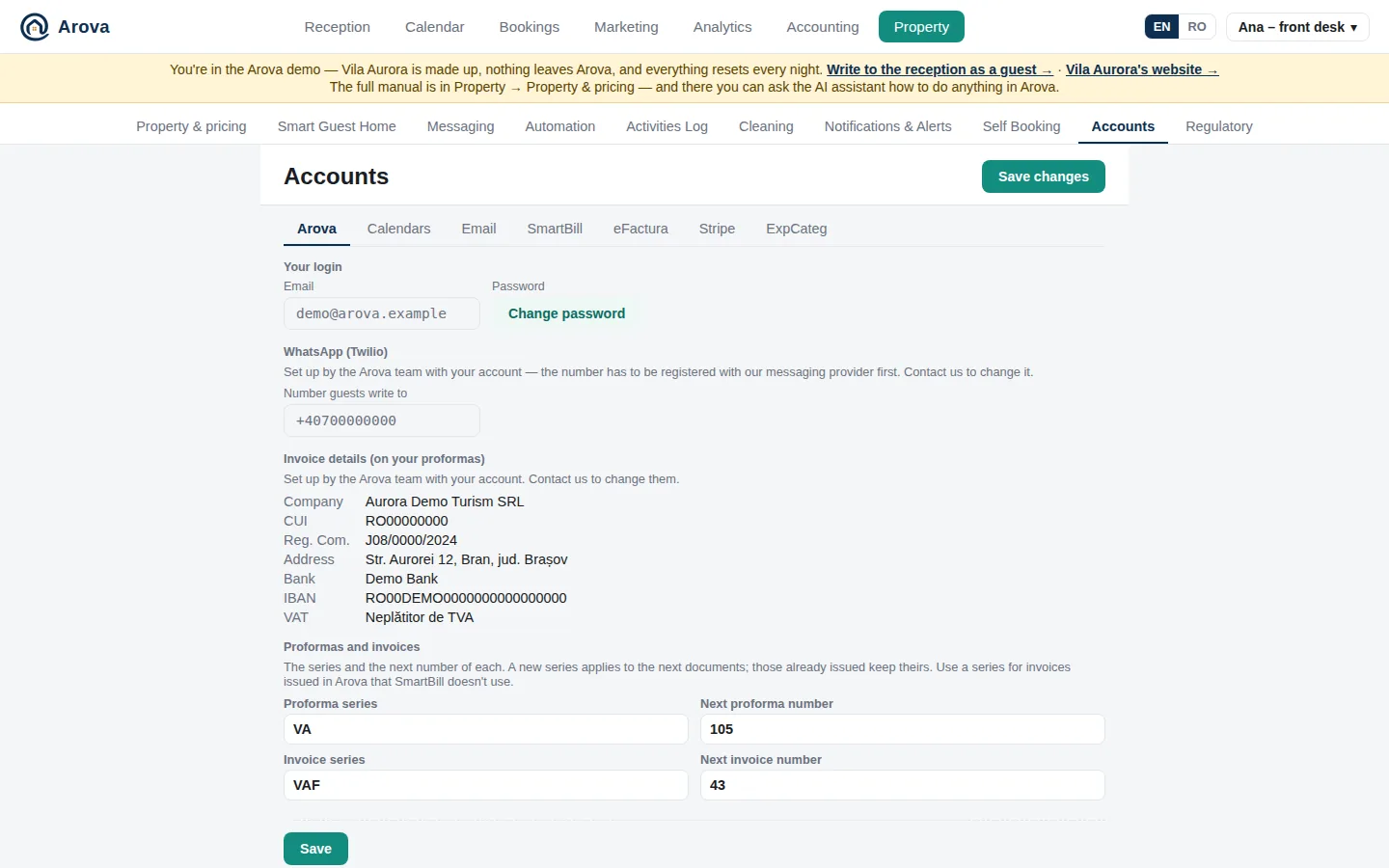
In sections — Arova, Email, SmartBill, eFactura, Stripe, SMSLink, Social media, ExpCateg. Save changes saves them all.
- Arova — Your login (the email, Change password); WhatsApp (Twilio), the number guests write to, set up by the Arova team; Invoice details, your company on proformas (set up by the Arova team); Proformas and invoices, the series and next number of each (a next number can't go back to one already used). (Wi-Fi for guests is in Property & pricing.)
- Booking Platforms — a tab each for Booking.com, Airbnb and Travelminit, each with a Use … checkmark (off: its sync stops and the nights it closed open again), its link and when it was last synced (the sync):
- Booking.com → Arova: your Booking.com iCal export link (Extranet → Calendar → Sync calendars → Export calendar), read every 30 minutes, or Sync now. Arova → Booking.com: the link to paste in the same place → Import calendar. The Booking.com link (your property's page) is for Marketing → Reviews.
- Airbnb — 1. Airbnb → Arova: Airbnb → Calendar → Availability → Connect calendars → Export calendar, paste the link; read every 15 minutes, each reservation becomes a booking. 2. Arova → Airbnb: Import calendar and paste Arova's link. The Airbnb link is your listing's page.
- Travelminit — paste Travelminit's export link (read every 15 minutes) and give Travelminit Arova's
…-travelminit.icslink.
- Email — your own mailbox (e.g. on cPanel): address, password, IMAP and SMTP servers → Connect. Arova checks it every minute; guests' emails appear in Reception and replies go out from it (copy in Sent). It doesn't mark emails as read and only imports emails that arrive after connecting. Website booking and contact forms can post to Reception too. If the address is also used by another of your properties, a note says so: only one of them — your default property, set by the Arova team — handles what arrives, the others ignore it, so nothing is imported twice. A WhatsApp number shared by several of your properties works the same way: a guest who has written before stays with the property they wrote to, a new guest goes to the default property.
- SmartBill — login email, API token, company CIF → Check login, then invoice series, unit (U.M.) and VAT → Save. Use SmartBill for invoicing — ticked: invoices are created as drafts there (and Make an invoice draft for each payment makes them by themselves); unticked: Arova issues the invoices itself, with the series set in Accounts → Arova, and sends them to e-Factura — SmartBill stays connected (its invoices are still read back). Once SmartBill no longer invoices, Arova can carry on its series (the next number after SmartBill's last).
- eFactura — the company's e-Factura account (ANAF's SPV): Connect to ANAF on a computer with the company's qualified certificate (e.g. the DigiSign token) plugged in — the person with SPV rights for the CIF picks it when the browser asks. The CIF is the company's (Accounts → Arova). Once connected, Arova reads the account every hour — invoices sent (also SmartBill's), received from suppliers, and ANAF's errors — and keeps each one's XML and a PDF (ANAF lists only 60 days); they're listed by month, with Read now. It sends the invoices issued in Arova. The login lasts a year: the team gets an email (and a phone notification) 30, 10 and 3 days before, then e-Factura possibly disconnected from ANAF — press Log in at ANAF again with the certificate. Disconnect stops it (the invoices read stay).
- Stripe — Take card payments with Stripe: off, guests pay by bank transfer to the IBAN on the proforma; on, once your Stripe account is ready, proformas also get a Pay by card link and the money goes straight into your own Stripe account. Connect Stripe walks you through Stripe's sign-up (company details, the legal representative's ID, bank account) and comes back here; Stripe Dashboard opens your account. With another of your properties already taking cards: Use the same Stripe account as … (each payment still recorded under its own property). Fees: Arova's percentage plus Stripe's card fee, taken from the payment; refunds are made in your Stripe Dashboard.
- SMSLink — every SMS Arova sends (Marketing, messages to guests outside the WhatsApp window, review reminders) goes only through the property's own smslink.ro account: connection ID, password (stored encrypted), optional sender name, test mode. The SMS left in the Romanian and international packs are shown. The delivery report address to paste in SMSLink is shown too. Without SMSLink, no SMS goes out (a clear error instead).
- Social media — Connect Facebook & Instagram (Facebook's login: the Pages you manage and each one's Instagram professional account) and Connect TikTok; Google Photos (Connect / Disconnect) for picking photos and videos in Social Media Posts. Each account is listed with Disconnect.
- ExpCateg — the expcateg.com API key: turns on the Analytics tab and its bank figures (stored encrypted).
Regulatory
Arrival forms (Romania) — the fișa de anunțare a sosirii și plecării the law asks of every paying guest (Norms of 8 February 2001), kept 5 years and shown to the police on request. Tourist and agrotourism pensions are exempt (they keep the building register), so it's off until you tick Have guests fill in and sign the arrival form. Then the person who booked sees the form on their Smart Guest Home page, before and during the stay, filled in from their ID (place of birth and the ID card's series and number are read too) or from their booking; they complete what's missing and sign with a finger. Receptionist: the name printed on the forms. Below: each month's arrivals, signed or not, each signed form's PDF, and Download the month (ZIP). A booking's page shows its form too.
How Arova handles your guests' data under GDPR and Romanian law: you are the controller, Arova the processor. It lists the data processing terms, the sub-processors (with where and the transfer safeguard), the records of processing to keep and show to ANSPDCP, what Arova does for marketing consent, how long data is kept (ID photos: 90 days after the stay; invoices and proformas: 10 years), what to do if data leaks (notify ANSPDCP within 72 hours), and what stays your job (your terms and privacy page, camera signs, the ANPC/SAL links, answering guests' requests within a month).
The guest's Smart Guest Home page
A private link for each staying guest — sent in the welcome message ({{1}}), given by the bot, or copied from Reception (copy guest link).
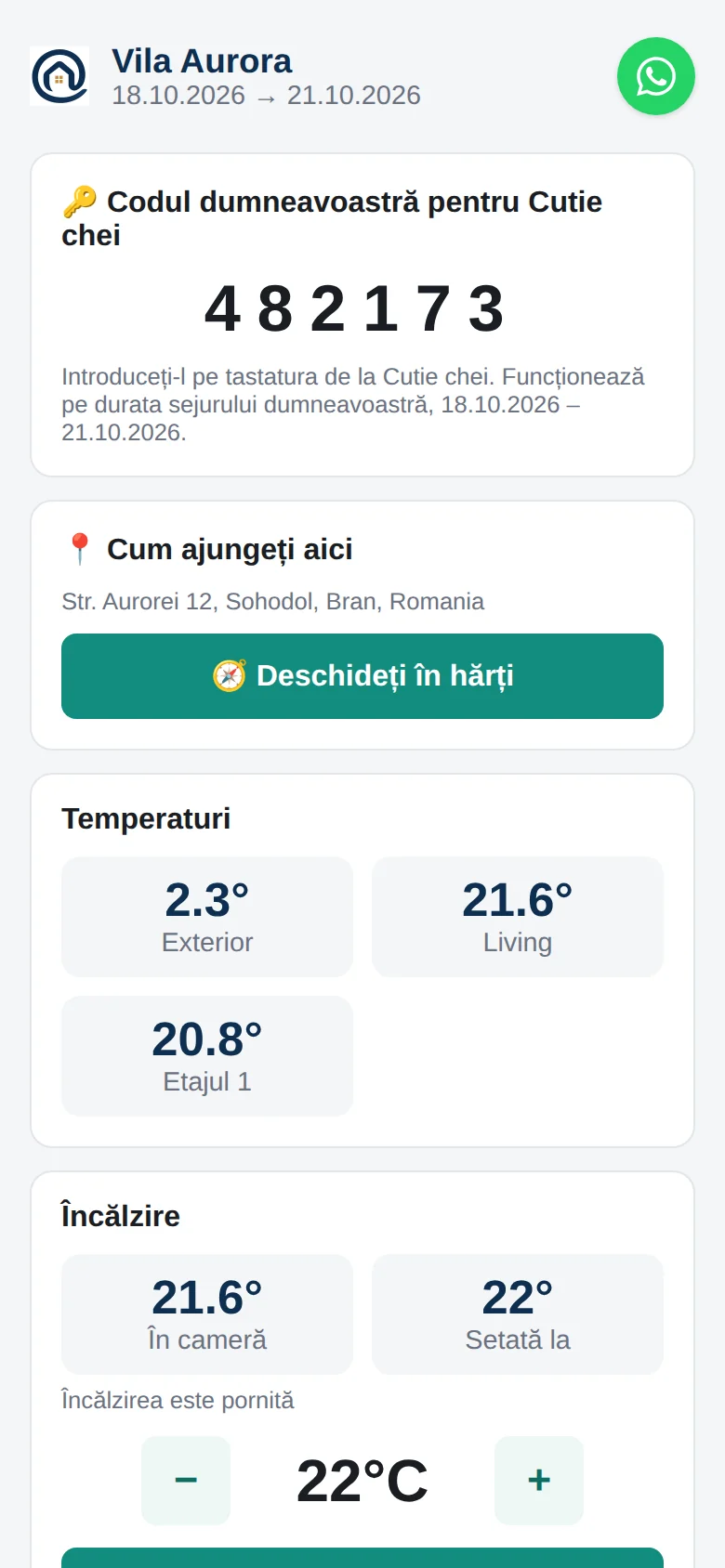
- No login: the link is the key, on at most 8 devices. The controls work only during the stay (10:00 check-in day → 14:00 check-out day, or while marked Staying); before it, the page says they'll appear by themselves when the stay starts.
- From the day the link works, before check-in too: How to get here — Open in maps offers Google Maps, Waze, Apple Maps (iPhone) or the phone's own chooser (Android), from the property's Google Maps link — then the Wi-Fi and your Information for guests (Smart Guest Home → Links), in the guest's language. During the stay they come after the cameras.
- A WhatsApp button next to the property's name opens a chat with you.
- Stay longer? — Extend my stay, with Upsell on and free nights after the stay: before check-in and during it, opening the page to add 1, 2… nights and pay (discounted from check-in day).
- Their key box PIN at the top, before and during the stay, with when it works (with PINs per booking on).
- In the guest's language. Shows what you enabled: temperatures (the readings ticked Guests), the thermostat, cameras, Open gate / Open lock box (with a popup saying it opened — or your number to call if it didn't), the Tapo plugs marked Guests can switch it (the sauna, the garden lights) with on/off buttons, the Wi-Fi with copy buttons (right after the cameras), EV charging (start, live kWh and cost, finish, then the proforma and card link), and buttons to call or WhatsApp you.
- The heating within the range set in Thermostat. + at the maximum says so; the third tap in a row, with the room already within 0.5 °C of the maximum, explains it's already there and that cold radiators are normal once the room has reached the set temperature. Setting it shows a popup that it's set, and the button reads ✓ Heating set to N °C until another temperature is picked; the same temperature again sends nothing. After Open gate the button rests 20 seconds (Opening…) and a popup says the command was sent — so it isn't tapped twice.
- Open lock box on check-out day — with door sensors, any door or window still open is named first.
- Their arrival form, at the very bottom (Romania, with arrival forms on): filled in already; they check it, complete it, sign with a finger, and can download the signed PDF.
- Follow us, at the very bottom: a button for each of your networks (Social media), YouTube in the guest's language. Not shown without any.
- Everything the guest does here is in the booking's Guest activity.
- With Smart Guest Home switched off, the page says it isn't available.
The booking page
/self_booking/your-property, once Self Booking is on.
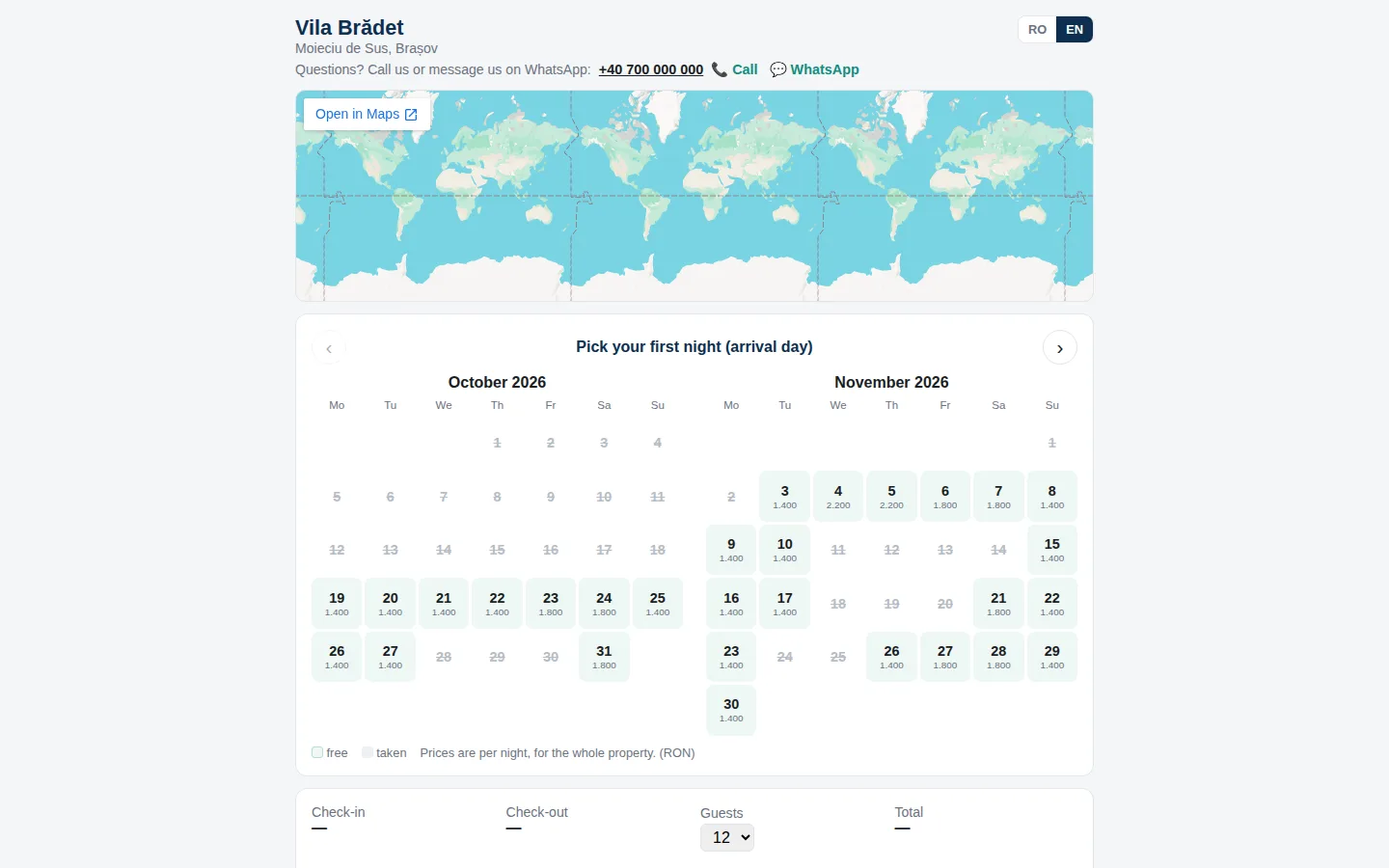
- The guest picks the nights (check-out is the day after the last night), the number of guests, and sees the total.
- They fill in their name, contact, address, optionally their ID details (date and place of birth, nationality, ID series and number — for the arrival form) and a company (checked at ANAF / VIES), and accept your terms (readable on the page).
- Book: the dates are held for 30 minutes (“Awaiting payment” in the Calendar). They pay by card (Stripe, incl. Apple / Google Pay), by holiday card (NETOPIA) or by bank transfer with the proforma emailed at once.
- 50/50: in full by default; with check-in 10 days away or more they can tick 50% now — the proforma is the first half, paying it makes the booking, and the second half's proforma is issued and sent 7 days before check-in (10:00); still unpaid 4 days before, the team is told. A later half isn't sent while an earlier one is unpaid.
- Taken dates (check-in 3 days away or more): instead of Book, Join the waiting list — they're told as soon as the dates free up (Waiting list).
- Have a discount voucher? (free dates only): a discount voucher takes a percentage off; a gift voucher's code takes up to its balance off the total — paying it all books at once.
- Prices are in the property's Currency (RON or EUR, Property & pricing).
- Paid in full: the booking is confirmed, the dates closed (also on Booking.com) and the welcome message sent. Not paid in time, the dates open again — a transfer arriving later still books it if the dates are free.
The gift page
/gift/your-property, once Gift Vouchers are on (RO / EN).
- Your photos on top, then the values (and Another amount, if allowed) with the price after any discount.
- Who it's for: the name on the voucher, their email (optional — Arova sends it) and the day it's sent, and a message (on the voucher and in the email).
- The buyer's details for the invoice (a county for Romania) → Pay by card (Stripe's page).
- Paid: the voucher PDF and the invoice reach the buyer's email; the recipient's email goes on the day chosen.
The survey page
/survey/… — each guest's own link, sent a few days after check-out (or made by hand in Property → Messaging → Surveys).
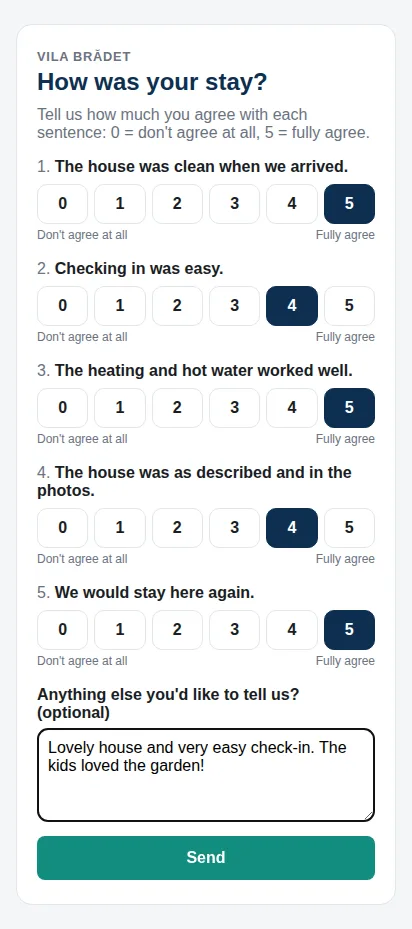
- No login: the link is the key. It's in the guest's language (the statements are translated for them), and answered once — opened again, it thanks them.
- The link works for 30 days after it is sent.
- With Ask happy guests for a review on, a guest who answered every statement with 4 or 5 gets a button to review you on Booking.com or Google on the thank-you page (and an SMS an hour later if they didn't tap it).
- Every statement 4 or 5: “Please like and follow us on social media”, with your networks' buttons (Social media) — when you have any.
- Opening and answering show in the Activities Log; the answers in Property → Messaging → Surveys.
The cleaning team's app (Arova Services)
/services — opened with the code or link from Property → Cleaning.
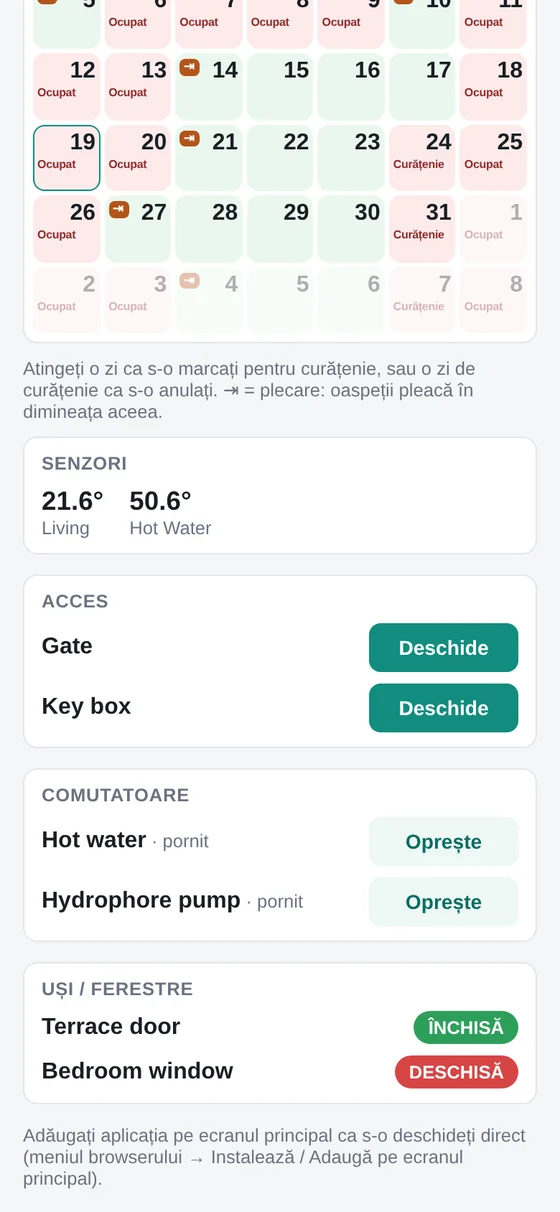
- 🧹 Cleaning report at the top: how the house was left (tap 1 to 5 stars), an optional note, and pictures with the phone's camera (or its gallery; made smaller on the phone, up to 12) → Send. If the connection drops, sending again carries on the same report. It arrives in Property → Cleaning.
- Shows the calendar's free, booked, closed and cleaning days, with ⇥ check-outs — no guest names, no prices.
- Tap a day to mark it for cleaning (it closes for bookings), or a cleaning day to clear it (a day closed on Booking.com or Airbnb then opens in Arova, as in the Calendar). A notice can also come when a door opens while nobody is staying.
- Temperatures below the calendar: the readings ticked Cleaning app (which readings show where), refreshed every minute.
- Access: Open buttons for the gate and key box ticked Cleaning app.
- Switches: the Tapo plugs marked Show in cleaning app (the hot water, the water pump), with Turn on / Turn off.
- Doors / Windows: each door sensor, closed in green, open in red, refreshed every 30 seconds — nothing left open when the team leaves.
- Cameras last: the ones ticked Cleaning app.
- RO / EN at the top right (and on the login screen): the phone's language until switched, then kept on that phone, its notifications too.
- It works on up to five phones per property. It reloads itself after Arova is updated, since phones keep it open for days.
- Add it to the home screen (Android: Install; iPhone: Share → Add to Home Screen) to get a notification for each new, changed or cancelled booking (a stay extended with Upsell as Stay extended — check-out moved from … to …) — and, with key box PINs, when guests leave.
How the bot answers
- It answers from the property's details, rates, the calendar (dates it checked as free are free — it says so plainly), the terms page, the website summary, Reception Training and your past corrections. It doesn't reveal other guests' bookings — it just says the dates aren't available, and names the nights that are when only some are taken.
- It writes in the guest's language, greets only in the first message, uses the right grammatical gender from the guest's name, and ends with its last real sentence — no “Best regards”.
- It checks minimum stays, the booking window and legal holidays; a day without a month means the next time that day comes.
- Asked “when are you free?”, it gives the first free weekday stay and weekend (the same search as the price boxes on your website) with the booking link — not a list of every free period.
- It offers the booking page, asks for an ID when dates are agreed, issues the proforma, and moves a reservation when the guest asks.
- For staying guests it acts on smart-home requests (heating, gate, lock, cameras, the plugs guests can switch), quotes the temperatures ticked Guests, and gives the Wi-Fi.
- It doesn't confirm assumptions about rooms, beds or layout that the property info doesn't support.
- It steps back for complaints and problems (see above) and doesn't answer a plain thank-you.
What happens on its own
| When | What |
|---|---|
| Every minute | The mailbox is checked for guests' emails, bank notifications and utility bills (to Accounting); due reminders are emailed; expired booking-page holds are released. |
| Every 5 minutes | The marketing question to guests whose WhatsApp window is about to close; check-out messages; plug rules; surveys and review SMS; EV charging checks; guests' key box PINs set and removed, and the key box's openings read (arrivals, departures); alerts (Notifications & Alerts). |
| Every 2 minutes (doors: as it happens) | Door and window changes arrive the moment they happen (Tuya's push; the report logs read back every 6 hours and after a reconnect) — openings logged, notices sent; a door open with the heating on checked every few minutes; scheduled instalment proformas whose time has come are issued; WhatsApp deliveries checked; invoices whose 48 hours are over go to e-Factura, and ANAF's answers are asked for. |
| Every 5 minutes (water tank) | Each watched tank's level is kept (3 days) and its rules checked: more than x% down in y hours, read errors left out → the log, the guest and / or the team's email. |
| Every minute (Marketing, social) | Marketing messages and SMS scheduled with Send later go out (up to 2 hours late if the server was down, never later); scheduled social media posts are published. |
| Every 5 minutes (guests) | The waiting list: dates free again are told to the guests waiting; the Upsell message to guests staying, on the night and from the hour set. |
| Every 15 minutes | Airbnb's and Travelminit's calendars are read (Airbnb: new, moved and cancelled reservations). |
| Every 30 minutes | Booking.com's calendar is read; SmartBill's newly issued invoices are read back. |
| Every hour | The e-Factura account is read (sent, received, errors); with Arova invoicing, sent invoices are tied to their bookings. 30, 10 and 3 days before the ANAF login's year ends, the team is emailed. |
| The evening before check-out (18:00 unless changed in Automation) | The check-out message goes to the guest on WhatsApp and/or email; with no way to reach them (e.g. Booking.com) or with the automatic sending switched off for that booking, the team gets a reminder email instead. |
| Check-in and check-out days, at each rule's hour | The plug rules: plugs switched on or off, retried for 2 hours, then the team is notified. A check-out “off” rule is skipped on a changeover day. |
| N days after check-out, at the hour set | The survey to each guest with a phone or email, once; an hour after a happy answer, the review SMS (09:00–21:00). |
| Smart Guest Home access ends (14:00 on check-out day) | The final stay report is made and kept (English and the property's default language), emailed to the team if Email the stay report is on. |
| The cleaning team sends a cleaning report | It arrives in Property → Cleaning to be matched; emailed with its pictures if Email the cleaning report is on. |
| A guest opens the key box | The first time: arrived (notification, email if ticked). On the morning of check-out: left (notification, email, the cleaning app). |
| An extension paid (Extend my stay) | The booking's check-out moves: the cleaning, key box PIN and Smart Guest Home link follow; the check-out message goes again the evening before the new date; the cleaning app and the team are told. |
| A booking paid in full | The welcome message with the guest's Smart Guest Home link (for instalments, once all are paid). |
| A payment confirmed | Arova invoicing: the invoice issued and sent to the guest, then to e-Factura 48 hours later. With SmartBill and its option on: an invoice draft there. (An instalment's, once its proforma is paid in full.) |
| A new booking (any channel) | Cleaning nights closed before (free nights only) and after it, as set in Property & pricing → Pricing & Availability. |
| A new Booking.com booking | An email to the team with the welcome message to send from Booking.com. |
| Daily | The terms page is re-read; old ID photos are deleted 90 days after the stay. |
| Weekly | The market check (Marketing), social posts; reviews every few days. |